
Free Works in Chat Help Free and Pro.
If you want no floating chat on your site, turn the bubble off and keep the WhatsApp buttons.
Set the site to no floating chat #
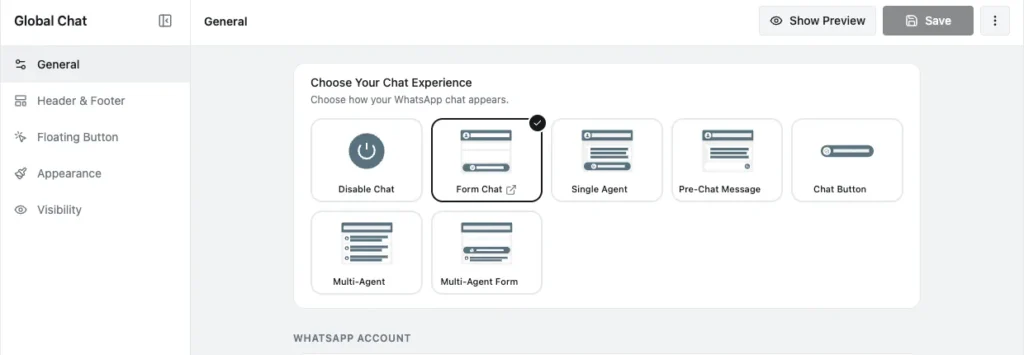
In WhatsApp Chat → Floating Chat → Global Chat → General, choose Disable Chat under Choose Your Chat Experience and save. The chat bubble disappears from pages without a Custom Chat. The WooCommerce buttons, shortcode, block and Elementor widget keep working.
To hide the chat only on some pages, use the visibility rules or assign a Custom Chat set to Disable Chat.
Other ways to hide the chat #
- Only on phones or only on computers: Show Chat On in the Visibility tab.
- On some pages: the visibility rules (blog, 404 and search pages and posts in the free version; pages, products, categories and tags in Pro).
- Show a different chat instead: a Custom Chat.
No floating chat: still have a question? Ask in the Chat Help forum on WordPress.org (opens in a new tab), or open a support ticket with Pro.
