

Black Friday Sale: up to 80% off every Pro plan

Ends Dec 15 at 6:59 pm EST. See pricing

WhatsApp Pre-Chat Message for WordPress

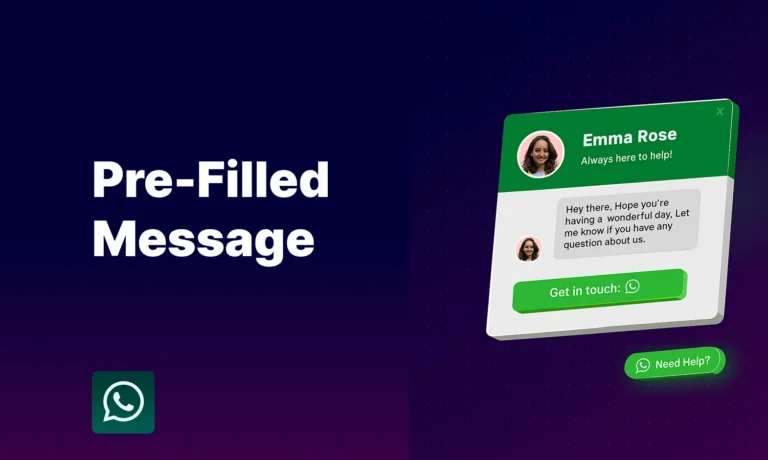
Visitors type their question in the chat bubble first. When they press send, WhatsApp opens with their message already written. The Pre-Chat Message layout is in the free version.

The chat in the bottom corner of this page is the real Chat Help plugin with the Pre-Chat Message layout.

How it works

What visitors see

  • A greeting

    A message from you at the top of the chat window.

  • One question box

    A text box with your placeholder, and an option to make it required.

  • Straight to WhatsApp

    The visitor’s text goes into the pre-filled message through the {agentMessage} variable.

What you can change in the pre-chat message

  • Message from the agent
  • Input placeholder; required or optional
  • Pre-filled message with {agentMessage} and other variables
  • Save the message as a lead
  • GDPR consent checkbox
  • Opening hours with a timezone

Use cases

Who it is for

  • Quick questions

    Visitors write their question in your chat window instead of facing an empty WhatsApp chat.

  • Context for you

    The pre-filled message can add the page title or address next to their question.

  • Lighter than a form

    One box instead of several fields, when you want a question, not a lead form.

Compare

Which layout fits?

All layouts at a glance. Switch a chat to another layout at any time.

Form ChatSingle AgentPre-Chat MessageThis pageChat ButtonMulti-Agent List / GridMulti-Agent Form
Opens a chat window firstIncludedIncludedIncludedNot includedIncludedIncluded
Several people, each with their own numberNot includedNot includedNot includedNot includedIncludedIncluded
A form before the chatIncludedNot includedNot includedNot includedNot includedIncluded
Visitor types the question in the windowNot includedNot includedIncludedNot includedNot includedNot included
Saves leads in WordPressIncludedNot includedIncludedNot includedNot includedIncluded
In the free versionIncludedIncludedIncludedIncludedNot includedNot included

Set up

Set up the pre-chat message in three steps

  1. Add a chat

    Go to Chat Help → Add Chat, give it a title, choose the layout and enter your WhatsApp number or group link.

  2. Write the greeting

    Set the message from the agent, the placeholder of the question box and the pre-filled message.

  3. Choose where it shows

    Publish it and assign it to pages, posts or products, or set it up as the Global Chat for the whole site.

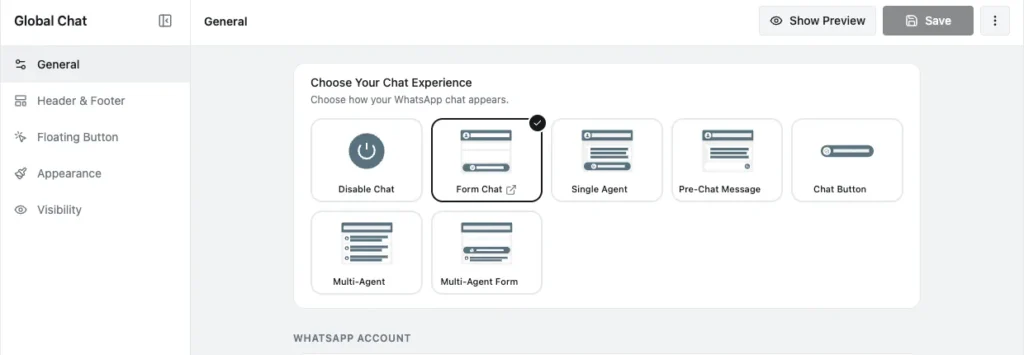
Pre-Chat Message settings: Coding skills: Who should use: No floating chat: The Choose Your Chat Experience setting with the layout options
Pick the layout in the Choose Your Chat Experience setting of a chat.

Step-by-step: Pre-chat message · Variables in non-form layouts

Video

Watch how it works

Add WhatsApp chat to WordPress: complete Chat Help setup guide · Watch on YouTube (opens in a new tab)

From WordPress.org

What users say

  • The plugin works perfectly and the team is very professional. I purchased the Pro version and the experience has been excellent. The plugin works perfectly and the team is very professional. I requested a couple of new features and they developed them without any issues and in a short time.

    uomiguel (opens in a new tab) on WordPress.org
  • Awesome Plugin for WhatsApp Floating Chat & WooCommerce Order. This plugin worked great for my website, Order Via WhatsApp. It also provides a floating chat icon, which is helpful as well.

    mohsinworld (opens in a new tab) on WordPress.org
  • Effective for WhatsApp Chat Support! I am using this plugin to provide support to my customers through WhatsApp. It’s really effective and they can connect with me very easily using their WhatsApp. They don’t need to save our number manually.

    firststepstogether (opens in a new tab) on WordPress.org

Read all reviews on WordPress.org (opens in a new tab)

Questions about the pre-chat message

Yes. It is in the free plugin.

Your pre-filled message, with their typed question in place of {agentMessage}. They can still edit it before sending.

Yes. Tick Required and the chat won’t open WhatsApp until something is typed.

Yes. Switch on saving the message as a lead.

Yes. Add {currentTitle} or {currentURL} to the pre-filled message.

Turn visitors into WhatsApp conversations

Start free from WordPress.org. Upgrade to Pro for team chat with several agents, the Advance button, dark mode, unlimited form fields, visibility rules and webhooks.

Need Help? Chat with us
SP
Sarah C. Patrick
Typically replies within a day.
Hello! How can we help? Type your question and we’ll answer on WhatsApp.