


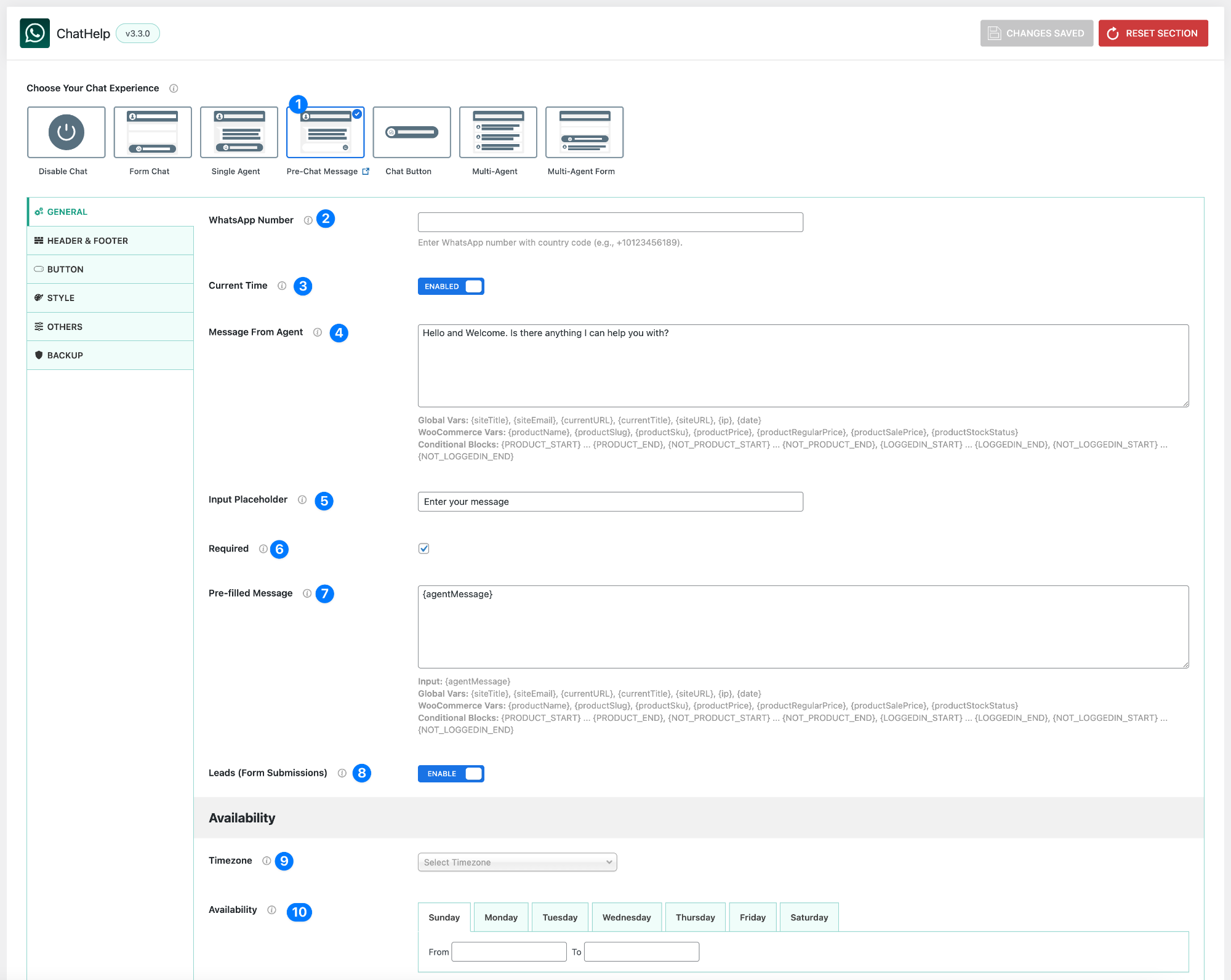
The pre chat message WhatsApp WordPress layout in ChatHelp allows users to type a message before opening WhatsApp, helping you capture intent early and start more meaningful conversations.
Instead of sending users directly to WhatsApp, this layout creates a smoother and more guided chat experience.
1. Layout Selector – Pre-Chat Message #
Choose the Pre-Chat Message layout from the Floating Chat Layout options.
This layout is ideal if you:
- want users to type before chatting
- want more meaningful conversations
- want to optionally capture leads
2. WhatsApp Number #
Enter your WhatsApp number in international format.
Example:
+880123456789
👉 This is the number where all messages will be sent.
3. Current Time #
Enable or disable the display of the user’s local time inside the chat interface.
- Enabled → Shows current time
- Disabled → Hides it
4. Message From Agent #
This is the welcome message shown when the chat opens.
Example:
Hello 👋 Welcome! Is there anything I can help you with?
You can also use dynamic variables such as:
- {siteTitle}
- {currentURL}
- {date}
👉 Keep this message short, friendly, and inviting.
5. Input Placeholder #
This is the placeholder text inside the input field.
Example:
Enter your message
👉 Helps guide users on what to type.
6. Required #
Enable this option to make the input field mandatory.
- Enabled → User must type a message before continuing
- Disabled → User can proceed without typing
👉 Recommended to keep enabled for better engagement.
7. Pre-filled Message #
This is the message that will be sent to WhatsApp.
By default:
{agentMessage}
👉 This captures the user’s input and passes it directly into WhatsApp.
You can also combine variables:
Example:
Message: {agentMessage}
Page: {currentURL}
8. Leads (Form Submissions) #
Enable this option to store user messages.
When enabled:
- Messages are saved in:ChatHelp → Leads
- You can view and manage submissions
Stored data includes:
- Message content
- Date & time
- Device & browser
- IP address
🟢 Availability Settings #
9. Timezone #
Select your timezone to match your working hours.
👉 Ensures correct availability display regardless of visitor location.
10. Availability #
Set the days and times when chat is available.
- Choose start and end time for each day
- Example:
09:00 → 18:00 - To disable a day:
00:00 → 00:00
🧠 How It Works #
- User clicks the floating chat
- Chat window opens with agent message
- User types a message
- Clicks to continue
- WhatsApp opens with the message pre-filled
- (Optional) Message is stored as a lead
🎯 Best Use Cases #
- Freelancers and consultants
- Customer support teams
- Service-based businesses
- Agencies and marketers
- Anyone using WhatsApp for lead generation
💡 Best Practices #
- Keep the input required
- Use a friendly welcome message
- Keep placeholder text clear
- Avoid long or complex instructions
- Enable Leads to track conversations
🚀 Summary #
The Pre-Chat Message layout helps you:
- capture user intent before chat
- improve conversation quality
- increase engagement
- optionally store leads
It turns a simple chat button into a smarter, more effective communication tool.
This layout helps you start better conversations by letting users speak first—before WhatsApp even opens.


