Black Friday Sale: up to 80% off every Pro planBlack Friday Sale: up to 80% off every Pro planBlack Friday Sale has ended. Regular prices apply: see pricing.
16d:05h:46m:00sEnds Dec 15 at 6:59 pm EST.See pricing
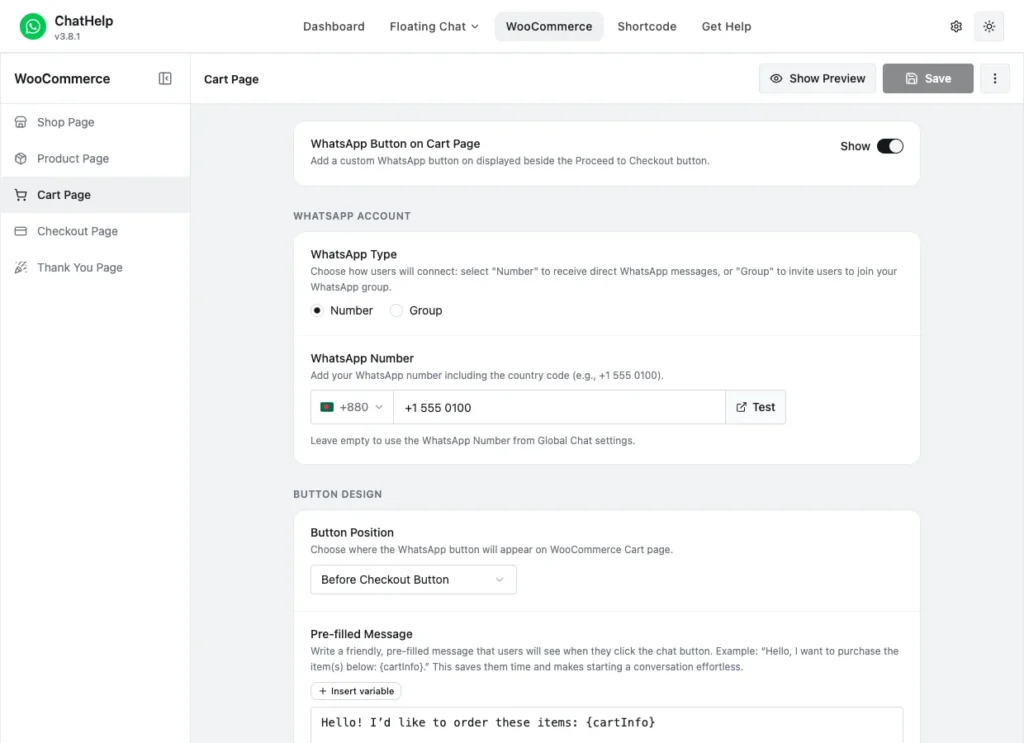
Choose how users will connect: select "Number" to receive direct WhatsApp messages, or "Group" to invite users to join your WhatsApp group. Options: Number, Group.
Free
WhatsApp Number
Add your WhatsApp number including the country code (e.g., +880123456189).
Free
WhatsApp Group
Invite your visitors to join your WhatsApp group by adding the group’s invite URL here.
Choose where the WhatsApp button will appear on WooCommerce Cart page. Options: After Checkout Button, Before Checkout Button.
Free
Pre-filled Message
Write a friendly, pre-filled message that users will see when they click the chat button. Example: “Hello, I want to purchase the item(s) below: {cartInfo}.” This saves them time and makes starting a conversation effortless.
Free
Include With Cart Info
Select which cart details should be added to the WhatsApp pre-filled message. Options: Product URL, Tax Amount.
This will only display WhatsApp button and hide the Proceed to Checkout button
Free
WooCommerce Button Style
Choose a style for the floating chat button from the available design options. Options: Icon, Simple Button, Advance Button (Pro).
Free
Agent Photo Type
Choose how the agent photo is displayed: Default: Use the plugin’s built-in photo. Custom: Upload your own image. None: No photo will be shown. Options: Default, Custom, None.
Pro
Agent Photo
Upload an agent photo to display inside the chat bubble.
Pro
Button Top Label
Enter the agent’s name to display inside the chat bubble.
Pro
Button Main Label
Enter the text to display inside the floating chat button.
Free
Icon for Circle Button
Select an icon to display inside the circular chat button.
Free
Circle Button Native Icon
Choose a native icon from the built-in library of 2000+ icons to display inside the circular chat button.
Pro
Circle Button Custom Icon
Upload or select a custom icon from your media library to display inside the circular chat button.
Pro
Icon for Button
Select an icon to display inside the floating chat button.
Free
Button Native Icon
Choose a native icon from the built-in library of 2000+ icons to display inside the floating chat button.
Pro
Button Custom Icon
Upload or select a custom icon from your media library to display inside the floating chat button.
Control where the chat button is visible. Choose to show it on all devices or restrict it to desktop, tablet, or mobile only. Options: Everywhere, Desktop Only, Tablet Only, Mobile Only.
Start free from WordPress.org. Upgrade to Pro for team chat with several agents, the Advance button, dark mode, unlimited form fields, visibility rules and webhooks.