
WhatsApp Advance Button for WordPress
A floating button with your photo, a short top label such as “Sarah / Sales”, your main line and an online or offline status. It looks like a person, not a widget. The Advance Button is a Pro style.
The button in the bottom corner of this page is the real Chat Help Pro plugin with the Advance Button style. It opens WhatsApp directly.
The Advance style, made with the shortcode

The button in the corner of this page is live too.
Set up
Set up the WhatsApp advance button in three steps
Add a chat
Go to Chat Help → Add Chat, give it a title, choose the layout and enter your WhatsApp number or group link.
Choose Advance Button
Under Floating Button pick Advance Button, then add the photo, labels and status text.
Choose where it shows
Publish it and assign it to pages, posts or products, or set it up as the Global Chat for the whole site.
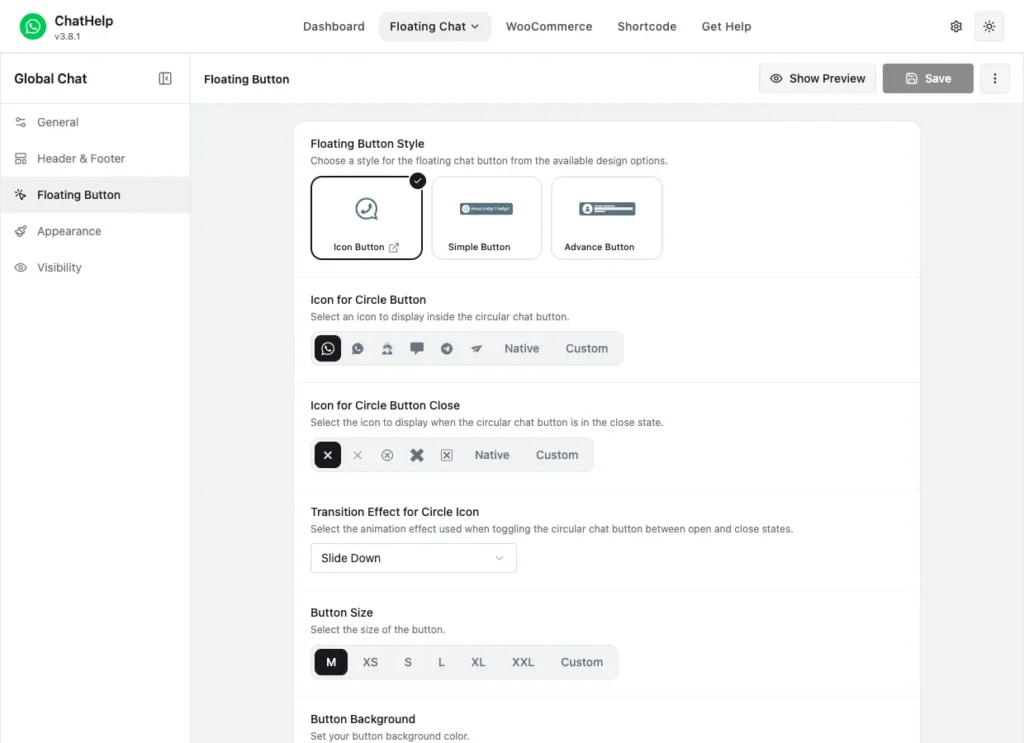
Step-by-step: Floating button
From the blog
Related guides
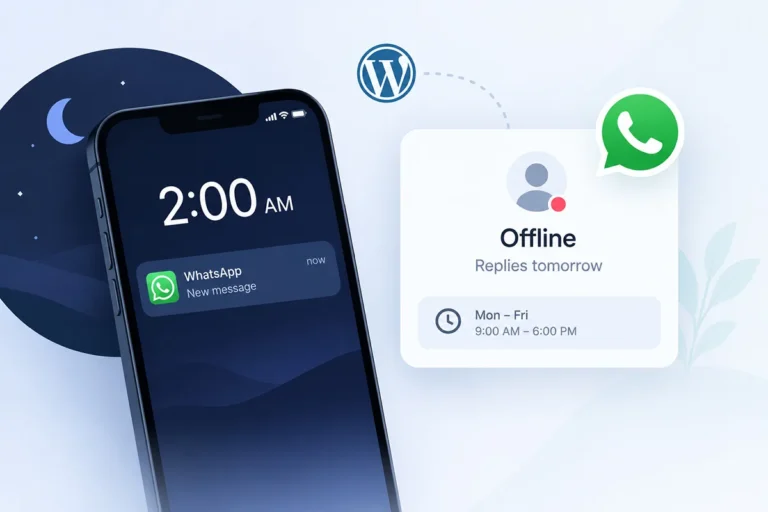 How to Set WhatsApp Chat Availability Hours (So You’re Not Pinged at 2 AM)It’s 2 AM. A WhatsApp notification lights up the phone. The business owner ignores it, rolls over, goes…Read the guide
 Where to Place Your WhatsApp Chat Button for Maximum ClicksThe WhatsApp button has been live for weeks. Analytics show almost nobody clicks it. The easy conclusion is…Read the guide
 7 WhatsApp Chat Button Best Practices That Boost ConversionsA WhatsApp button only converts when it's set up deliberately. Learn seven best practices — smart placement, clear…Read the guide
From WordPress.org
What users say
The plugin works perfectly and the team is very professional. I purchased the Pro version and the experience has been excellent. The plugin works perfectly and the team is very professional. I requested a couple of new features and they developed them without any issues and in a short time.
uomiguel (opens in a new tab) on WordPress.org Awesome Plugin for WhatsApp Floating Chat & WooCommerce Order. This plugin worked great for my website, Order Via WhatsApp. It also provides a floating chat icon, which is helpful as well.
mohsinworld (opens in a new tab) on WordPress.org Effective for WhatsApp Chat Support! I am using this plugin to provide support to my customers through WhatsApp. It’s really effective and they can connect with me very easily using their WhatsApp. They don’t need to save our number manually.
firststepstogether (opens in a new tab) on WordPress.org