
WhatsApp Button for WooCommerce Product Pages
Add a WhatsApp button to every product page. The message already holds the product’s name, SKU, price and stock, and on variable products the options the shopper picked. The product page button is in the free version.
Open a demo product to see the real button under Add to Cart.
Live demo store
Try it on a product
These are the demo store’s products with the plugin’s shop button. Open one to see the product page button.



How it works
What it does
Where you want it
14 places on the product page, such as before or after the Add to Cart form or after the short description.
Product details
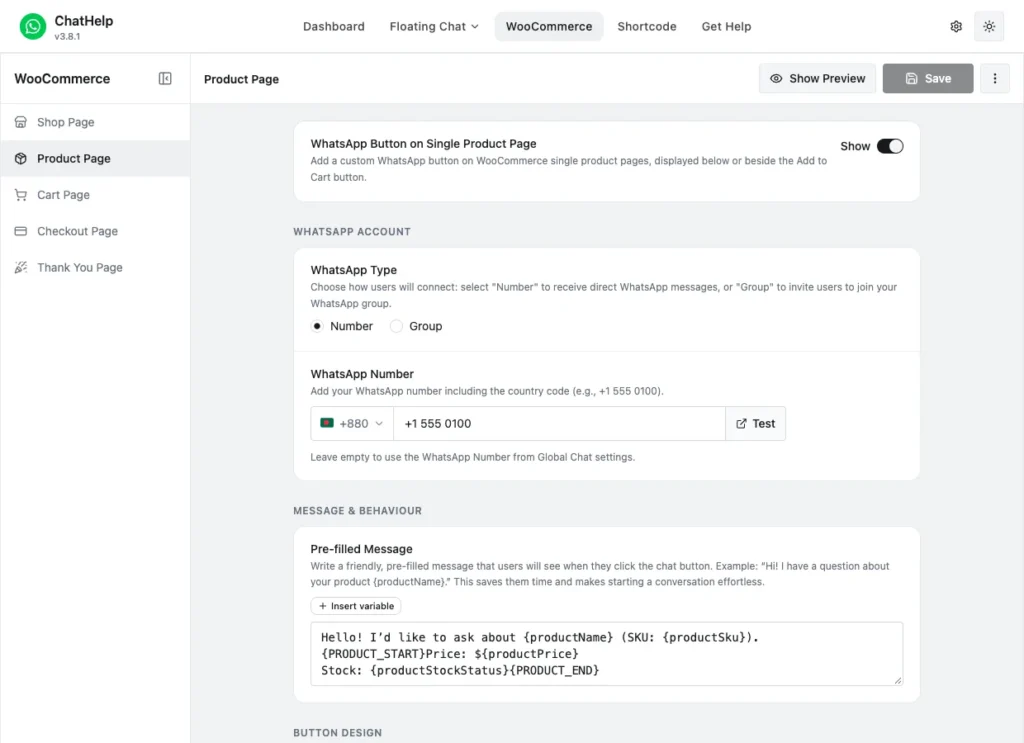
{productName}, {productSku}, {productPrice}, {productStockStatus} and the picked options with {productAttributes}.
Three styles
Icon and Simple, or the Advance style with a photo Pro.
What you can change in the WhatsApp button for WooCommerce
- Number or group and pre-filled message
- 14 positions on the product page
- Icon, Simple or Advance (Pro) style
- Labels, colours, border and size
- Show on desktop, tablet or mobile only
- Variation-aware {productAttributes} and {productAttributeValues}
Use cases
Who it is for
Products with questions
Shoppers ask about sizes, colours or delivery before they buy.
Variable products
The message carries the options the shopper picked.
Selling by chat
Take the order in WhatsApp with the product details already in the message.
Set up
Set up the WhatsApp button for WooCommerce in three steps
Switch it on
Go to Chat Help → WooCommerce → Product Page and turn on the button.
Write the message
Use product variables, and {SALE_START}…{SALE_END} for text only on products on sale.
Pick the position
Choose where the button sits and its style.
Step-by-step: WooCommerce button · Variables in the WooCommerce message
Video
Watch how it works
Add WhatsApp chat to WordPress: complete Chat Help setup guide · Watch on YouTube
From the blog
Related guides
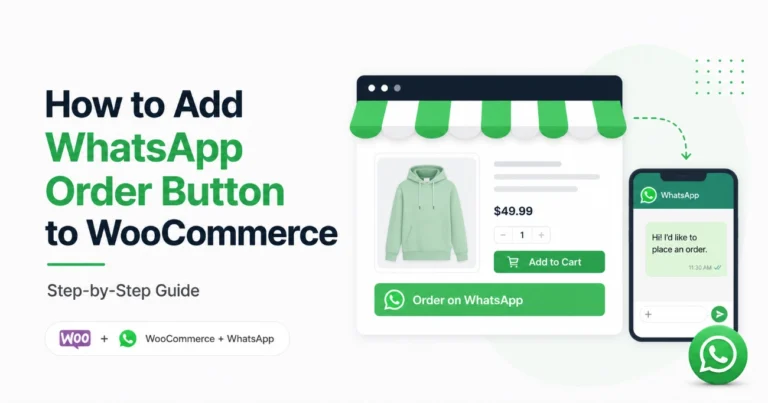 How to Add WhatsApp Order Button to WooCommerce — Step by StepYour customers are already on WhatsApp. The question is whether they can reach you there when they’re ready…Read the guide
 How to Add WhatsApp Chat to WooCommerce Product Pages (Step-by-Step)WhatsApp chat WooCommerce functionality has become a must-have for modern online stores. Customers expect fast answers before they…Read the guide
 How to Reduce WooCommerce Cart Abandonment With WhatsApp ChatPicture your checkout as a physical store. Seven out of ten people fill a basket, walk to the…Read the guide
More demos
More buttons and features
- Icon Button FreeA round WhatsApp icon in the corner that opens WhatsApp.Open the live demo
- Simple Button FreeThe WhatsApp icon with your own label, such as “Chat with us”.Open the live demo
- Advance Button ProA floating button with your photo, labels and online status.Open the live demo
- Button Shortcode FreeA WhatsApp button anywhere shortcodes work.Open the live demo
- Button Block FreeA WhatsApp button block for the block editor.Open the live demo
- Elementor Widget FreeA WhatsApp button widget for Elementor.Open the live demo
- WooCommerce Buttons FreeButtons on the shop, cart, checkout and thank-you pages.Open the live demo
- Desktop QR Code FreeDesktop visitors scan a code and continue on their phone.Open the live demo
- Message Variables FreePage, product, cart and form answers in the message.Open the live demo
- Analytics and Leads FreeViews, conversions and every lead in WordPress.Open the live demo
- All features Every Chat Help feature on one page.See every feature
- Free vs Pro What the free plugin does, and what Pro adds.Compare
From WordPress.org
What users say
The plugin works perfectly and the team is very professional. I purchased the Pro version and the experience has been excellent. The plugin works perfectly and the team is very professional. I requested a couple of new features and they developed them without any issues and in a short time.
uomiguel on WordPress.org Awesome Plugin for WhatsApp Floating Chat & WooCommerce Order. This plugin worked great for my website, Order Via WhatsApp. It also provides a floating chat icon, which is helpful as well.
mohsinworld on WordPress.org Effective for WhatsApp Chat Support! I am using this plugin to provide support to my customers through WhatsApp. It’s really effective and they can connect with me very easily using their WhatsApp. They don’t need to save our number manually.
firststepstogether on WordPress.org
Questions about the WhatsApp button for WooCommerce
Yes. {productAttributes} sends the options the shopper picked, such as “Color: Red, Size: M”, and the button’s link updates when they change their choice.
The product page button shows on every product. Use a Custom Chat assigned to chosen products for a floating chat on only some of them.
Yes. The Advance style and custom icons are Pro.
Yes. Put that text between {SALE_START} and {SALE_END}.
