


Layout Assignment lets you control exactly where each chat layout appears on your site. You can target specific pages, individual posts from any post type, or entire categories and taxonomy terms — all without touching any code.
Where to Find the Layout Assignment Feature #
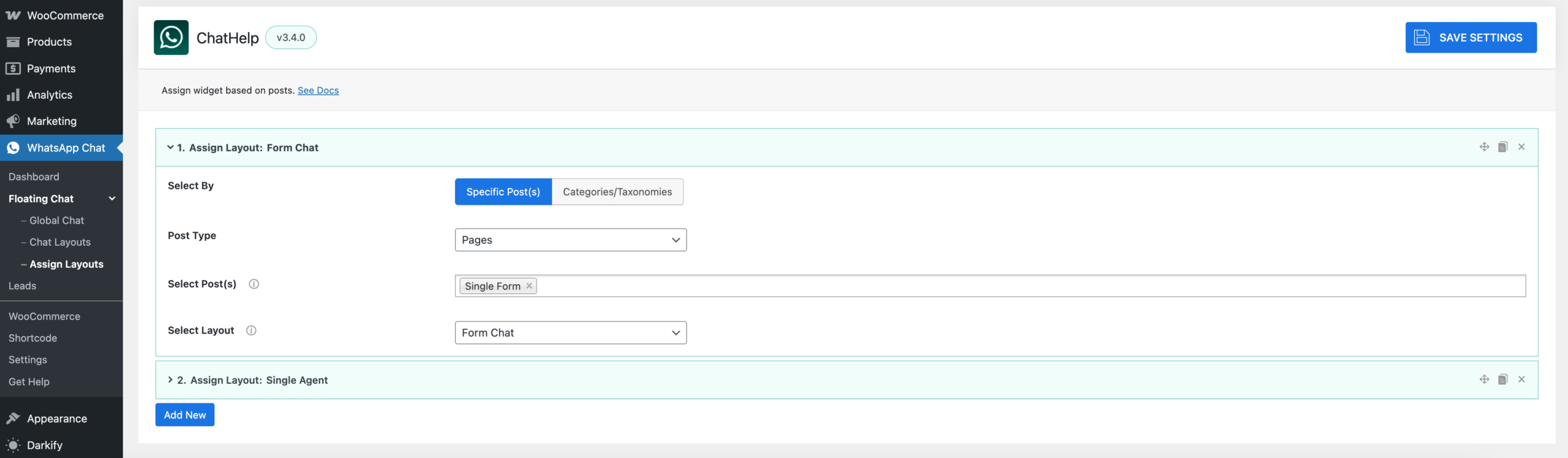
Go to WhatsApp Chat → Floating Chat → Assign Layouts.
How It Works #
Each assignment rule connects one chat layout to a specific set of pages or posts. You can create as many rules as you need. Rules are evaluated in order — the first matching rule wins.
👉 Before creating an assignment, make sure you have at least one chat layout created under Floating Chat → Chat Layouts → Add New Widget. See Multiple Chat Layouts for details.
Creating an Assignment Rule #
- Go to WhatsApp Chat → Floating Chat → Assign Layouts
- Click Add New to create a new assignment rule.
- Choose how to target content using the Select By option:
Option A — Specific Post(s) #
- Set Select By to Specific Post(s).
- Choose a Post Type (Page, Post, Product, or any custom post type registered on your site).
- Under Select Post(s), search for and select the individual pages or posts where this layout should appear. You can select multiple.
Option B — Categories / Taxonomies #
- Set Select By to Categories/Taxonomies.
- Under Select Categories/Taxonomies, choose one or more taxonomy terms. All posts belonging to those terms will show the assigned layout.
- Supported taxonomies include Categories, Tags, WooCommerce Product Categories, and any custom taxonomy on your site.
Select the Layout #
- Under Select Layout, choose which chat layout to display for this assignment rule.
- Click Save Changes.
Managing Multiple Rules #
You can create multiple assignment rules to cover different sections of your site:
- Click Add New again to add another rule.
- Reorder rules by dragging them — the first rule that matches a page is the one that applies.
- To remove a rule, click the Remove button on that rule’s row.
Example Setup #
| Rule | Select By | Target | Layout |
|---|---|---|---|
| 1 | Specific Post(s) | Homepage, About page | Homepage Promo |
| 2 | Specific Post(s) — Post Type: Product | All products (select all) | Sales Team |
| 3 | Categories/Taxonomies | Category: Support | Support Agent |
Notes #
- If a page matches no rule, no floating chat widget appears on that page.
- WooCommerce product pages use the Product post type. Select them via Specific Post(s) → Post Type: Product.
- Deleting a layout that is referenced in an assignment rule will cause that rule to be silently skipped on the frontend. Update or remove the rule to avoid confusion.
FAQ for Layout Assignment #
Can I assign different chat layouts to different pages? #
Yes. Layout Assignment allows you to display different chat layouts on specific pages, posts, products, or categories.
Does Layout Assignment support WooCommerce products? #
Yes. You can assign chat layouts to WooCommerce product pages using the Product post type.
Which assignment rule is applied first? #
Rules are evaluated from top to bottom. The first matching rule is applied.
Can I use custom taxonomies? #
Yes. Layout Assignment supports custom taxonomies registered on your WordPress website.
For the free version of WhatsApp Chat Help, Click Here.


