
Free + Pro Most settings are in the free version; settings marked Pro need Chat Help Pro.
The floating button is what visitors see first. Every button setting is in the Floating Button tab.
Button settings #
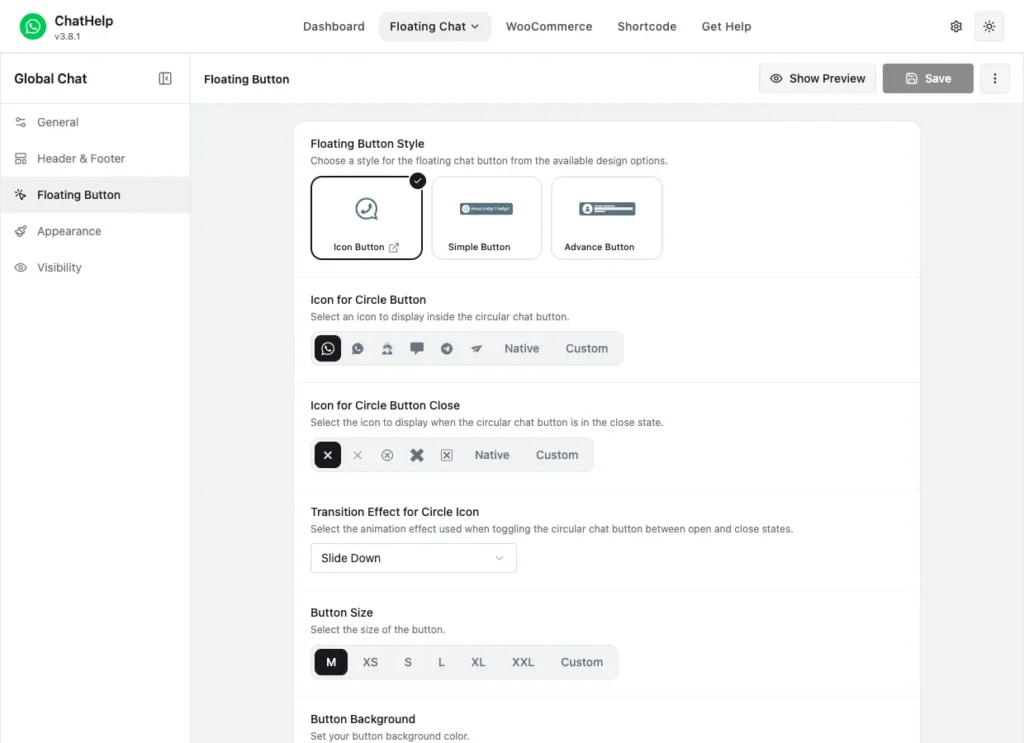
In WhatsApp Chat → Floating Chat → Global Chat or a Custom Chat, open the Floating Button tab.
| Setting | What it does | Edition |
|---|---|---|
| Floating Button Style | Choose a style for the floating chat button from the available design options. Options: Icon Button, Simple Button, Advance Button (Pro). | Free |
| Agent Avatar Type | Use the plugin’s built-in photo, upload your own image, or hide the photo. Options: Default, Custom, None. | Pro |
| Agent Avatar | Upload an agent photo to display inside the chat button. | Pro |
| Chat Button Image Type | Use the built-in icon chosen below, upload your own image, or hide the image. Options: Default, Custom, None. | Pro |
| Chat Button Image | Upload the image to display inside the chat button. | Pro |
| Button Top Label | Enter the text to display inside the floating chat button top label. | Pro |
| Button Main Label | Enter the text to display inside the floating chat button main label. | Free |
| Button Top Label | Enter the text to display inside the floating chat button top label. | Pro |
| Button Main Label | Enter the text to display inside the floating chat button main label. | Pro |
| Online Text | Set the text to display when the agent is online and available for chat. | Pro |
| Offline Text | Set the text to display when the agent is offline or unavailable for chat. | Pro |
| Icon for Circle Button | Select an icon to display inside the circular chat button. | Free |
| Circle Button Native Icon | Choose a native icon from the built-in library of 2000+ icons to display inside the circular chat button. | Pro |
| Circle Button Custom Icon | Upload or select a custom icon from your media library to display inside the circular chat button. | Pro |
| Icon for Circle Button Close | Select the icon to display when the circular chat button is in the close state. | Free |
| Circle Button Native Close Icon | Choose a native icon from the built-in library to display when the circular chat button is in the close state. | Pro |
| Circle Button Custom Close Icon | Upload or select a custom icon from your media library to display when the circular chat button is in the close state. | Pro |
| Icon for Button | Select an icon to display inside the floating chat button. | Free |
| Button Native Icon | Choose a native icon from the built-in library of 2000+ icons to display inside the floating chat button. | Pro |
| Button Custom Icon | Upload or select a custom icon from your media library to display inside the floating chat button. | Pro |
| Icon for Button Close | Select the icon to display when the floating chat button is in the close state. | Free |
| Button Native Close Icon | Choose a native icon from the built-in library to display when the floating chat button is in the close state. | Pro |
| Button Custom Close Icon | Upload or select a custom icon from your media library to display when the floating chat button is in the close state. | Pro |
| Transition Effect for Circle Icon | Select the animation effect used when toggling the circular chat button between open and close states. Options: Slide Down, Fade (Pro), Rotate (Pro), Slide Up (Pro). | Free |
| Button Size | Select the size of the button. | Free |
| Custom Switch Size | Scale in percentage relative to normal size. | Pro |
| Icon Color | You can define normal and hover colors for the button icon. Options: Normal Color, Hover Color. | Free |
| Icon Background | Draw the icon on its own background circle. | Free |
| Icon Background Color | You can define normal and hover background colors for the button icon. Options: Normal Color, Hover Color. | Free |
| Button Background | Set your button background color. Options: Normal Color, Hover Color. | Free |
| Button Label Color | Set your button label color. Options: Normal Color, Hover Color. | Free |
| Button Border | Set border for the floating chat button. | Free |
| Display Notification Icon | Toggle to show or hide the notification icon in the interface. | Free |
| Notification Number | Select a number to display as a notification badge on the icon. Choose "None" to hide the number. Options: None, 1, 2, 3, 4, 5, 6, 7, 8, 9. | Free |
| Icon Border | Set border for the floating chat button. | Free |
| Button Padding | Adjust the inner spacing (padding) of the floating chat button. | Free |
| Button Tooltip | Enable and customize the tooltip text that appears when hovering over the floating chat button. Options: On Hover, Show, Hide. | Free |
| Button Tooltip Text | Enter the text that will appear inside the tooltip when hovering over the floating chat button. | Free |
| Button Tooltip Background | Choose the background color for the tooltip that appears when hovering over the floating chat button. | Free |
| Button Tooltip Width | Set the maximum width of the tooltip that appears when hovering over the floating chat button. | Free |
Positioning #
| Setting | What it does | Edition |
|---|---|---|
| Bubble Position | Select the screen position where the floating chat button will appear. Options: Bottom Right, Bottom Left, Middle Right (Pro), Middle Left (Pro). | Free |
| Margin from Bottom Right | Set the margin (spacing) of the floating chat button from the bottom and right edges of the screen. Adjust to reposition the button as needed. | Free |
| Margin from Bottom Left | Set the margin (spacing) of the floating chat button from the bottom and left edges of the screen. Adjust to reposition the button as needed. | Free |
| Margin from Middle Right | Set the margin (spacing) of the floating chat button from the right edge of the screen when positioned in the middle. Adjust to fine-tune its placement. | Free |
| Margin from Middle Left | Set the margin (spacing) of the floating chat button from the left edge of the screen when positioned in the middle. Adjust to fine-tune its placement. | Free |
| Different Positioning for Tablet Devices | Enable this option to set a custom bubble position specifically for tablet devices. Useful for optimizing layout and user experience on medium screens. | Pro |
| Bubble Position | Select the screen position where the floating chat button will appear. Options: Bottom Right, Bottom Left, Middle Right, Middle Left. | Pro |
| Margin from Bottom Right | Set the margin (spacing) of the floating chat button from the bottom and right edges of the screen. Adjust to fine-tune its placement. | Pro |
| Margin from Bottom Left | Set the margin (spacing) of the floating chat button from the bottom and left edges of the screen. Adjust to fine-tune its placement. | Pro |
| Margin from Middle Right | Set the margin (spacing) of the floating chat button from the right edge of the screen when positioned in the middle. Adjust to fine-tune its placement. | Pro |
| Margin from Middle Left | Set the margin (spacing) of the floating chat button from the left edge of the screen when positioned in the middle. Adjust to fine-tune its placement. | Pro |
| Different Positioning for Mobile Devices | Enable this option to set a custom chat bubble position specifically for mobile devices. Useful for optimizing layout and usability on smaller screens. | Pro |
| Bubble Position | Select the screen position where the floating chat button will appear. Options: Bottom Right, Bottom Left, Middle Right, Middle Left. | Pro |
| Margin from Bottom Right | Set the margin (spacing) of the floating chat button from the bottom and right edges of the screen. Adjust to reposition the bubble as needed. | Pro |
| Margin from Bottom Left | Set the margin (spacing) of the floating chat button from the bottom and left edges of the screen. Adjust to reposition the bubble as needed. | Pro |
| Margin from Middle Right | Set the margin (spacing) of the floating chat button from the right edge of the screen when positioned in the middle. Adjust to fine-tune its placement. | Pro |
| Margin from Middle Left | Set the margin (spacing) of the floating chat button from the left edge of the screen when positioned in the middle. Adjust to fine-tune its placement. | Pro |
Live demo: Icon Button demo
Still have a question? Ask in the Chat Help forum on WordPress.org (opens in a new tab), or open a support ticket with Pro.
