


Multiple Chat Layouts is one of the most requested features in WhatsApp Chat Help. It allows you to create multiple independent chat layouts with different chat types, agents, colors, and behaviors. Instead of using one global chat widget across your website, you can create separate layouts for specific pages, departments, or marketing campaigns.
What Is a Chat Layout? #
A chat layout (also called a Floating Widget) is a self-contained WhatsApp chat configuration. Each layout stores its own settings independently:
- Chat type (Form Chat, Single Agent, Pre-Chat Message, Chat Button, Multi-Agent, Multi-Agent Form)
- Agent(s) and their phone numbers
- Colors, position, and bubble style
- Online/offline hours and behavior
- Pre-chat message and form fields
You can create unlimited layouts and assign each one to different pages, posts, or categories. See the Layout Assignment documentation to learn how to control where each layout appears.
How to Create a New Chat Layout #
- In your WordPress admin, go to WhatsApp Chat → Floating Chat → Chat Layouts in the left menu.
- Click Add New Widget.
- Give the layout a descriptive name (e.g., “Sales Team”, “Support – Product Page”, “Homepage Promo”).
- Configure all settings for this layout — chat type, agents, colors, and display options.
- Click Publish to save.
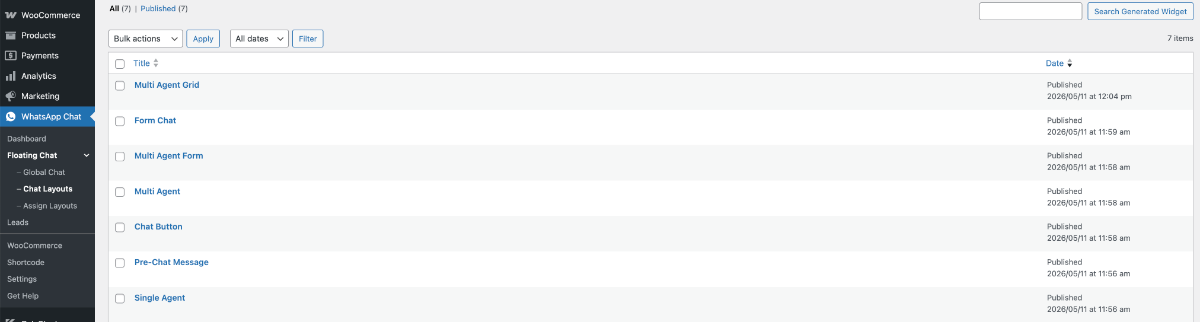
👉 The layout is saved but not displayed anywhere yet. You need to assign it to pages or posts using the Assign Chat settings.
Managing Your Layouts #
All created layouts are listed under Floating Chat in the admin menu. From there you can:
- Edit — update any setting for a layout at any time
- Duplicate — clone an existing layout as a starting point for a new one
- Trash — remove a layout (assignments referencing it will be ignored on the frontend)
Use Cases #
| Layout Name | Chat Type | Assigned To |
|---|---|---|
| Sales Team | Multi-Agent | All product pages |
| Support | Single Agent | Documentation & FAQ pages |
| Homepage CTA | Pre-Chat Message | Homepage only |
| Order Help | Form Chat | WooCommerce order category |
Important Notes #
- If no layout is assigned to a specific page, no floating chat will appear on that page.
- If multiple assignment rules match a single page, only the first matching rule is used.
- The old global settings still work as a fallback if you have not created any Floating Widget layouts yet.
What is Multiple Chat Layouts in WhatsApp Chat Help? #
Multiple Chat Layouts lets you create multiple independent WhatsApp chat widgets with different agents, chat types, colors, and behaviors for different parts of your website.
Can I create multiple WhatsApp chat widgets? #
Yes. Chat Help Pro allows you to create unlimited chat layouts and assign them to specific pages, posts, products, or categories.
Can I assign different chat layouts to different pages? #
Yes. You can assign different chat layouts to different pages or sections of your website using the Layout Assignment feature.
Which chat types are supported in Multiple Chat Layouts? #
Multiple Chat Layouts supports Form Chat, Single Agent, Pre-Chat Message, Chat Button, Multi-Agent, and Multi-Agent Form layouts.
Can I use Multiple Chat Layouts with WooCommerce? #
Yes. You can create separate WhatsApp chat layouts for WooCommerce product pages, categories, or customer support sections.
Does each chat layout have separate settings? #
Yes. Every chat layout stores its own agents, colors, positions, online hours, bubble styles, and chat behavior independently.
What happens if no layout is assigned to a page? #
If no layout is assigned, the global floating WhatsApp chat widget will appear on that page.
Can I duplicate an existing chat layout? #
Yes. You can duplicate any existing layout and use it as a starting point for a new chat widget configuration.
Can I edit chat layouts later? #
Yes. You can edit, update, duplicate, or remove chat layouts anytime from the Floating Chat section.
Does Multiple Chat Layouts work on mobile devices? #
Yes. All chat layouts in WhatsApp Chat Help are responsive and work on desktop, tablet, and mobile devices.
Can multiple assignment rules apply to the same page? #
If multiple rules match a page, only the first matching rule is applied.
Is coding required to use Multiple Chat Layouts? #
No. You can create and manage multiple chat layouts directly from the WordPress admin dashboard without writing code.
For the free version of WhatsApp Chat Help, Click Here.


