


Ask visitors to fill out a contact form and many of them quietly leave. Ask them to message you on WhatsApp and they often do it right away. For millions of people, especially outside the US, WhatsApp is simply how you talk to a business: it feels faster, more personal, and the conversation stays in their pocket instead of an inbox they never check.
The good news? You don’t need to write a single line of code. In this guide, you’ll learn how to create a WhatsApp click to chat link manually using the free wa.me format, and how to add WhatsApp chat to WordPress with a free plugin when a single link stops being enough. Both methods are copy-and-paste friendly, and both take just a few minutes.
Table of Contents
What Is a WhatsApp Click-to-Chat Link?
A WhatsApp click-to-chat link is a URL that opens a WhatsApp conversation with a specific phone number the moment someone clicks or taps it. The visitor doesn’t need to save your number first. WhatsApp provides this feature officially through its wa.me domain, and the basic format looks like this:
https://wa.me/15551234567The number must be your full phone number in international format, starting with the country code. Leave out the plus sign, spaces, dashes, brackets, and any leading zeros. So if your number is +1 (555) 123-4567, the link uses 15551234567 and nothing else.
Click to chat is an official WhatsApp feature, not a hack. If you want to read the source, WhatsApp documents it in its official click to chat FAQ.
Method 1: Create a WhatsApp Click-to-Chat Link Manually, No Plugin
Let’s build your link by hand first. Even if you end up using a plugin later, understanding the wa.me format is worth five minutes of your time. It’s the same format you’ll reuse in email signatures, Instagram bios, QR codes, and anywhere else a plugin can’t reach.
The Base wa.me Link Format
Every WhatsApp chat link starts from the same pattern:
https://wa.me/NUMBERReplace NUMBER with your full phone number in international format. A US-style example looks like this:
https://wa.me/15551234567And a Bangladesh-style example looks like this:
https://wa.me/8801XXXXXXXXXThe formatting rules are strict, and this is where most broken links come from:
- Include the country code (1 for the US, 880 for Bangladesh, 44 for the UK, and so on)
- Remove the
+sign - Remove all spaces
- Remove dashes
- Remove brackets
- Drop any leading zero from the local part of your number
That last rule trips people up the most. In many countries, local numbers are written with a leading zero, like 017XX in Bangladesh or 07XXX in the UK. That zero disappears in international format. So 01712-345678 in Bangladesh becomes 8801712345678, not 88001712345678.
Add a Pre-Filled Message to Your WhatsApp Link
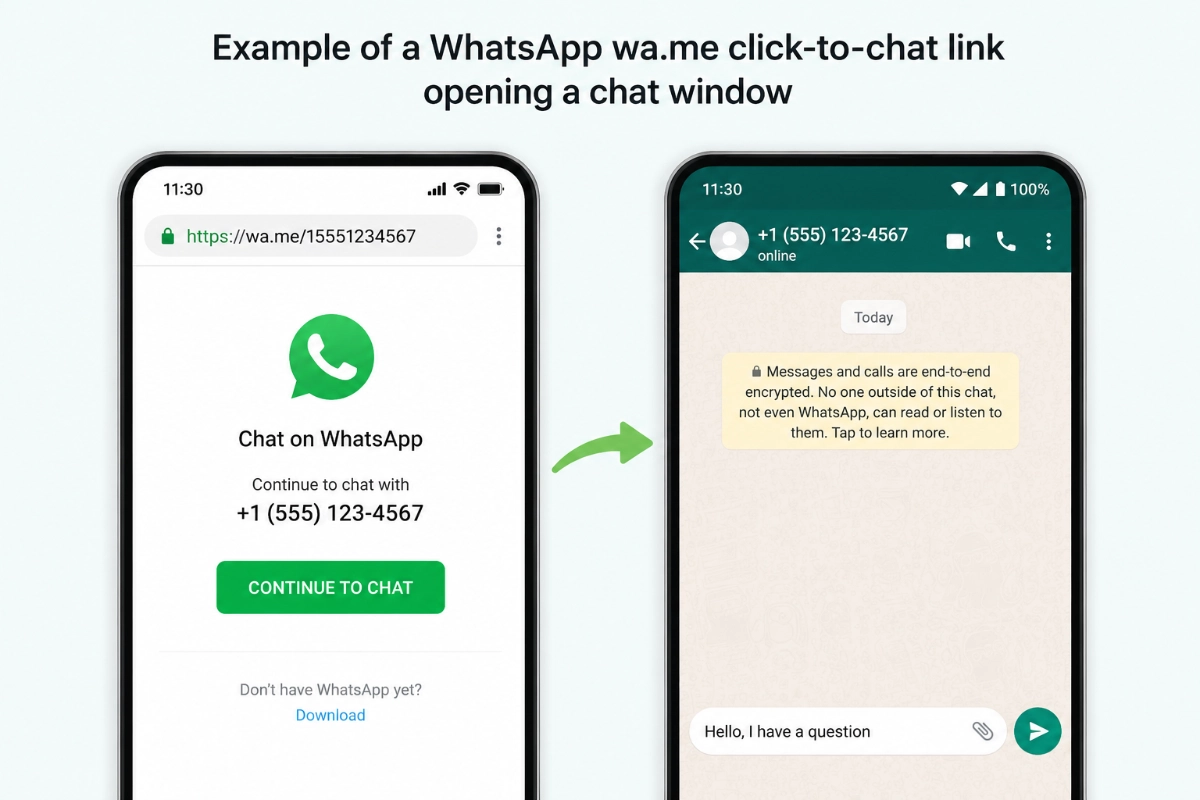
Want visitors to open the chat with a message already typed for them? Add a ?text= parameter to the end of your link. This is how you create a WhatsApp link with pre-filled message text:
https://wa.me/15551234567?text=Hello%2C%20I%20have%20a%20questionThose percent codes are URL encoding, and they’re simpler than they look. A URL can’t contain raw spaces or certain punctuation, so each special character gets swapped for a code:
%20means a space%2Cmeans a comma
Here’s a before and after. Your plain message:
Hello, I have a questionAnd the same message encoded for the URL:
Hello%2C%20I%20have%20a%20questionYou don’t have to encode messages by hand. Search for a free online URL encoder, paste your message in, and copy the encoded result. Pre-filled messages are worth the small effort: the visitor only has to press send, and you instantly know which page or offer they’re asking about.
The Alternative Long Format
You may also come across a longer version of the same link:
https://api.whatsapp.com/send?phone=15551234567&text=Hello%2C%20I%20have%20a%20questionBoth formats do the same thing. The wa.me link is the official short version, it’s cleaner to read, and it’s harder to mistype, so it’s the one I’d use everywhere.
What About WhatsApp Group Links?
Group invite links are a different thing entirely. They aren’t built from a phone number. Instead, WhatsApp generates them for you inside the app, and they usually start with:
https://chat.whatsapp.com/To get one, open your group in WhatsApp, go to the group settings, and copy the invite link. You can place that link on your site the same way as any other URL, but you can’t construct it manually the way you can with a wa.me link.
How to Add the WhatsApp Link in WordPress
Once your wa.me link is ready, adding it to WordPress works exactly like adding any other link. Here are the three most common placements, step by step.
A. Add the Link to Text or an Image in Gutenberg
- Open the page or post in the WordPress editor.
- Select the text or click the image you want to make clickable.
- Click the link icon in the toolbar (or press Ctrl+K / Cmd+K).
- Paste your wa.me URL and press Enter.
- Save or update the page.
B. Add the Link Using a Gutenberg Buttons Block
- Add a Buttons block where you want the button to appear.
- Type your button text, for example “Chat on WhatsApp”.
- Click the link icon and paste your wa.me URL into the link field.
- Save or update the page.
C. Add the Link to a WordPress Navigation Menu
- Go to Appearance → Menus, or Appearance → Editor if your theme uses the Site Editor.
- Add a Custom Link item to your menu.
- Paste your WhatsApp link into the URL field.
- Add link text such as “WhatsApp”.
- Save the menu.
How the Link Behaves on Desktop and Mobile
One link, slightly different behavior depending on the device. On mobile, the link opens the WhatsApp app directly if it’s installed. On desktop, it usually opens WhatsApp Web or the WhatsApp desktop app. If WhatsApp isn’t installed, or the browser can’t open it, the visitor is prompted to install WhatsApp or continue in WhatsApp Web. Always test your link on both a phone and a computer before publishing.
Where Manual WhatsApp Links Fall Short
Everything above works, and it costs nothing. For a single button on a contact page, a link-in-bio, or an email signature, a manual wa.me link is genuinely all you need. So why do plugins for this exist at all?
Full disclosure: we make ChatHelp, so weigh that as you read. But here is exactly where a plain link stops being enough.
- There’s no floating chat bubble that follows visitors across every page of your site.
- If your number changes, you have to find and update every link you ever placed by hand.
- There are no availability hours, so the button looks “on” at 3 a.m. when nobody will reply.
- There’s no click tracking, so you can’t see how many visitors actually start a chat.
- There’s no pre-chat form, so you can’t capture a name or email before the conversation moves to WhatsApp.
- There’s no automatic WooCommerce context, so a customer on a product page sends you “Hi” instead of “Hi, I’m asking about the Blue Ceramic Mug”.
- Making a raw link look like a polished chat button usually means writing custom CSS.
I’ve seen store owners paste their WhatsApp number into a dozen product pages, then switch numbers months later and spend an evening hunting down every old link. Manual links are fine for one page. They get harder to manage as your site grows.
Method 2: Use a Free WordPress Plugin, ChatHelp
If you want WhatsApp chat across your whole WordPress site, a plugin is usually easier than placing links by hand on every page. ChatHelp is our free plugin for exactly this. Under the hood it uses the same official wa.me links you just learned about, so there’s no third-party WhatsApp API, no external account, and no monthly connection fee. You enter your number once, and the plugin handles the rest.
How to Set It Up
- In your WordPress dashboard, go to Plugins → Add New.
- Search for “ChatHelp”.
- Install and activate the plugin.
- Open the WhatsApp Chat menu in wp-admin.
- Enter your WhatsApp number once, in international format.
- Choose a layout.
- Save your settings.
- Visit your site to see the chat button live.
The whole setup takes a few minutes. If you get stuck anywhere, the quick start guide walks through each screen.
What the Free Version Includes
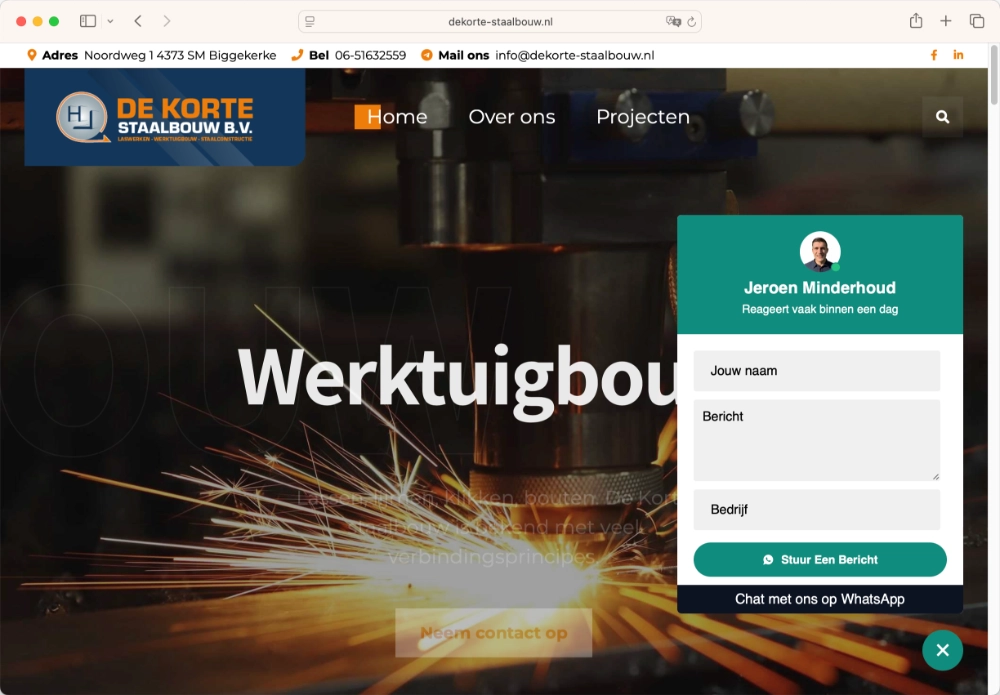
The free version works with personal WhatsApp numbers, WhatsApp Business numbers, and WhatsApp group links, so whatever you set up in Method 1 carries over directly. You get four layouts to choose from:
- Floating Button: a chat bubble that stays in the corner of every page.
- Single Agent: a small card with your name, photo, and role, so visitors know who they’re messaging.
- Pre-Chat Message: a greeting box that opens before the visitor is sent to WhatsApp.
- Single Form: a short lead-capture form, with each submission saved to your WordPress dashboard.
Pre-filled messages get smarter too. Instead of one fixed message, you can use variables like {siteTitle} and {currentURL}, so every incoming chat tells you exactly which page the visitor was on. WooCommerce stores can go further with {productName} and {productPrice}, which means a customer’s first message can already include the product they’re looking at.
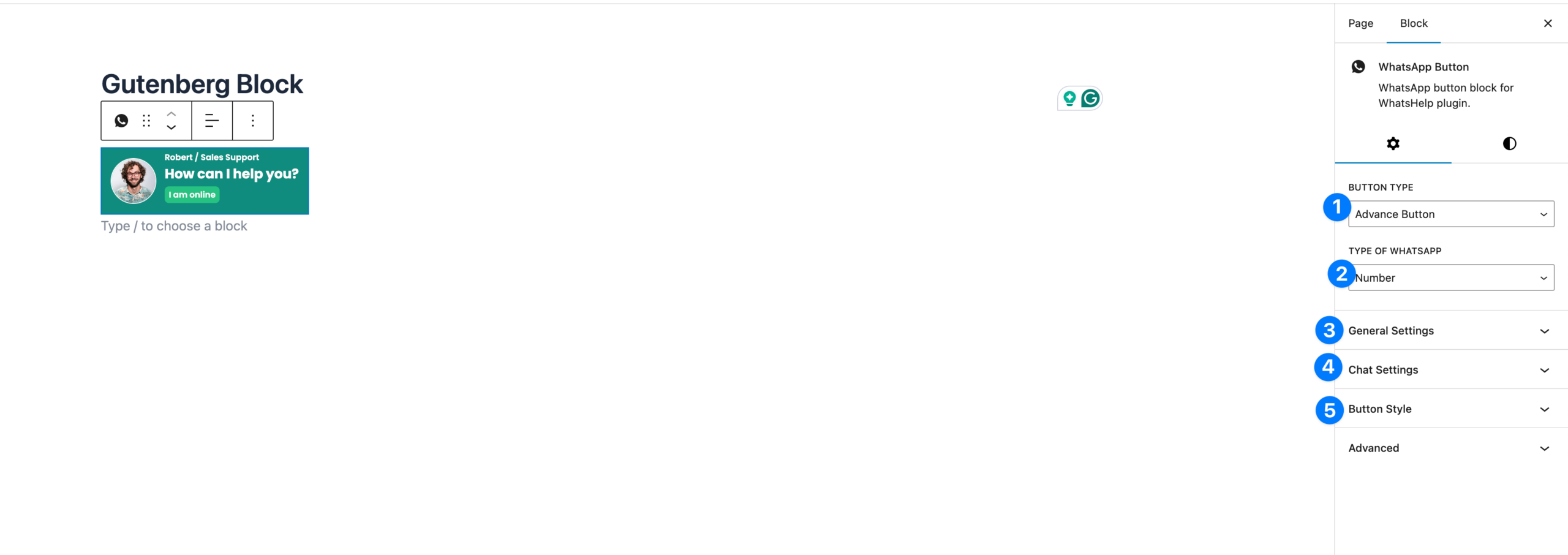
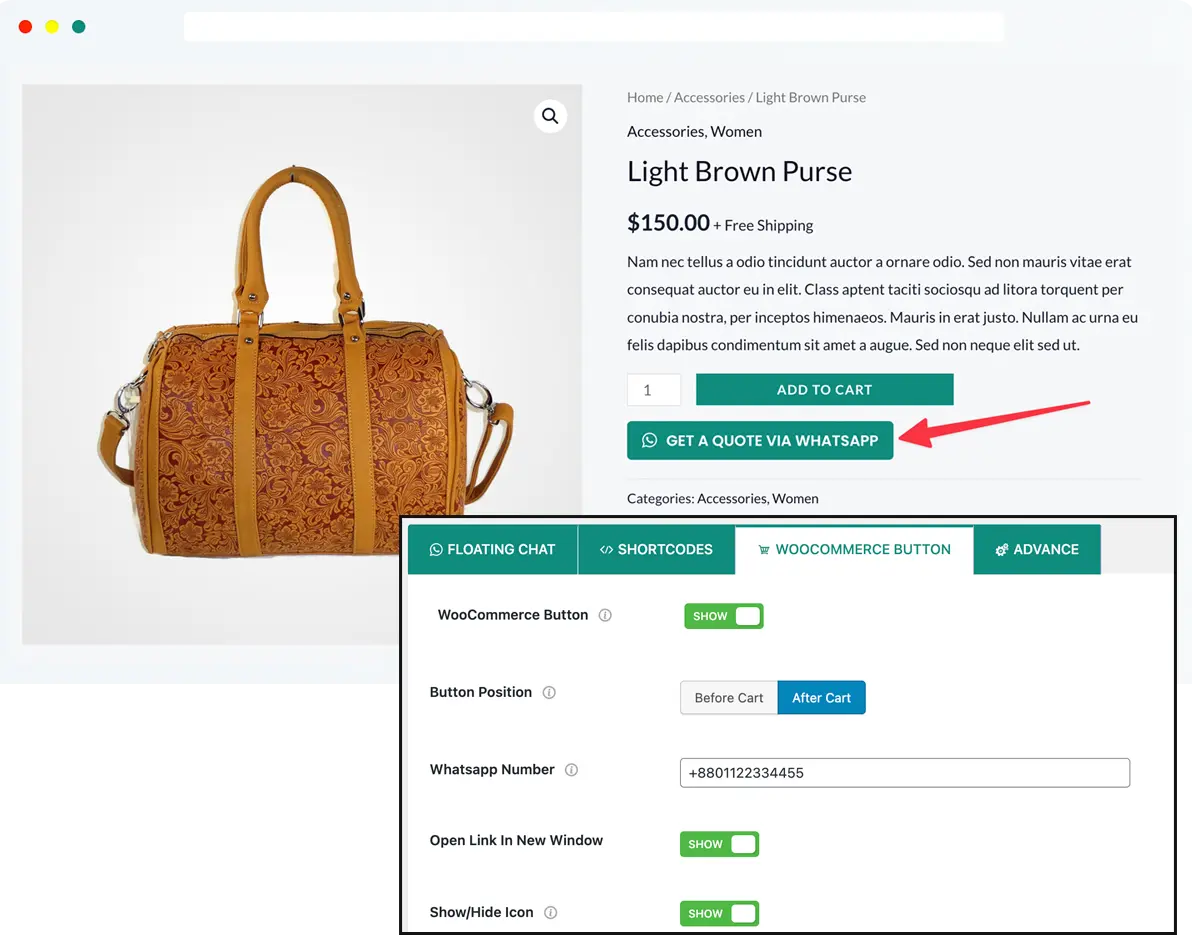
For placement, you’re not limited to the floating bubble. There’s a Gutenberg WhatsApp button block you can drop into any post or page, shortcodes for themes and page builders, and an Elementor widget. WooCommerce stores can show a WooCommerce WhatsApp button on shop, product, cart, checkout, and thank-you pages.
A few extras cover the gaps we listed earlier: availability scheduling switches the button between online and offline states automatically based on your business hours, a GDPR consent checkbox keeps you on the right side of privacy rules, and Google Analytics click tracking shows you how many visitors actually tap the button.
If your team has several support agents, multi-agent list and grid layouts are available in ChatHelp Pro. For a single number, the free version covers everything in this guide.
Manual Link vs. Plugin: Which Should You Choose?
Here’s how the two methods compare side by side:
| Factor | Manual wa.me Link | ChatHelp Plugin |
|---|---|---|
| Setup time | 1–2 minutes per link | About 5 minutes, once |
| Best use case | One page, bio link, email signature | Sitewide chat and support |
| Floating sitewide button | No | Yes |
| Pre-filled messages | Yes, encoded by hand | Yes, with dynamic variables |
| WooCommerce product context | No | Yes, product name and price |
| Availability hours | No | Yes, automatic online/offline |
| Analytics | No | Yes, Google Analytics tracking |
| Maintenance | Update every link manually | Change the number once |
The honest verdict: manual links are perfectly fine for a single page, a link-in-bio, an email signature, or one simple button. A plugin makes more sense when WhatsApp is part of your real customer support or sales flow, and you want one button, one number, and one settings page for your entire WordPress site.
FAQ About WhatsApp Click to Chat Links
Does a wa.me link work without WhatsApp installed?
Not fully. On mobile, the link needs the WhatsApp app to open a chat, so visitors without it are prompted to install WhatsApp. On desktop, the link opens WhatsApp Web or the desktop app, so visitors can still chat from a browser as long as they have a WhatsApp account.
How do I add a pre-filled message to a WhatsApp link?
Add a ?text= parameter after your number, with the message URL-encoded. For example, https://wa.me/15551234567?text=Hello%2C%20I%20have%20a%20question opens a chat with “Hello, I have a question” already typed. Use %20 for spaces and %2C for commas, or run your message through a free URL encoder.
Do click-to-chat links work with WhatsApp Business?
Yes. A wa.me link works the same way whether the number belongs to a personal WhatsApp account or a WhatsApp Business account. That makes a WhatsApp Business chat link a simple option for small businesses, since it needs no API access or extra configuration.
Can I link to a WhatsApp group instead of a number?
Yes, but it uses a different link type. Group invite links start with https://chat.whatsapp.com/ and are generated from inside the WhatsApp app in your group settings. You can’t build a group link manually from a phone number the way you can with wa.me.
Is a plugin better than a manual WhatsApp link?
It depends on how much you use WhatsApp. A manual link is fine for basic needs like one button or a bio link. A plugin is better when you want a sitewide floating button, WooCommerce product context, click analytics, availability hours, and lead capture, all managed from a single settings page.
Final Thoughts
Creating a WhatsApp click-to-chat link is genuinely easy: put your international number after wa.me/, add an encoded message if you want one, and paste the link anywhere in WordPress. For a single button or a bio link, that’s all you’ll ever need. If WhatsApp is a real support channel for your site, though, a floating button, WooCommerce context, click tracking, availability hours, and one-place maintenance are worth having, and ChatHelp gives you all of that free. Either way, you’re a few minutes from letting visitors message you where they already are.