
Free + Pro Most settings are in the free version; settings marked Pro need Chat Help Pro.
Use multiple chat layouts on one site: each Custom Chat has its own layout, number and settings.
Create multiple chat layouts #
The Global Chat shows everywhere. Custom Chats let you show a different chat on some pages, for example a sales agent on product pages and support on the help pages. Open WhatsApp Chat → Floating Chat → Custom Chats.
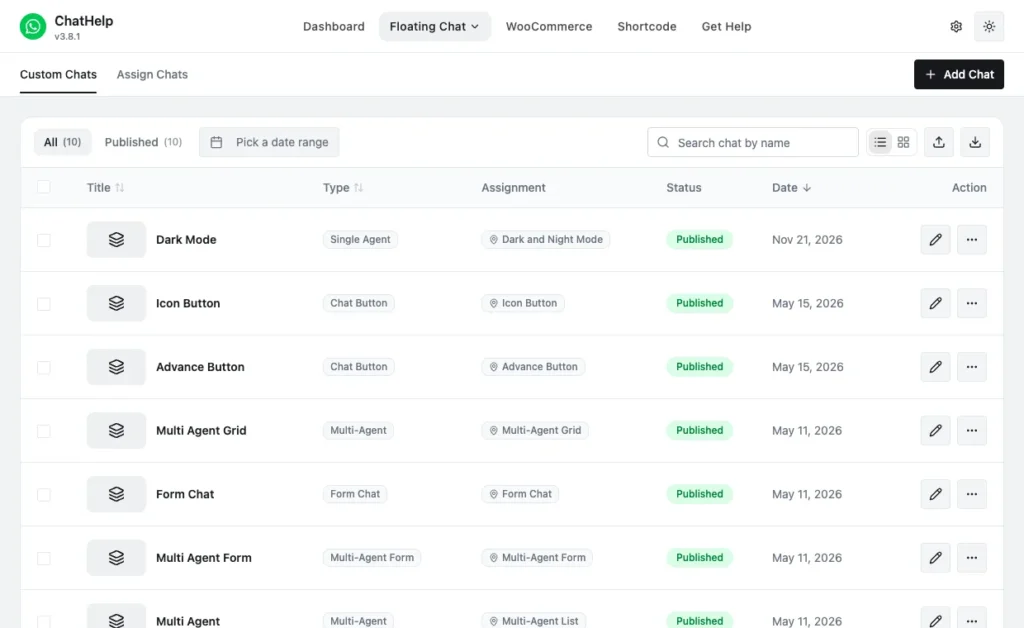
Add a Custom Chat.
-
Add Chat #
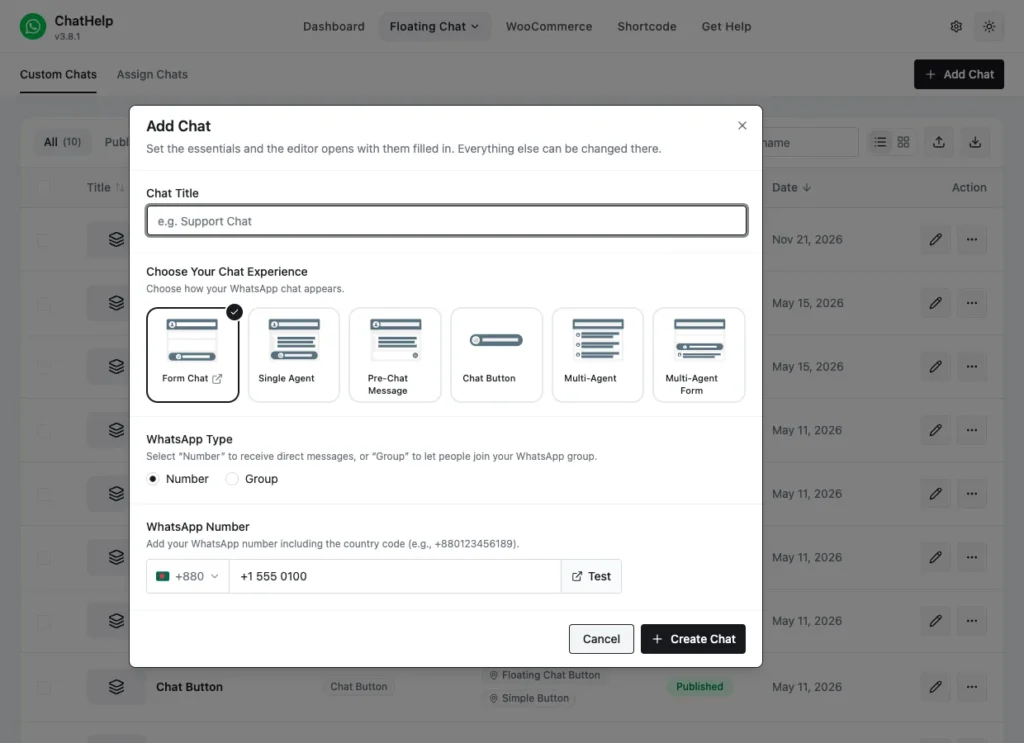
Click Add Chat and enter the essentials: a title, the chat experience, the WhatsApp type and the number or group.
-
Finish the settings #
The chat opens in the editor with the same tabs as the Global Chat: General, Header & Footer, Floating Button and Appearance, plus Assignment.
-
Assign it #
In the Assignment tab, or on the Assign Chats screen, choose the pages, posts or products that show it.
- A chat set to Draft is not shown on the site.
- Each Custom Chat uses its own form message template; if left empty, the Global Chat template is used.
- Duplicate a chat from its ⋯ menu (Pro).
- Export or import chats with the buttons above the list, or under Import/Export.
Multiple chat layouts: still have a question? Ask in the Chat Help forum on WordPress.org (opens in a new tab), or open a support ticket with Pro.
