
Free Works in Chat Help Free and Pro.
Make a backup of your chats, leads and settings, or move them to another site with import and export.
Make a backup and restore it #
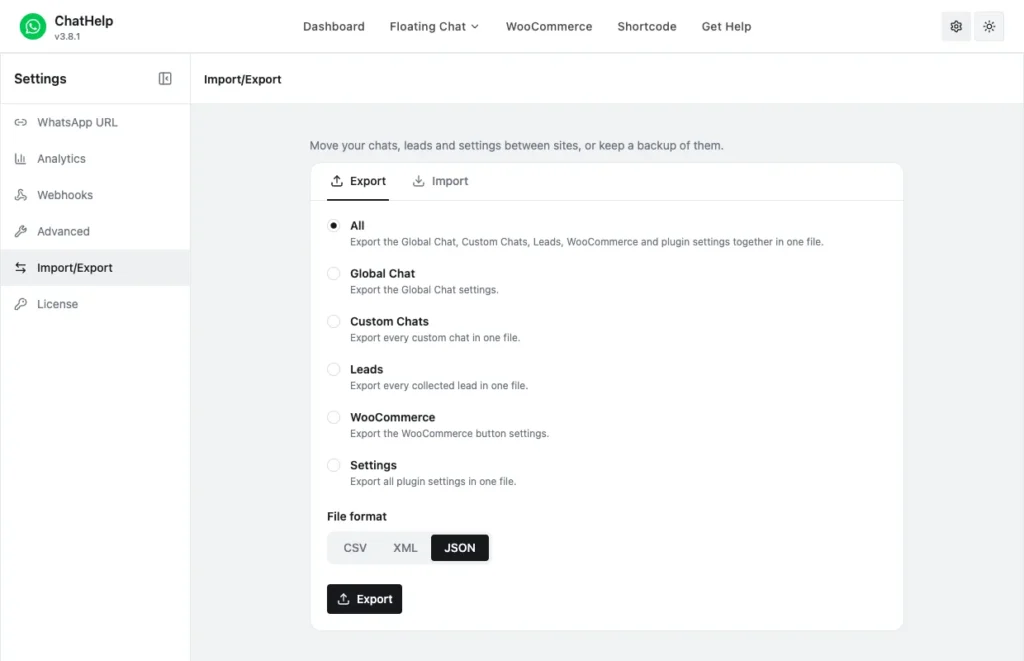
Open WhatsApp Chat → Settings → Import/Export. Export the Global Chat, Custom Chats, Leads, WooCommerce and plugin settings as one bundle or one type at a time, in JSON, CSV or XML. Import the file on the same or another site.
Note
Export before large changes or updates, so you can return to the previous settings.
When to use it #
- Moving from a staging site to the live site.
- Copying the same chats to several client sites.
- Keeping a copy before a large change or update.
Good to know #
- Custom Chats can also be exported from the buttons above the Custom Chats list.
- Leads are personal data: store exported files safely and delete them when done.
Backup: still have a question? Ask in the Chat Help forum on WordPress.org (opens in a new tab), or open a support ticket with Pro.
