
Pro Chat Help Pro feature.
The multi-agent list puts your whole team in one chat window.
How the multi-agent list works #
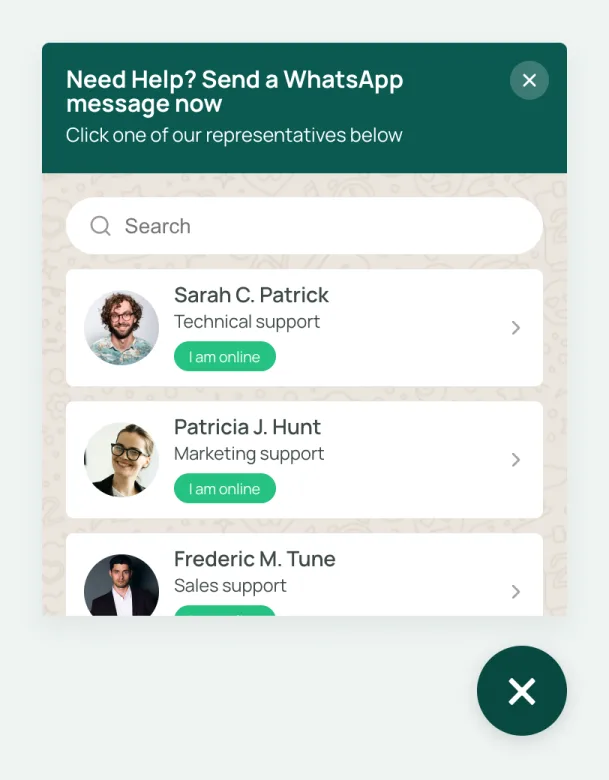
Multi-Agent shows your team in the chat window. Each agent has a name, role, photo, WhatsApp number or group, pre-filled message, timezone and hours. Choose the List view under Agents View. This is a Pro layout.
Live demo: Multi-Agent List demo
Set it up #
Go to WhatsApp Chat → Floating Chat → Global Chat (or edit a chat in WhatsApp Chat → Floating Chat → Custom Chats) and choose Multi-Agent List under Choose Your Chat Experience.
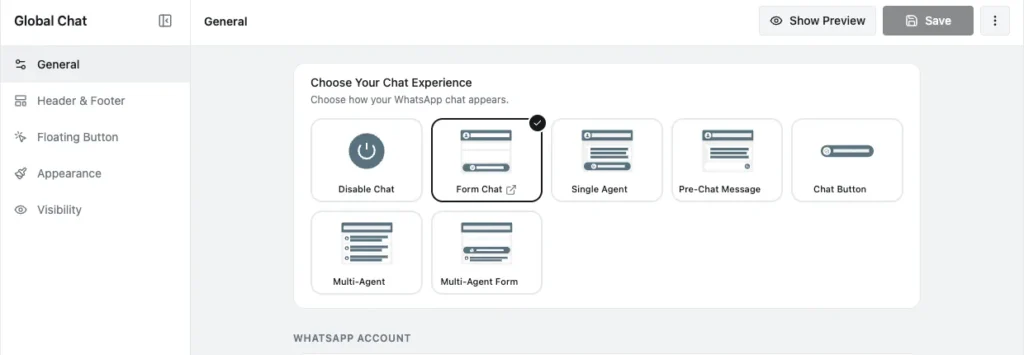
General settings for this layout #
| Setting | What it does | Edition |
|---|---|---|
| Choose Your Chat Experience | Choose how your WhatsApp chat appears. Options: Disable Chat, Form Chat, Single Agent, Pre-Chat Message, Chat Button, Multi-Agent (Pro), Multi-Agent Form (Pro). | Free |
Agents #
| Setting | What it does | Edition |
|---|---|---|
| Show Search Field | Show or hide the search box. This helps visitors quickly find an agent when you have many agents. | Pro |
| Chat Agents | Add and manage your chat agents. Each agent can have a name, photo, WhatsApp type (number or group), pre-filled message, timezone, availability, designation, and custom online/offline text. You can add as many agents as you need. | Pro |
Chat Agents #
| Setting | What it does | Edition |
|---|---|---|
| Agent Name | Enter the agent’s name. | Pro |
| Agent Designation | Enter the agent’s designation or role (e.g., Sales Manager, Support Agent). | Pro |
| Agent Photo Type | Show the agent’s initials, upload your own image, or hide the photo. Options: Default, Custom, None. | Pro |
| Agent Photo | Upload or select an image to use as the agent’s photo. | Pro |
| WhatsApp Type | Select "Number" to receive direct messages or "Group" to let people join your WhatsApp group. Options: Number, Group. | Pro |
| WhatsApp Number for Agent | Add your WhatsApp number including the country code, e.g. +880123456189. | Pro |
| WhatsApp Group | Invite your visitors to join your WhatsApp group. | Pro |
| Pre-filled Message | Write a friendly, pre-filled message that will appear when users start a chat with this agent. Example: “Hi! I have a question about your services.” | Pro |
| Timezone | Select the agent’s timezone. This ensures availability times are shown correctly, even if the user is in a different timezone. | Pro |
| Availability | Set the agent’s available hours using 24-hour format (e.g., From 00:00 to 23:59). To mark a full day as unavailable, use 00:00 for both From and To values. | Pro |
| Agent Online Text | Set the text that will be shown when the agent is available/online (e.g., “I am Online”). | Pro |
| Agent Offline Text | Set the text that will be shown when the agent is unavailable/offline (e.g., “I am Offline”). | Pro |
Agents #
| Setting | What it does | Edition |
|---|---|---|
| Agents View | Choose how agents are displayed. List view shows agents in a vertical list, while Grid view displays them in a card-style layout. Options: List, Grid. | Pro |
The header, send button, colours and position are in the other tabs: Header & Footer, Floating Button, Appearance and Visibility.
Multi-agent list: still have a question? Ask in the Chat Help forum on WordPress.org (opens in a new tab), or open a support ticket with Pro.
