


The Dashboard Analytics gives you a real-time view of how visitors interact with your chat widgets. Track visitors, widget views, conversions, and leads — all broken down by widget, time period, device, country, page, and browser.
Where to Find It #
Go to WordPress Admin → WhatsApp Chat. The Dashboard is the first item in the menu.
Stat Cards #
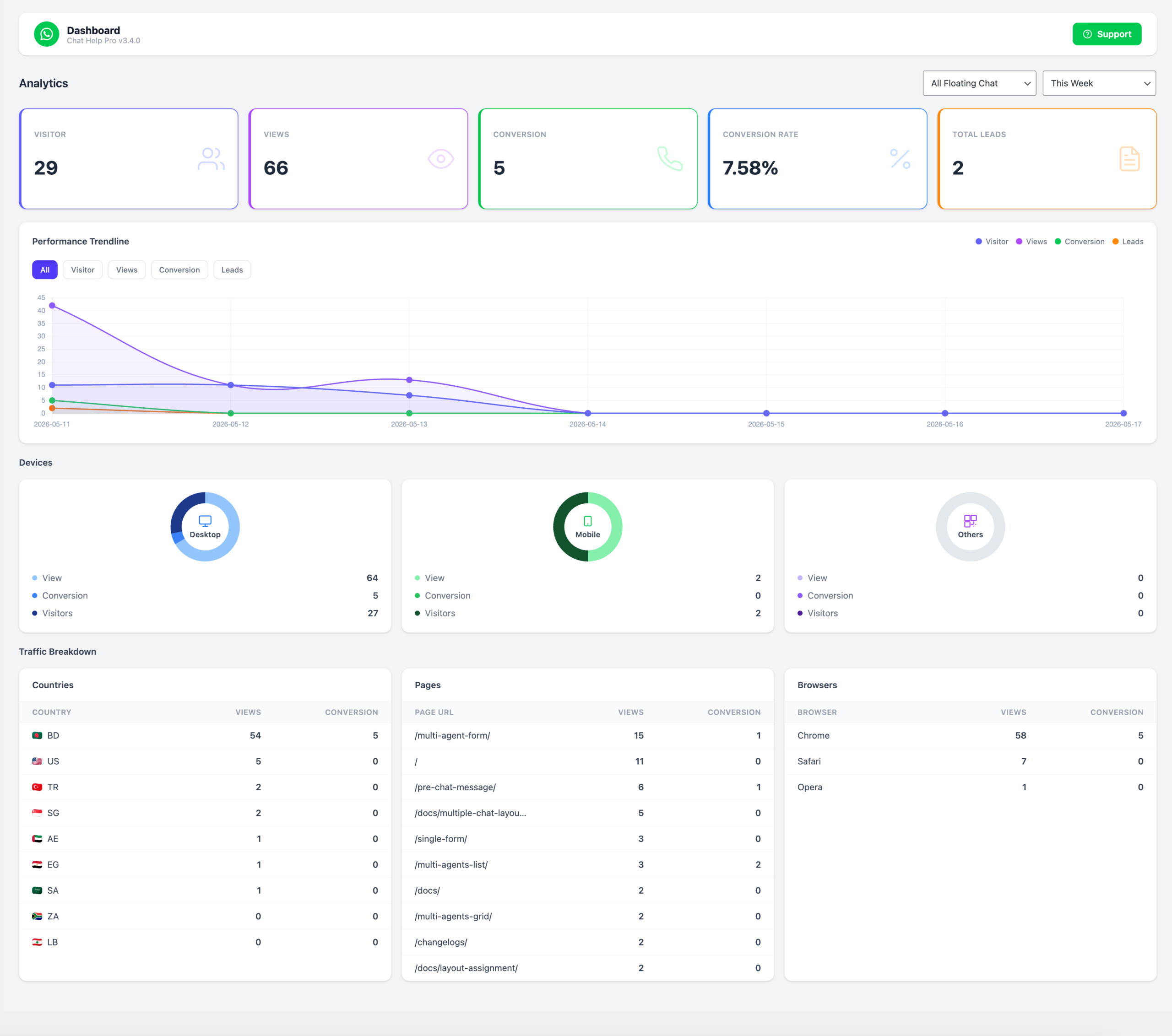
At the top of the dashboard you will see five summary cards showing totals for the selected time period:
- Visitor — unique sessions that landed on a page with a chat widget
- Views — number of times a chat widget became visible in the viewport
- Conversion — number of times a visitor interacted with the widget (see Conversion Tracking below)
- Conversion Rate — conversions divided by views, expressed as a percentage
- Total Leads — total form submissions collected across all widgets
Filters #
Use the two filter dropdowns at the top right to narrow the data:
Filter by Widget #
- All Floating Chat — aggregate data from all widgets
- Global Chat — if you have a global chat enabled
- Individual widget names — data for that specific chat layout only
Filter by Period #
- This Week
- Last Week
- This Month
- Last Month
- This Year
- Last Year
- Custom Date — pick a From and To date to view any date range
Performance Trendline Chart #
Below the stat cards, the trendline chart shows how Visitors, Views, Conversions, and Leads changed over time within the selected period. Use the toggle buttons on the chart to show or hide individual lines.
- Daily granularity for weekly and monthly views
- Monthly granularity for yearly views
Device Breakdown #
Donut charts show the split of Views and Conversions by device type:
- Desktop
- Mobile
- Other (tablets and unrecognised agents)
Traffic Breakdown Tables (Pro) #
Three tables break down Views and Conversions by traffic source. These are available on Pro plans.
- Countries — top 10 countries with flag icons, ranked by views
- Pages — top 10 pages on your site where the widget was viewed
- Browsers — top 10 browsers (Chrome, Firefox, Safari, Edge, Opera, etc.)
👉 Country detection uses Cloudflare’s CF-IPCountry header when available. Without a CDN, the country column may be empty.
Conversion Tracking #
A conversion is recorded at the correct moment depending on the chat layout type:
| Layout Type | Conversion Fires When… |
|---|---|
| Chat Button | Visitor clicks the chat bubble link |
| Single Agent | Visitor clicks the “Send Message” button |
| Pre-Chat Message | Visitor submits the pre-chat input form |
| Form Chat | Visitor submits the contact form |
| Multi-Agent | Visitor clicks an available agent |
| Multi-Agent Form | Visitor submits the form after selecting an agent |
How Tracking Works #
Analytics data is collected entirely on your own server — no third-party services are involved. A lightweight JavaScript snippet runs on the frontend and sends events to the WordPress REST API (/wp-json/chat-help/v1/analytics/track). Data is stored in a dedicated database table (wp_chat_help_analytics).
The three event types recorded are:
visitor— once per browser session, on any page with a widgetview— when the widget enters the viewport (50% threshold, using IntersectionObserver)conversion— on the layout-specific action described in the table above
Notes #
- Analytics data starts collecting from the moment the plugin is activated on v3.4.0 or higher. Historical data before the upgrade is not available.
- The dashboard auto-refreshes data when you change the widget or period filter.
- WooCommerce buttons and shortcode/Elementor/Gutenberg inline buttons are excluded from floating widget analytics to avoid double-counting.
What is Dashboard Analytics in WhatsApp Chat Help? #
Dashboard Analytics lets you track chat widget performance, including visitors, views, conversions, conversion rates, and leads directly from your WordPress dashboard.
What metrics does Dashboard Analytics track? #
Dashboard Analytics tracks visitors, widget views, conversions, conversion rates, total leads, devices, countries, pages, and browser statistics.
Can I track conversions for different chat layouts? #
Yes. Conversion tracking works for all supported chat layouts, including Chat Button, Single Agent, Multi-Agent, Form Chat, and Pre-Chat Message.
Can I filter analytics by date range? #
Yes. You can filter analytics data by week, month, year, or select a custom date range.
Can I view analytics for individual chat widgets? #
Yes. You can filter analytics data for specific chat layouts or view combined statistics for all widgets.
Does Dashboard Analytics support WooCommerce pages? #
Yes. Analytics tracking works on WooCommerce product and shop pages where chat widgets are displayed.
Can I track visitor devices and browsers? #
Yes. Dashboard Analytics includes device and browser breakdown reports for desktop, mobile, and other devices.
Does Dashboard Analytics track visitor countries? #
Yes. The Pro version includes country-based analytics and traffic breakdown reports.
Is analytics data stored on external servers? #
No. All analytics data is collected and stored directly on your WordPress website.
Does Dashboard Analytics require Google Analytics? #
No. WhatsApp Chat Help includes its own built-in analytics and conversion tracking system.
When does analytics tracking start working? #
Analytics tracking starts after activating WhatsApp Chat Help version 3.4.0 or higher.
Can I hide or show specific analytics lines in charts? #
Yes. You can toggle Visitors, Views, Conversions, and Leads directly from the trendline chart.
What analytics data is available in the free version of WhatsApp Chat Help? #
The free version includes core analytics such as visitors, widget views, conversions, conversion rates, and total leads. Advanced traffic breakdowns like countries, pages, and browser analytics are available in the Pro version.


