


The Cart Page WhatsApp Button allows customers to send their entire cart details directly to WhatsApp before checkout. This is ideal for:
- WhatsApp-based ordering stores
- Manual order confirmation businesses
- Cash on delivery workflows
- B2B price negotiation stores
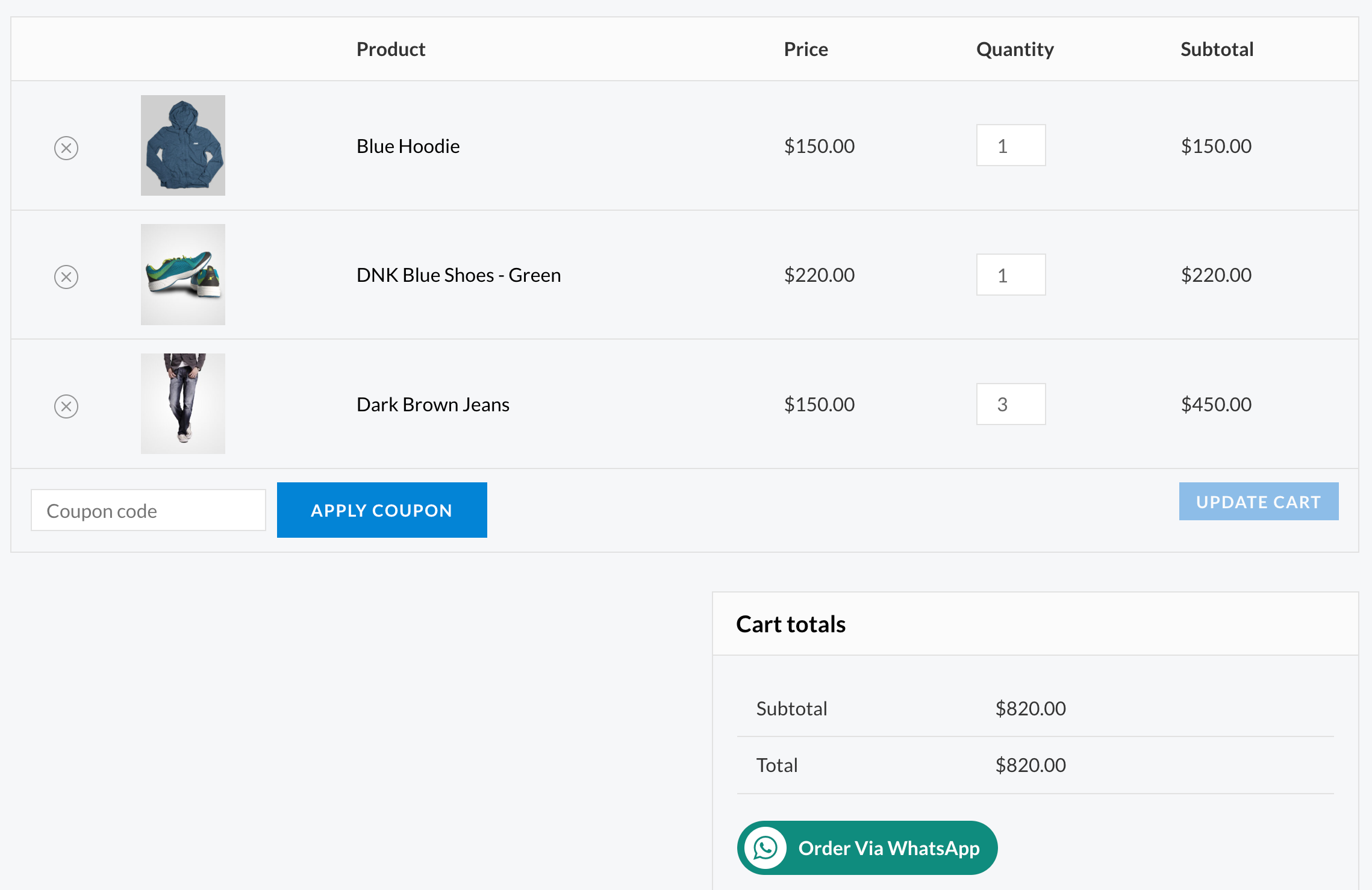
When enabled, the plugin generates a structured message including product names, quantities, prices, URLs, subtotal, tax, and total.
Frontend Output #
On the cart page, a WhatsApp button appears near the checkout area.
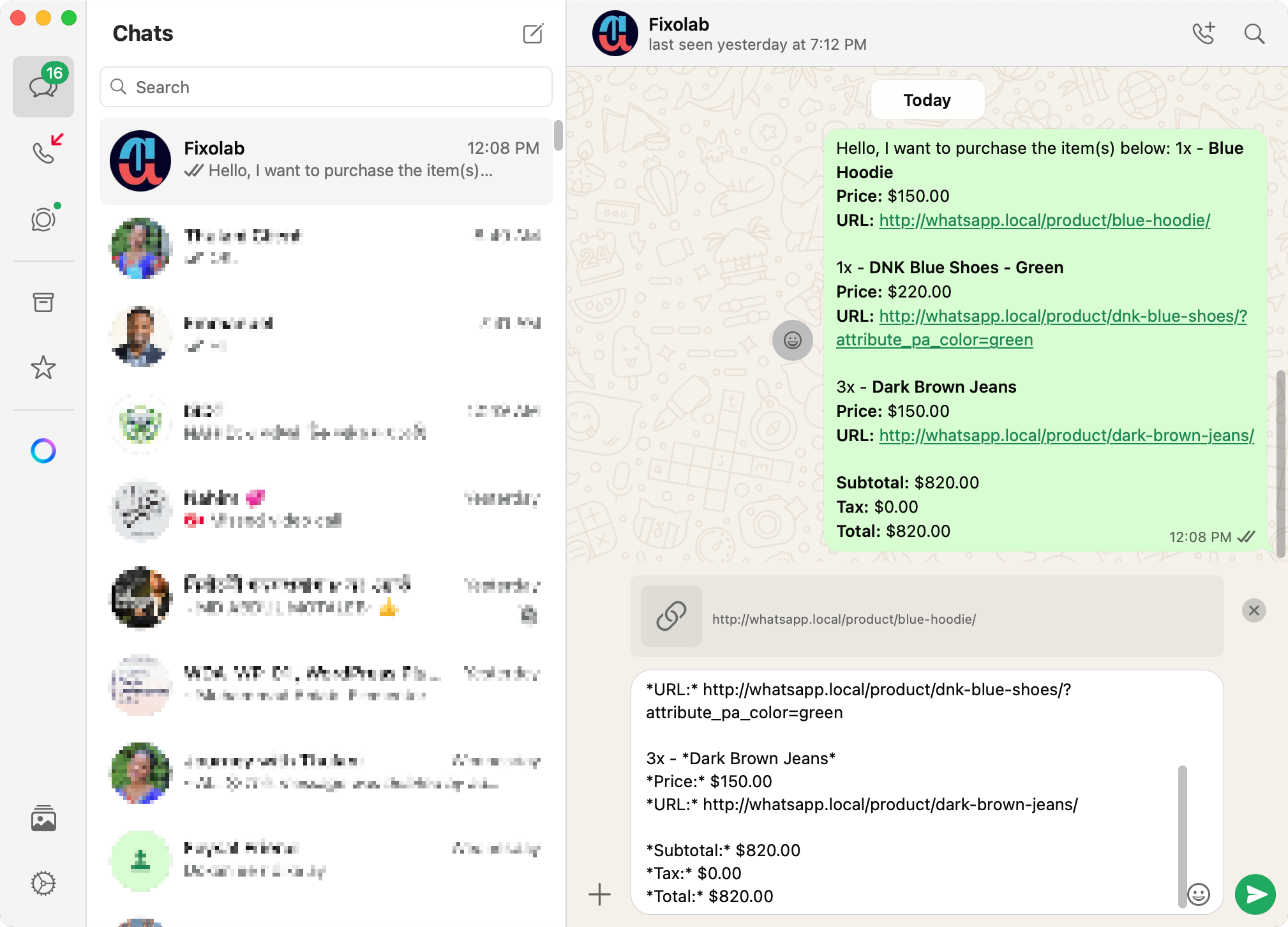
When clicked, it opens WhatsApp with a pre-filled cart summary message including:
- Product name
- Quantity
- Price
- Product URL
- Subtotal
- Tax
- Total
⚙ Cart Page Settings Explained #
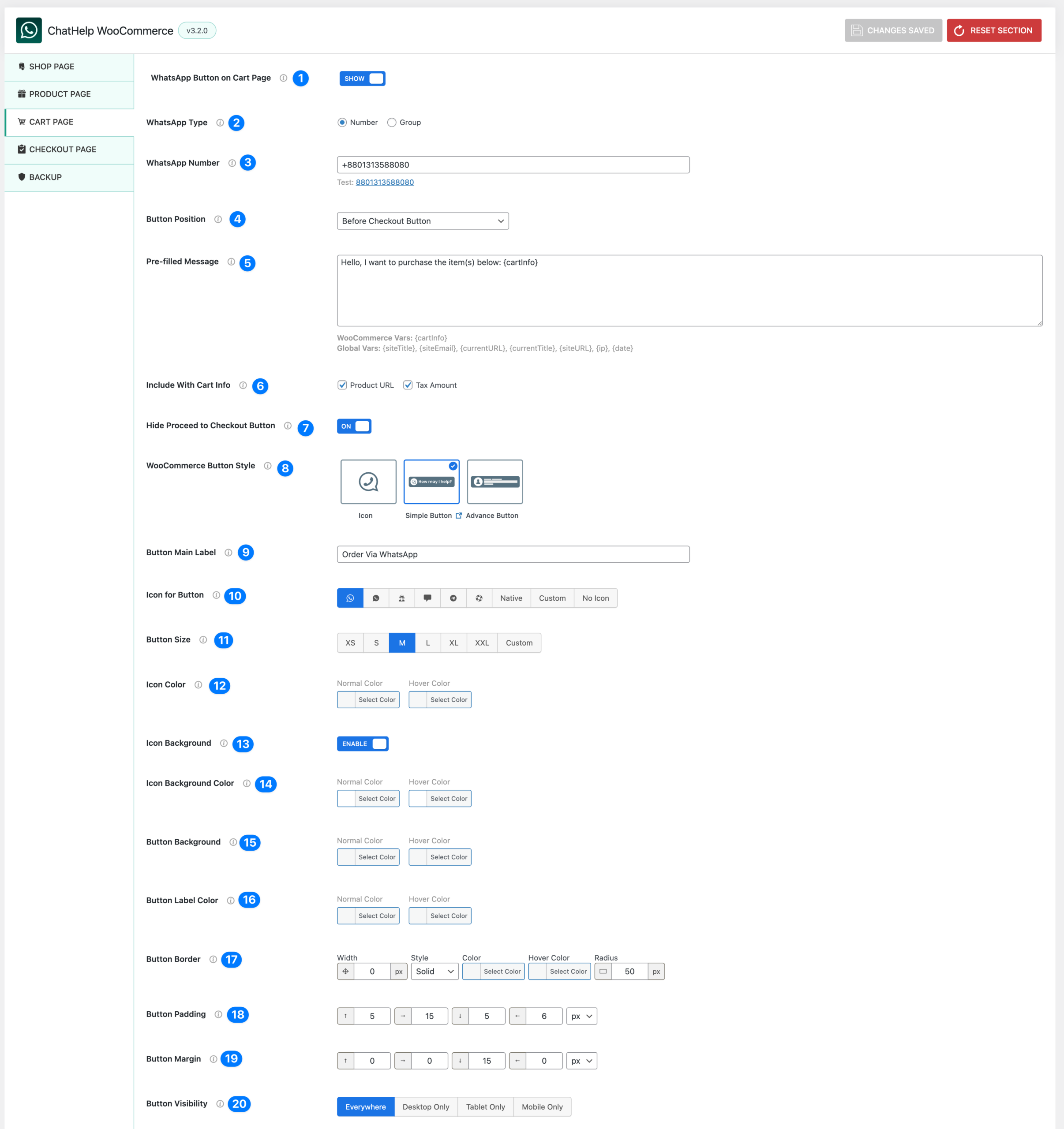
- WhatsApp Button on Cart Page (Show / Hide) – Show or Hide the WhatsApp button on the Cart page.
- Show → Button appears on the Cart page.
- Hide → Button does not appear.
- WhatsApp Type – Choose how users will connect:
- Number → Start a direct chat with a WhatsApp phone number
- Group → Redirect to a WhatsApp group invite link.
- WhatsApp Number / Group Link
- If Number is selected, enter your WhatsApp phone number in international format e.g.,
+10123456789. - If Group is selected, paste the full WhatsApp group invite URL
A test link is shown below the field to verify correctness.
- If Number is selected, enter your WhatsApp phone number in international format e.g.,
- Button Position – This controls whether the button appears above or below the “Proceed to Checkout” button. Choose where the WhatsApp button appears on the Cart page. Available options may include:
- Before Checkout Button
- After Checkout Button
- Pre-filled Message – Define the message automatically inserted into WhatsApp. You can use:
- Customize the message that will be auto-filled when a customer clicks the button.
- WooCommerce Cart Variable:
{cartInfo}- Global vars:
{siteTitle},{siteEmail},{currentURL},{date},{ip} - Example: Hello, I want to purchase the item(s) below: {cartInfo}
- Include With Cart Info: Choose what to include in the generated cart message. This ensures full transparency when customers send orders.
- Product URL → Adds product page links.
- Tax Amount → Includes tax details.
- Hide Proceed to Checkout Button: This is useful for WhatsApp-only stores.
- Enabled (ON) → Hides the default WooCommerce checkout button.
- Disabled (OFF) → Keeps both Checkout and WhatsApp buttons visible.
- WooCommerce Button Style: Select how the button appears:
- Icon Only
- Simple Button
- Advanced Button
- Button Main Label: Set the text displayed on the button.
- Example – Order via WhatsApp, Chat Now, Buy on WhatsApp, How may we help you?
- Icon for Button: Choose icon style:
- Native WhatsApp icon, Custom icon, No icon
- Button Size: Choose the size of the button:
- XS, S, M, L, XL, XXL (Custom size option available)
- Icon Color: Set the icon color for:
- Normal state
- Hover state
- Icon Background
- Enabled → Adds background behind the icon.
- Disabled → Icon appears without background.
- Icon Background Color – Set background color for:
- Normal state
- Hover state
- Button Background – Set the button background color for:
- Normal state
- Hover state
- Button Label Color – Set the text color for:
- Normal state
- Hover state
- Button Border – Customize:
- Border width
- Border style
- Border color
- Hover border color
- Border radius
- Button Padding – Control internal spacing of the button:
- Top / Right / Bottom / Left
- Button Margin – Control outer spacing around the button.
- Button Visibility – Control where the button appears:
- Everywhere / Desktop Only / Tablet Only / Mobile Only


