


If you only need one WhatsApp button on one page, a plain WordPress Button block linked to a wa.me address does the job. The trouble starts once you want that button styled consistently, carrying a pre-filled message, and updatable from one place instead of ten. That’s the real fork in the road for a WhatsApp chat Gutenberg block on WordPress: stay manual, or use a dedicated block built for it.
This guide covers both: building a button with just the core Button block, then installing and configuring ChatHelp’s WhatsApp Button block field by field — including which settings live on the block versus the plugin’s site-wide controls.
Key Takeaways
- WordPress doesn’t ship a WhatsApp block by default; ChatHelp adds a dedicated, free WhatsApp Button block to the Gutenberg inserter.
- For a single simple CTA, a core WordPress Button block linked to a wa.me URL works without installing anything.
- ChatHelp’s block lets you set a number or group, a pre-filled message, button style, and layout directly in the block settings sidebar.
- A manually built wa.me link needs the destination number in full international format — digits only, no plus sign, no spaces, no leading zero.
- Synced Patterns (formerly Reusable Blocks) are the WordPress-native way to reuse the same WhatsApp button across pages and update them together.
- “Open in New Tab” and desktop/mobile opening behavior are controlled globally in ChatHelp’s Advanced Controls, not inside the block itself.
Table of Contents
Three Ways to Add a WhatsApp Chat Gutenberg Block
There’s no single “best” way to add a WhatsApp button in Gutenberg — it depends on how many buttons you need and how often you’ll update them.
| Approach | Setup Effort | Styling / Configuration | Central Maintenance | Best For |
|---|---|---|---|---|
| WordPress Button block + wa.me link | Low (no plugin needed) | Basic — core button colors/size only | Manual, edited one by one | A single, simple CTA on one page |
| ChatHelp WhatsApp Button block | Low–medium (install once) | Built-in colors, size, icon, pre-filled message | Better, via Synced Patterns | Repeated, styled, contextual CTAs |
| ChatHelp floating chat widget | Low (site-wide setup once) | Layout, agent, schedule options | Centralized, one global setting | Persistent, site-wide support access |
Use the core Button block for a single, simple CTA. Use ChatHelp’s block for inline, contextual buttons with built-in styling. Use the floating widget when visitors need WhatsApp support available from anywhere on the site.
The Manual Method: Core Button Block + wa.me
The fastest Gutenberg-native way to add a WhatsApp CTA without a plugin is the Buttons block. Add one, write your call-to-action text, then link it to a wa.me address instead of a normal URL — no custom HTML required.
A wa.me link needs the destination number in full international format: country code plus number, digits only, with no plus sign, spaces, or leading zero. Add ?text= followed by a URL-encoded message to pre-fill the chat box. Here’s the structure, using a fake demonstration number:
https://wa.me/15551234567?text=Hi%2C%20I%27d%20like%20a%20quote%20for%20your%20service.The number section is the destination; ?text= carries the pre-filled, URL-encoded message. That covers what you need here — for more on building and testing wa.me links, see complete guide to WhatsApp click-to-chat links. The message only pre-fills the chat box; the visitor still has to tap send.
Installing ChatHelp and Inserting the Block
Once you need more than one simple button, install ChatHelp:
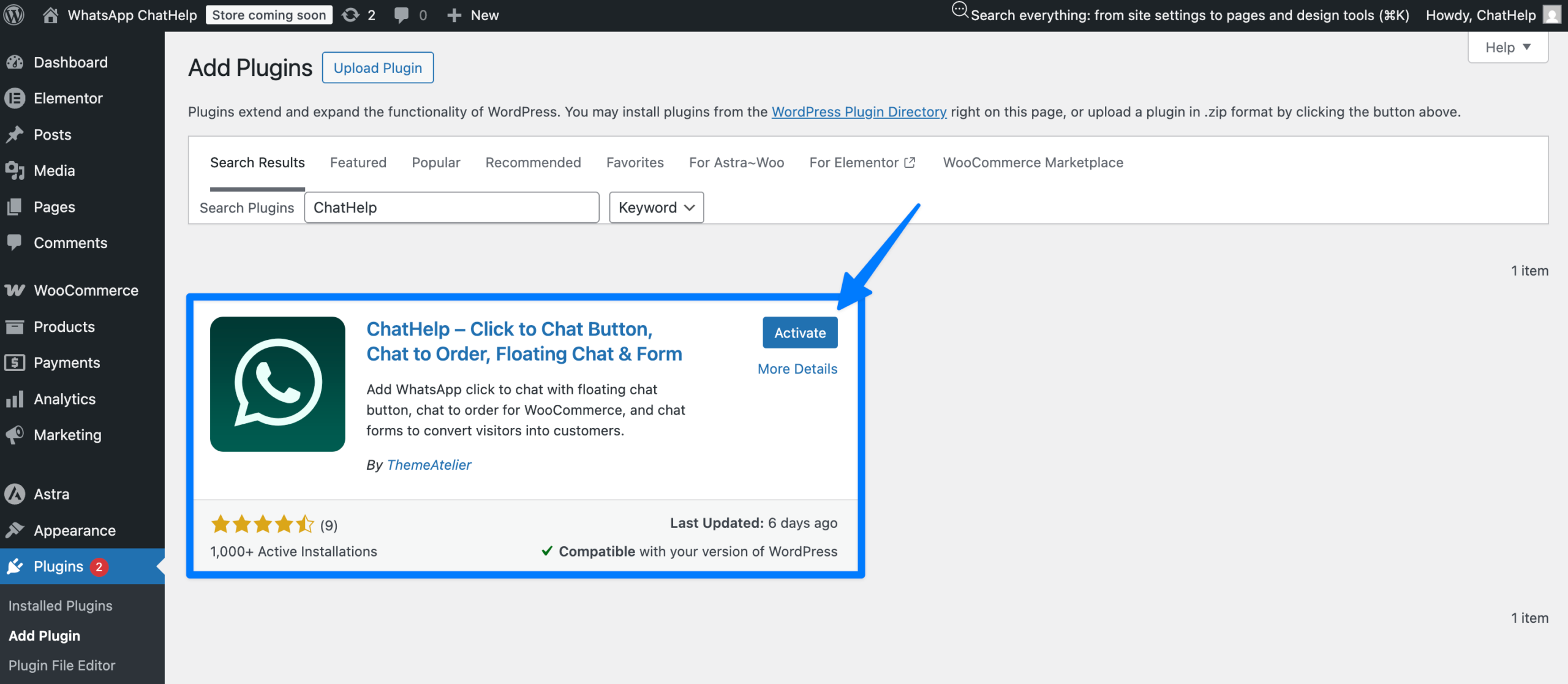
- In your dashboard, go to Plugins → Add New Plugin.
- Search for ChatHelp.
- Click Install Now, then Activate.
- Open the page or post where you want the button, in the Block Editor.
- Open the Block Inserter and type “/” to search for the block by name.
- Select the WhatsApp Button block and insert it.
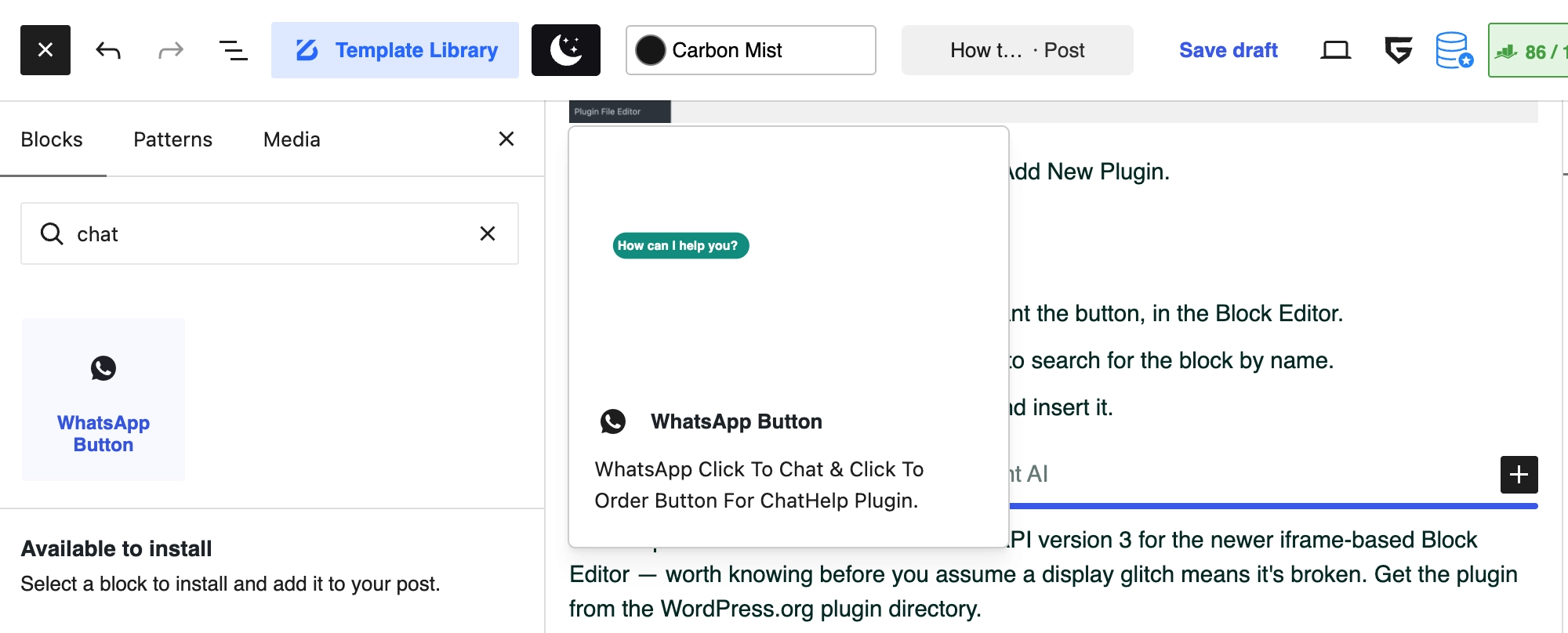
ChatHelp lists this block as built on Block API version 3 for the newer iframe-based Block Editor — worth knowing before you assume a display glitch means it’s broken. Get the plugin from the WordPress.org plugin directory.
Configuring the WhatsApp Button Block, Field by Field
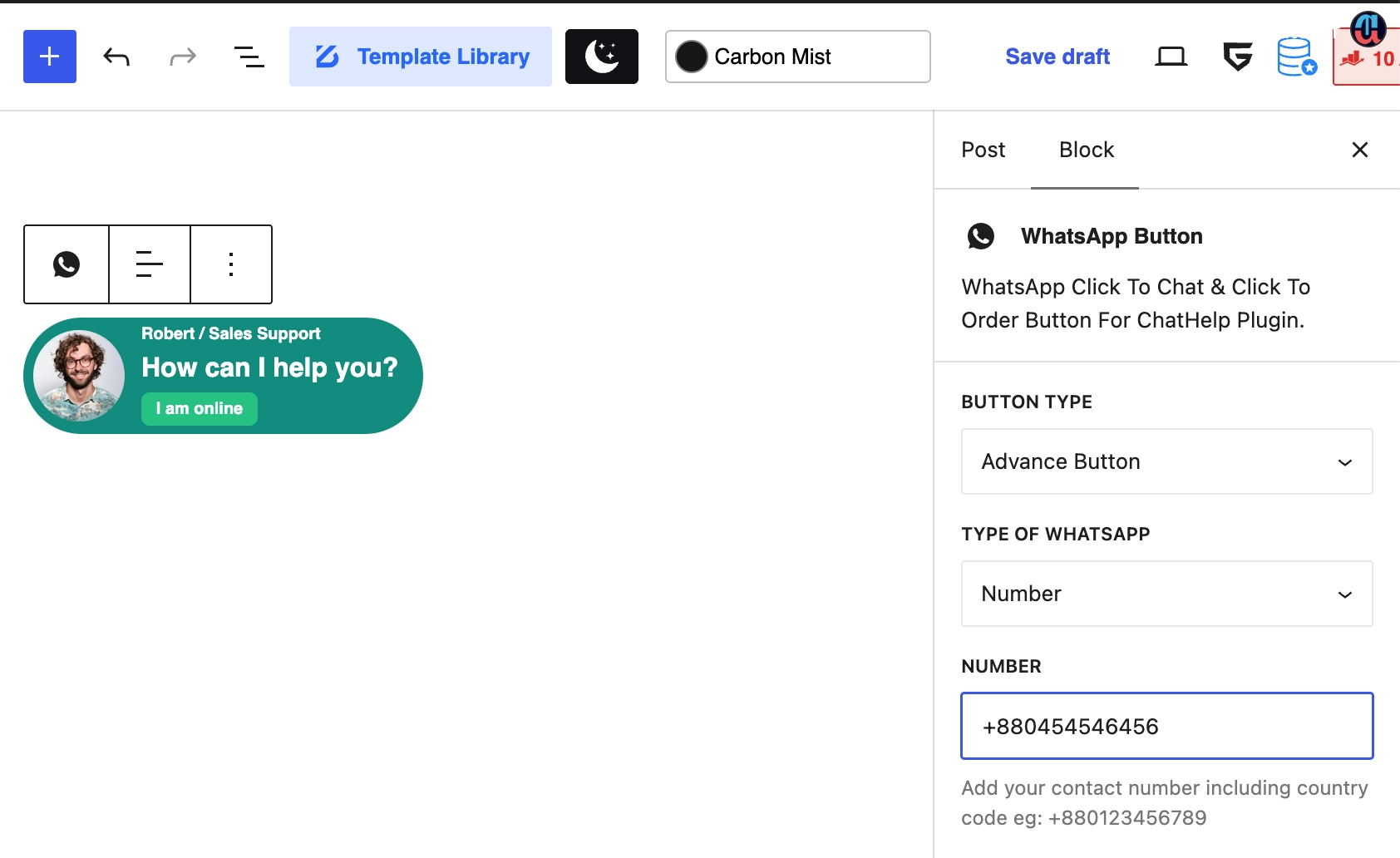
Once your WhatsApp chat Gutenberg block is inserted and selected, its settings split into a few groups.
Button Type
Choose Simple Button (label plus icon) or Advance Button, which adds an agent’s photo, name, and status. Simple Button suits a plain inline CTA; Advance Button suits a “message our team” moment where a face builds trust.
Destination: Number or Group
Set Type of WhatsApp to Number for a direct one-to-one chat, or Group to link to a WhatsApp group invite. Most inline CTAs on a service or product page should point to a number, not a group.
Chat Settings
This is where the destination number and pre-filled message live. The number field follows ChatHelp’s own accepted format, not necessarily the digits-only wa.me rule above — check your version’s field example first.
Pre-filled messages can use smart variables; {siteTitle} and {currentURL} are the most broadly useful outside WooCommerce. Three practical starting points:
- Service quote: “Hi, I’d like a quote for the service on this page.”
- Product question: “Hi, I have a question about this product.”
- Booking inquiry: “Hi, I’d like to check availability for a booking.”
As before, this text pre-fills the chat box — it isn’t sent automatically. Chat Settings also cover timezone and availability, matching the Floating Chat options, useful if you don’t want the button implying support that isn’t online.
Button Style and General Settings
General Settings covers button text, icon, padding, and margin. Button Style covers primary/secondary colors, size, typography, and alignment, with custom CSS classes available under Advanced for anything the built-in controls don’t reach.
One caution: there’s no documented device-visibility toggle or GDPR consent checkbox on this specific block. GDPR consent belongs to ChatHelp’s form-based layouts, not the inline WhatsApp button — don’t assume every plugin-wide feature shows up in every block’s sidebar.
Inline Block vs. Floating Chat: Which Placement Wins?
An inline WhatsApp Button block and the floating widget solve different problems, and using both isn’t overkill.
The inline block works best where intent is already strong: after pricing, below a service description, near a booking CTA, or after an FAQ answer likely to raise a follow-up question.
The floating widget works best as persistent, site-wide access — useful on pages with no dedicated CTA of their own, like a blog post or an about page.
A reasonable default: keep the floating widget on for general availability, and add inline blocks only at two or three moments per page where a contextual conversation genuinely makes sense. Five identical buttons on one short page reads as spam, not help. See WhatsApp button placement guidance.
Reusing the Button Without Rebuilding It
Two different problems both get called “reuse.”
For the same button repeated across pages and updated together, use a Synced Pattern — WordPress’s current name for what it called Reusable Blocks before version 6.3. Configure the block once, convert it to a synced pattern, and insert it wherever the button belongs; editing one instance updates every page using it.
Template Parts are a different tool, meant for structural, site-wide areas like headers and footers in block themes. They’re not the natural home for a page-specific WhatsApp CTA; the floating widget already covers true site-wide placement.
On styling: don’t assume the block automatically inherits every theme.json color and typography change. Check whether your version’s Button Style panel uses core WordPress color controls (which do follow theme changes) or its own custom pickers (which don’t). Prefer theme-linked values where genuinely supported, but don’t count on it by default.
New Tab, Desktop/Mobile Behavior, and Tracking
A few behaviors get misattributed to the block when they’re actually controlled elsewhere in ChatHelp.
Open in New Tab lives in Advanced Controls, not the block sidebar — a site-wide setting covering how WhatsApp links open across your whole site, including this block.
Desktop and mobile opening is also configurable there. Desktop can use the API method (any browser) or the Web method (WhatsApp Web for logged-in users). Mobile can use the API method (auto-redirects to the app) or the Protocol method (opens the app directly) — behavior depends on your configuration, not one universal rule.
On tracking: ChatHelp’s built-in analytics dashboard excludes WooCommerce, shortcode, and inline block buttons like this one, to avoid double-counting against the floating widget. For click data on this button, set up the optional Google Analytics event tracking instead of assuming the dashboard covers it.
Privacy and Number Safety
The conversation itself happens inside WhatsApp — ChatHelp doesn’t store message content in WordPress. What it does store, through Leads Management, is submitted form-field data from form-based layouts, not this button on its own.
GDPR consent is documented for ChatHelp’s chat forms, not as a control on this specific block — don’t claim a consent checkbox exists on a page using only the WhatsApp Button block unless you’ve confirmed your version includes one.
A direct WhatsApp CTA necessarily exposes a business number or group link. Use a business-managed number rather than a personal one. None of this is legal advice — match your setup to your own privacy obligations.
Troubleshooting: WordPress WhatsApp Block Not Showing
The block isn’t in the Inserter
- Confirm ChatHelp is installed and active.
- Confirm it’s updated to the current version.
- Search using the exact name, “WhatsApp Button.”
- Check for a block-restriction setting hiding third-party blocks.
- Check the browser console only if the simpler checks don’t explain it.
- Rule out plugin conflicts last, not first.
The button appears but chat doesn’t open
- Recheck the destination number or group link for typos.
- Confirm you’re testing the published page, not a cached preview.
- Check the desktop/mobile URL behavior in Advanced Controls.
- Test a different device and browser before assuming the block is broken.
Wrong number format
Don’t apply raw wa.me formatting rules to ChatHelp’s own field, or vice versa — a hand-built wa.me link needs digits only, while the plugin’s field follows ChatHelp’s own accepted format. Check your installed version’s field example before entering the number.
Pre-filled message isn’t appearing
- Confirm the block genuinely supports the variable you used — WooCommerce variables need WooCommerce context.
- For a manual wa.me link, confirm the message is properly URL-encoded.
- Resave the block settings; a stale frontend cache can also hide a recent change.
Block shows in the editor but not on the frontend
Likely causes, by frequency: a stale page cache, an outdated ChatHelp version, frontend optimization stripping block markup, or a theme/plugin conflict. Purge cache first, update the plugin second, then test optimization features one at a time.
| Input / Situation | Why It Can Fail | Correct Approach |
|---|---|---|
| Plus sign in a hand-built wa.me link (manual wa.me) | wa.me links use digits only | Remove the +, keep the country code and number |
| Spaces, dashes, or parentheses in the number (manual wa.me) | These characters break the URL | Strip all formatting — digits only |
| Local number without a country code (manual wa.me) | WhatsApp can’t route the link | Add the full international country code |
| Leading 0 kept after adding the country code (manual wa.me) | Creates an invalid combined number | Drop the leading 0 once the country code is added |
| Unencoded spaces or punctuation in a ?text= message (manual wa.me) | Breaks the URL structure | URL-encode the text, e.g. %20 for spaces |
| Entering a wa.me-style number in the ChatHelp field (ChatHelp) | The plugin field isn’t guaranteed identical to a raw wa.me path | Check your installed version’s field example before entering the number |
Pre-Publish Testing Checklist
Before you consider the button done, check it on the published, logged-out frontend:
- Loads correctly on desktop and mobile
- Opens to the correct number or group
- Pre-filled message, if used, appears correctly
- Button label, icon, and alignment look right
- Hover/focus state is visible
- Spacing holds up at mobile widths
- Synced Pattern updates propagate, if you used one
- No visual overlap with the floating widget, if both are active
- New-tab behavior matches what you configured in Advanced Controls
Frequently Asked Questions
Is there a WhatsApp block for WordPress?
Yes. ChatHelp adds a dedicated, free WhatsApp Button block to the Gutenberg inserter, alongside a floating widget and a shortcode. You don’t need Elementor or custom code for a native block-based WhatsApp CTA.
How do I add a WhatsApp button in Gutenberg?
Install and activate ChatHelp, open the Block Editor on the page you want, open the Block Inserter, and search for “WhatsApp Button.” Insert the block, then set your destination number, pre-filled message, and styling in the settings sidebar.
Can I add WhatsApp to Gutenberg without a plugin?
Yes, for a single simple CTA. Add a core WordPress Buttons block and link it to a wa.me address in international number format. You lose plugin styling, pre-filled-message variables, and central maintenance, which is fine for a one-off button.
What’s the correct number format for a wa.me link?
A manually built wa.me link needs the full international number, digits only — no plus sign, spaces, or leading zero. ChatHelp’s own number field follows the plugin’s accepted format, which isn’t necessarily identical to a hand-built URL.
Can I add a pre-filled WhatsApp message?
Yes. ChatHelp’s Chat Settings let you set a pre-filled message, including smart variables like {siteTitle} and {currentURL}. It populates the chat box for the visitor to review — it isn’t sent automatically.
How do I reuse the same WhatsApp button on multiple pages?
Configure the block once, then convert it into a Synced Pattern — WordPress’s current name for what used to be called a Reusable Block. Insert that pattern anywhere you need the button, and editing one instance updates every page using it.
Why isn’t my WhatsApp block showing up in WordPress?
Most often because ChatHelp isn’t active or updated, or the inserter was searched with the wrong term. Confirm the plugin is active and current, search “WhatsApp Button” exactly, then check block-restriction settings before assuming a plugin conflict.
WhatsApp Chat Gutenberg: Which Option Should You Actually Use?
If one WhatsApp button on one page covers what you need, the core Button block linked to a wa.me address remains a legitimate choice — you don’t need a plugin for that. Once you want a native block, a pre-filled message with smart variables, consistent styling, and a button you can update from one place across dozens of pages through Synced Patterns, ChatHelp Free covers it.
Install it from the WordPress Plugin Directory and search “WhatsApp Button” in your next post’s Block Inserter. Multiple agents and deeper traffic analytics are where Pro picks up — not a requirement for the setup covered here.