


One WhatsApp number. Every question. The sales rep answers refund requests she can’t process, technical questions sit unread because they reached the wrong phone, and customers repeat their whole story after being told “let me forward you to my colleague.”
The problem usually isn’t message volume. It’s that visitors have no way to reach the right person. Setting up multiple WhatsApp agents on your WordPress site fixes that: the chat widget shows your sales, support, and billing contacts, the visitor picks the one that matches their question, and WhatsApp opens with that person’s number.
This guide covers when a multi-agent setup makes sense, how to configure it with Chat Help Pro, and how to keep it working as your team changes.
Key Takeaways
- A multi-agent WhatsApp widget displays several contacts — sales, support, billing, languages, or locations — and lets the visitor choose before the chat opens.
- This is agent selection by the visitor, not automatic routing, and a WordPress widget is not the same thing as a shared WhatsApp team inbox.
- Clear names and roles (“Maya — Pre-Sales”) outperform generic labels like “Agent 1,” which tell visitors nothing.
- Each agent should have their own pre-filled message, so conversations start with the right context for that department.
- Availability settings should reflect real staffing — showing an agent as reachable when nobody monitors the number damages trust.
- Fewer, clearly differentiated choices beat a long list — start with two or three agents and expand only when there’s a reason.
- Solo operators usually don’t need this: the free single-agent Chat Help button covers one person handling everything.
Table of Contents
Single-Agent vs. Multi-Agent WhatsApp Chat
| Area | Single-agent setup | Multi-agent setup |
|---|---|---|
| WhatsApp contacts | One number | Multiple selectable numbers |
| Best for | Solo operators and small teams | Businesses with specialized staff |
| Visitor choice | One general contact | Agent or department selection |
| Message context | Usually generic | Tailored by agent or purpose |
| Availability | One schedule | May support individual schedules |
| Management effort | Lower | Needs clear ownership and upkeep |
Neither column is “better.” A solo consultant or a small team that handles all inquiries together is genuinely better served by one number and one schedule. Multi-agent earns its complexity only when different questions truly belong to different people.
Why One WhatsApp Number Breaks Down as a Business Grows
Picture a WooCommerce store with five kinds of inquiries arriving on one number: pre-sales product questions, order-status checks, refund requests, technical support, and the occasional wholesale inquiry. Whoever holds the phone becomes the bottleneck for all of them.
The failure pattern is predictable. Sales questions reach support staff who can’t discuss pricing. Billing questions interrupt people who can’t issue refunds. Customers get redirected and repeat themselves, messages wait when the phone holder is off shift, and business chats pile up on someone’s personal number. Visitors, meanwhile, can’t tell who they’re actually writing to.
Add languages or a second location and it gets worse. The goal of a multi-agent setup isn’t to display as many faces as possible — it’s to help each visitor reach the right person on the first try. Worth saying plainly: adding more numbers won’t fix understaffing or slow reply habits. It fixes misdirection.
[IMAGE SUGGESTION: Split illustration — left side shows one overloaded phone receiving sales, support, and billing messages; right side shows three labeled agents each receiving their own category | Visualize the misdirection problem and the multi-agent fix | One overloaded WhatsApp number compared with separate sales, support, and billing agents]
What a Multi-Agent WhatsApp Setup Looks Like
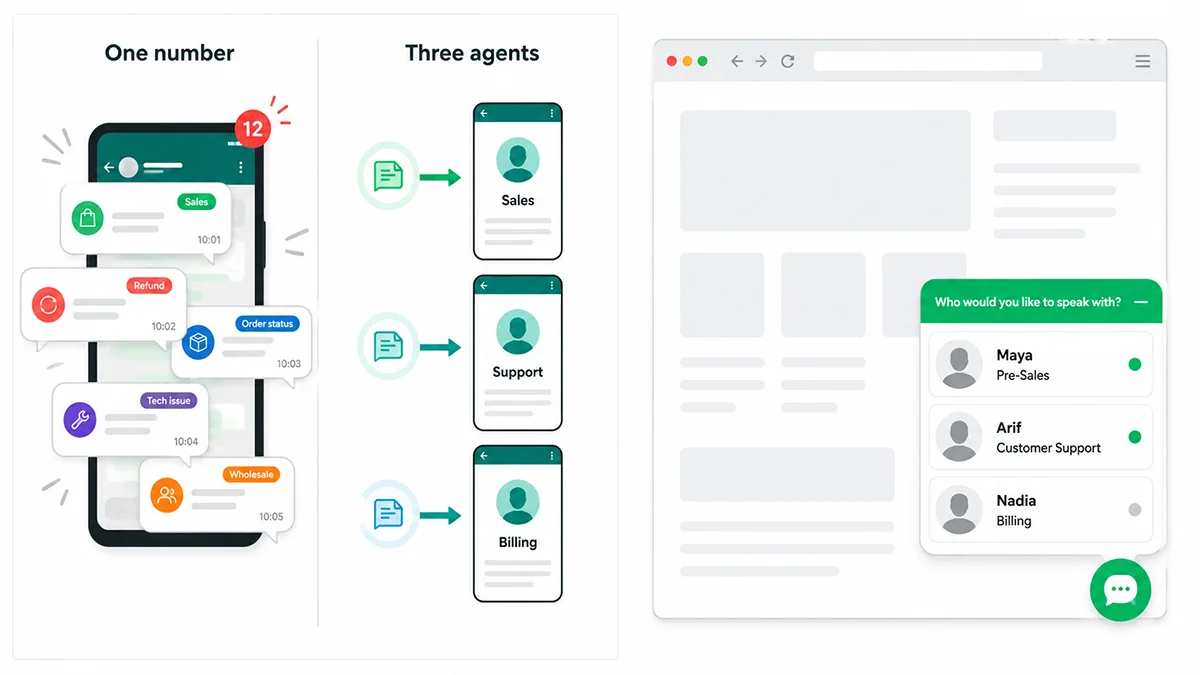
From the visitor’s side, it’s simple. They tap the floating WhatsApp button and instead of one contact, they see a short list of agent cards — typically a name, a photo or icon, a role, and availability information. For example:
- Maya — Pre-Sales: product and pricing questions
- Arif — Customer Support: existing orders and technical issues
- Nadia — Billing: invoices, refunds, and payments
The visitor picks the relevant card, WhatsApp opens with that agent’s number, and a role-specific pre-filled message gives the conversation context. They edit or send it, and the selected agent takes it from there in their own WhatsApp.
Two distinctions to keep straight. First, this is visitor selection: the visitor chooses the contact; the widget doesn’t automatically assign or distribute messages. Second, each agent uses their own WhatsApp number — the widget doesn’t create a shared inbox where several employees answer from one account. Once the widget itself is set up, [INTERNAL LINK: WhatsApp chat button best practices — improve placement, messaging, and conversions] covers how to make it convert.
When Should You Use Multiple WhatsApp Agents on WordPress?
Use multiple agents when there’s a meaningful reason to separate conversations: distinct sales, support, and billing teams; pre-sales vs. after-sales; different product lines; multiple branches or store locations; separate languages or regional teams; wholesale vs. retail; or an agency where each account manager owns their clients.
Skip it when one person handles everything, when every agent would offer the same service, when agents are rarely available, or when the business can’t maintain accurate schedules. A wall of similar options confuses visitors more than one clear contact ever would.
A useful decision rule: if visitors regularly need to be transferred after starting a WhatsApp conversation, a multi-agent setup will probably help. If transfers are rare, it’s complexity you don’t need yet.
How to Set Up Multiple WhatsApp Agents with Chat Help Pro
Step 1: Install the free Chat Help plugin
In your WordPress dashboard, go to Plugins → Add New, search for “Chat Help,” then install and activate the free plugin and open its settings. The free version gives you a working single-agent WhatsApp button — a fine starting point on its own. If you’re new to the plugin, [INTERNAL LINK: Add WhatsApp chat to WordPress — beginner setup guide] walks through the basics.
Step 2: Activate Chat Help Pro
Multi-agent functionality is a Chat Help Pro capability. Follow the activation instructions included with your Pro purchase — the current steps ship with the product, so use those rather than any secondhand guide.
Step 3: Plan the agent structure before adding anyone
Ten minutes of planning prevents a cluttered widget. For each agent, decide the name, purpose, WhatsApp number, the pages where they should appear, working hours, pre-filled message, and a backup contact. A simple plan looks like this:
| Agent | Role | Best pages | Message purpose |
|---|---|---|---|
| Sales Team | Product and pricing questions | Product and pricing pages | Pre-sales enquiry |
| Support Team | Existing customer help | Support and account pages | Support request |
| Billing Team | Payments and invoices | Billing and contact pages | Billing enquiry |
Step 4: Add the first agent
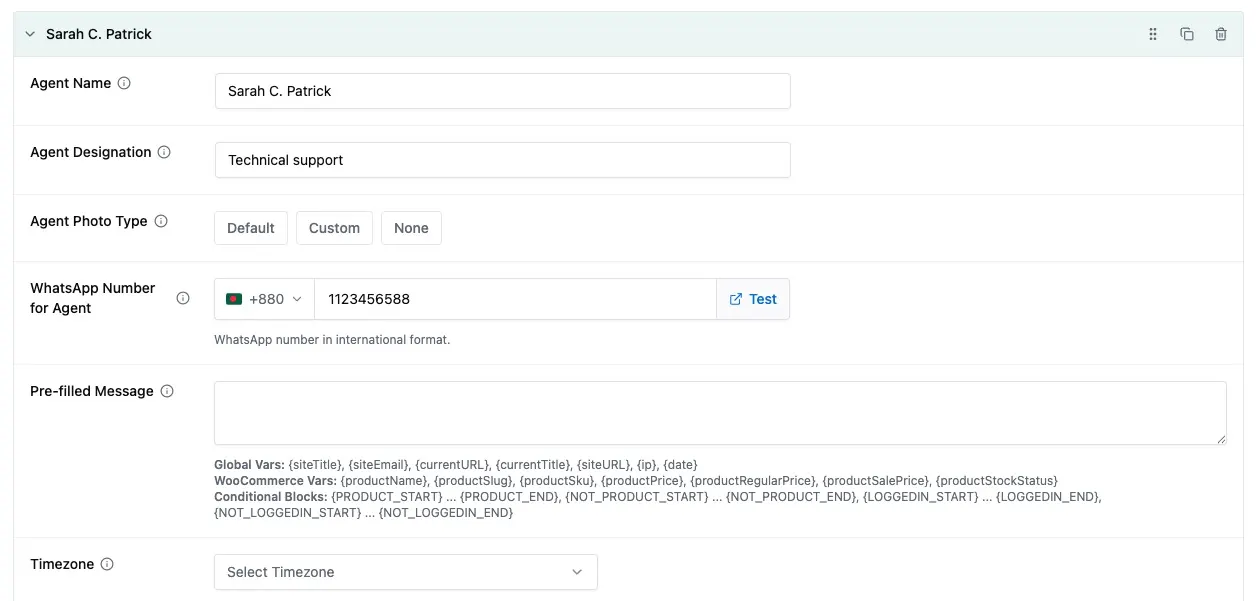
Create your first agent entry with the details your Chat Help Pro version supports — typically a name, profile image, role or designation, WhatsApp number with country code, a short description, and a pre-filled message. A complete example:
- Name: Maya · Role: Pre-Sales Specialist
- Number: business WhatsApp number, with country code
- Description: Product, pricing, and plan questions
- Pre-filled message: “Hi Maya, I’m interested in `product or plan`. Could you help me choose the right option?”
The test: could a stranger tell what Maya handles without guessing? If not, sharpen the role and description.
Step 5: Add the remaining agents
Repeat for your other teams — but start with two or three clearly differentiated choices, not every employee. “Talk to Sales,” “Get Customer Support,” and “Ask About Billing” cover most businesses. Department labels often age better than individual names when staff change frequently.
Step 6: Configure each WhatsApp number
Every agent needs a WhatsApp-compatible number with the international country code. Send a test message to each one and confirm the right account opens. Prefer business-owned numbers over personal ones where practical, never list a number nobody monitors, and decide now what happens to each number when its owner leaves the company.
Step 7: Write a pre-filled message for each agent
One generic greeting defeats the purpose of separate agents. Give each role its own starting message:
Sales: “Hi! I’m interested in `product or service`. Could you help me with pricing and the best option for my needs?”
Support: “Hi! I need help with an existing order or account. My order number is `order number`, and the issue is [brief description].”
Billing: “Hi! I have a question about an invoice, payment, or refund. The relevant order or invoice number is `number`.”
Agency project: “Hi! I’d like to discuss a project involving `service`. My preferred timeline is `timeline`.”
Keep them short — context without interrogation, and never ask for sensitive details up front. More examples: [INTERNAL LINK: WhatsApp pre-filled message examples — copy-and-paste template guide].
Step 8: Configure agent availability
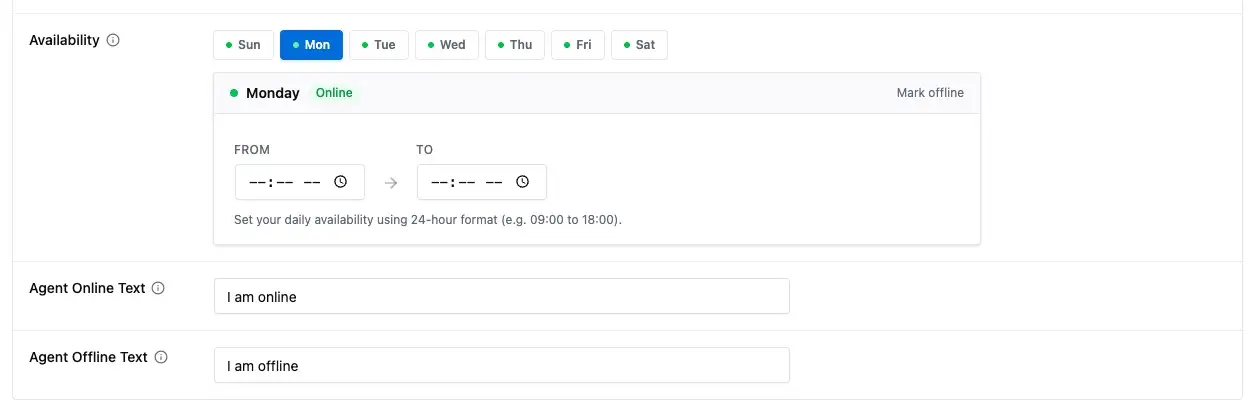
Where supported by your current Chat Help Pro version, set each agent’s working days, hours, and time zone, plus offline text and a backup contact. Whatever the settings screen offers, the principle is the same: indicators must reflect real staffing. Wording that works: “Available Monday–Friday, 9:00 AM–5:00 PM.” “Usually replies within 30 minutes during working hours.” “Currently offline. Send a message and we’ll respond on the next business day.”
Step 9: Customize the widget
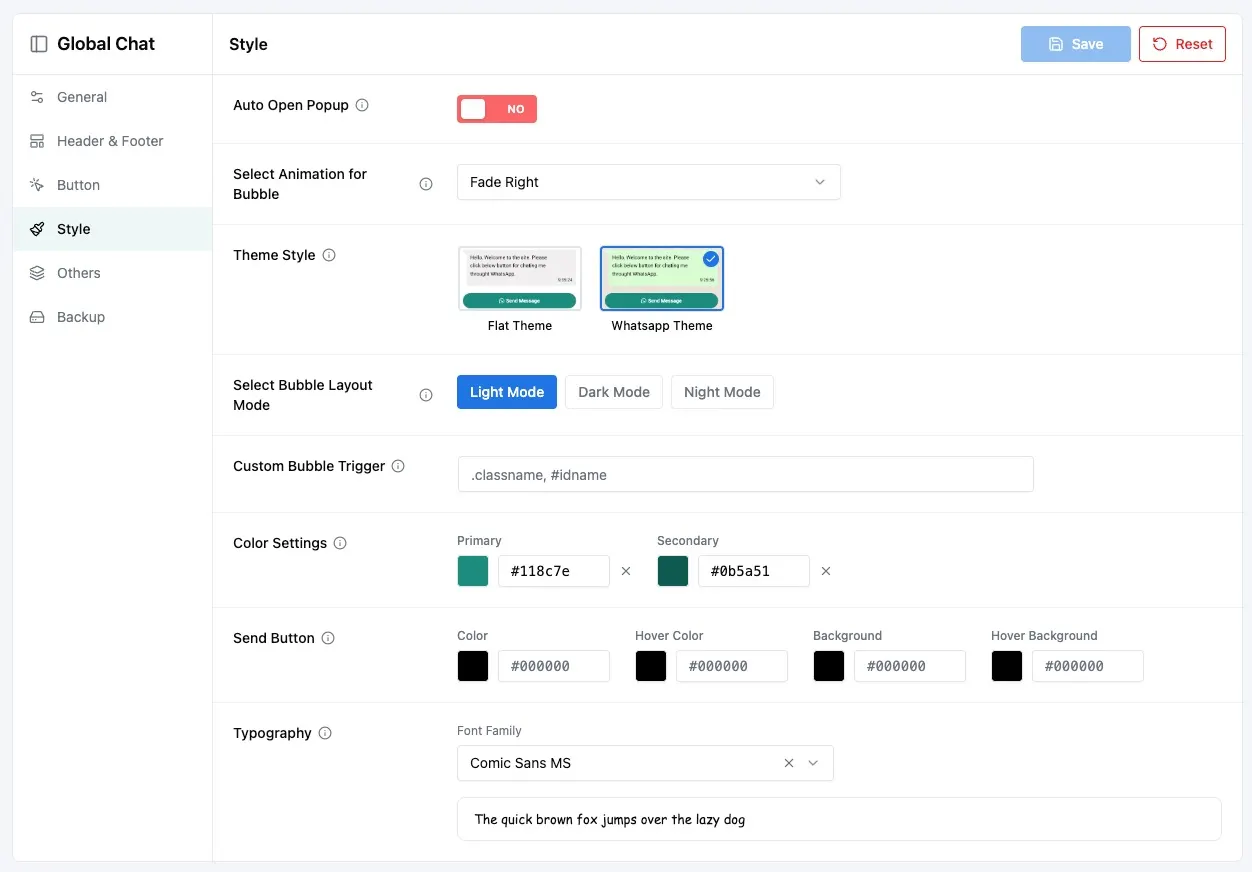
Give the widget a concise heading — “Who would you like to speak with?” works well — plus a short intro line, a clear button label, and consistent profile images that match your brand. Then check how the agent cards look on a phone, where most of your visitors will see them.
[IMAGE SUGGESTION: A WordPress site with an open multi-agent WhatsApp widget showing three agent cards with names, roles, and availability | Show readers exactly what the finished setup looks like to a visitor | Multi-agent WhatsApp widget on a WordPress site displaying sales, support, and billing agent cards]
Step 10: Control where each agent appears
Where your version supports page-level visibility, match agents to intent: sales on pricing and product pages, support on account and documentation pages, billing on payment-help pages, location agents on branch pages, and language agents on translated pages. If per-agent targeting isn’t available in your configuration, use the closest widget-level visibility controls — showing a smaller, relevant set of agents per page beats showing everyone everywhere.
Step 11: Test the complete experience
Test as a visitor, not from the dashboard. In a private browser window, on desktop and mobile: open every agent card, confirm each number opens the right WhatsApp account, check every pre-filled message, verify availability text, and look for overlap with cookie notices or other floating buttons. Then ask someone uninvolved to try it without instructions — if they hesitate over which agent to pick, your names and roles need work.
Do You Need Chat Help Free or Pro?
An honest answer: it depends entirely on how many people answer your messages.
| Requirement | Chat Help Free | Chat Help Pro |
|---|---|---|
| Basic WhatsApp button | Suitable | Suitable |
| Single contact | Suitable | Suitable |
| Multiple selectable agents | Not included | Pro use case |
| Department-based setup | Limited or unavailable | Use current Pro capabilities |
| Advanced visibility or scheduling | Check current feature list | Check current feature list |
If one person still handles every conversation, the free version is genuinely enough. When sales, support, billing, language, or location questions need to reach different people and numbers, that’s the point where Chat Help Pro earns its cost. Check the current feature list on the site before buying — plugin capabilities evolve.
Four Practical Ways to Organize Your WhatsApp Agents
By department
Sales, Support, Billing, Partnerships. The default choice for businesses where questions need different expertise, and the structure that survives staff changes best.
By language
English support, Spanish support, Bengali support. Label the language clearly on the card — visitors should never have to message someone to find out whether they’ll be understood. Don’t imply automatic language detection; the visitor chooses.
By product or service
Plugins, hosting, website design, enterprise services. Best when specialized teams own specialized knowledge and a generalist would just relay the question.
By location
Dhaka branch, London office, New York store, online orders. Useful when inventory, hours, pricing, or service areas differ by branch. You can combine two methods — say, department within location — but if the widget needs explaining, it’s too complicated.
Multi-Agent WhatsApp Best Practices
A few habits separate widgets that help visitors from widgets that decorate the corner:
- Use real, professional photos where you can — recognizable faces build trust. Departments with frequent staff changes can use consistent team icons instead.
- Use descriptive roles. “Maya — Pre-Sales” and “Billing Team — Payments and Refunds” work; “Agent 1,” “Admin,” and “Contact” don’t.
- Limit the choices. A handful of distinct options helps; a scroll of similar ones creates decision fatigue. The right number is however many genuinely different purposes you have.
- Set honest availability. Never show an agent as reachable when nobody’s monitoring that number.
- Provide an offline fallback — an offline message, a general contact, a form, or an email with a next-business-day expectation.
- Match agents to page intent. A pricing-page visitor shouldn’t wade through unrelated support contacts.
- Keep pre-filled messages short — enough context to skip the preamble, enough room for the visitor to explain naturally.
- Review the setup when staff change. Photos, names, numbers, schedules, page assignments, and backups all go stale quietly.
How Multiple WhatsApp Agents Can Improve Response Quality
The benefits are real but conditional. When the setup is maintained, visitors reach a relevant contact on the first try, agents receive conversations that start with context, fewer chats need manual handover, and pre-sales inquiries stop competing with support tickets in one queue. Language and location preferences sort themselves at the point of selection.
On a WooCommerce store, that looks like a product-page visitor asking Sales about compatibility while an existing customer reaches Support about an order — two conversations, each starting with the right person and the right context, instead of both landing in the same general inbox.
None of it is automatic. The gains only materialize when numbers are actively monitored, roles are clear, availability is accurate, and someone follows through on every inquiry. A beautifully organized widget in front of an unmonitored number is worse than no widget at all.
[IMAGE SUGGESTION: Visitor journey diagram: pricing page → widget opens → visitor selects “Talk to Sales” → WhatsApp opens with pre-filled sales message | Show the selection flow from page to conversation | Visitor journey from a WordPress pricing page to a WhatsApp sales conversation through agent selection]
How to Measure Whether Your Multi-Agent Widget Is Working
Useful signals include widget opens, agent selections, clicks per agent or department, which pages generate the most selections, and — most importantly — what the conversations become: qualified leads, resolved support cases, or transfers to a different agent. Check your current plugin version and analytics tools for what’s actually tracked; measure first-response time outside the widget if you need it.
A manual framework any team can run:
- Record which agent or department receives each inquiry.
- Categorize it: sales, support, billing, or other.
- Note whether it reached the correct person first.
- Track whether it became a qualified lead, sale, or resolved case.
- Review misrouted conversations monthly and adjust labels, page targeting, or messages accordingly.
More clicks aren’t automatically progress. If visitors keep choosing the wrong agent, the labels are the problem — not the visitors.
Common Multi-Agent WhatsApp Mistakes to Avoid
- Too many agents in one widget. Every extra similar option makes the choice harder, not easier.
- Generic names. “Agent 1” forces visitors to guess — and guessing wrong means a transfer anyway.
- No role descriptions. A name and photo without a purpose is a coin flip.
- Showing unavailable agents. Messages sent into silence teach customers not to use the widget.
- One pre-filled message for every department. It throws away the context advantage you built the widget for.
- Every agent on every page. Page relevance is the whole point of targeting.
- Personal numbers with no offboarding plan. When the employee leaves, their conversations — and your customers — leave with them.
- Untested country codes. A missing digit sends customers to nobody, silently.
- Stale rosters. Old agents left active after staffing changes are unmonitored dead ends wearing a friendly photo.
Multiple WhatsApp Agents Setup Checklist
- Every agent has one clear purpose.
- Names and roles are understandable to a stranger.
- Every WhatsApp number includes the correct country code.
- Each number has received a successful test message.
- Business-owned numbers are used where practical.
- Pre-filled messages match each agent’s role.
- Availability information reflects real schedules.
- Offline expectations are stated clearly.
- Relevant agents appear on relevant pages.
- The widget works on mobile without covering anything important.
- Photos or icons are consistent in style.
- Backup contacts are documented.
- Former staff contacts are removed promptly.
- The full visitor journey has been tested by someone uninvolved.
- Misrouted conversations are reviewed periodically.
FAQ – multiple whatsapp agents wordpress
Can I add multiple WhatsApp numbers to one WordPress website?
Yes. A multi-agent WhatsApp plugin such as Chat Help Pro lets you display several agents or departments in one chat widget, each with their own WhatsApp number, name, role, and pre-filled message. The visitor chooses the right contact, and WhatsApp opens a conversation with that specific number — no coding required.
How does multi-agent WhatsApp chat work?
The visitor opens the chat widget and sees a list of agent cards — typically names, photos, roles, and availability. They select the agent that matches their question, and WhatsApp opens with that agent’s number and a role-specific pre-filled message. It’s visitor-driven selection: the widget helps people choose the right contact rather than automatically distributing messages among staff.
Can each WhatsApp agent have a different schedule?
Where individual availability settings are supported in your current Chat Help Pro version, each agent can show their own working days, hours, and offline message. Whatever your version offers, the rule stays the same: displayed availability must match real staffing. Check the current feature list at wpchathelp.com before relying on a specific scheduling option.
Can multiple agents reply from the same WhatsApp number?
Not through the WordPress widget itself — it directs visitors to different numbers rather than creating a shared inbox. Several people answering one number requires WhatsApp’s own linked-device features, the WhatsApp Business Platform, or a dedicated team-inbox service, depending on your workflow and volume. Many businesses combine approaches: a multi-agent widget for selection, plus linked devices on a busy team number.
Do I need Chat Help Pro to add multiple WhatsApp agents?
For multiple selectable agents in one widget, yes — that’s a Chat Help Pro capability. The free version covers a single-agent WhatsApp button, which is genuinely sufficient for solo operators and small teams where one person answers everything. Upgrade when different questions need to reach different people and numbers.
Start With Two or Three Agents, Not Ten
Setting up multiple WhatsApp agents on WordPress pays off when visitors genuinely need different people for different questions — and the payoff comes from clarity, not headcount. Clear roles, honest availability, page-relevant placement, and department-specific pre-filled messages do the work; the number of cards in the widget is secondary.
Start small. Two or three clearly differentiated agents — Sales, Support, and maybe Billing — will teach you where conversations actually come from before you expand. If one person still handles every message, the free Chat Help plugin may be all you need. When separate teams, languages, or locations need their own numbers, Chat Help Pro gives you the structured multi-agent experience without touching code. Review the setup each time your team changes, and the widget will keep sending the right conversations to the right people.