

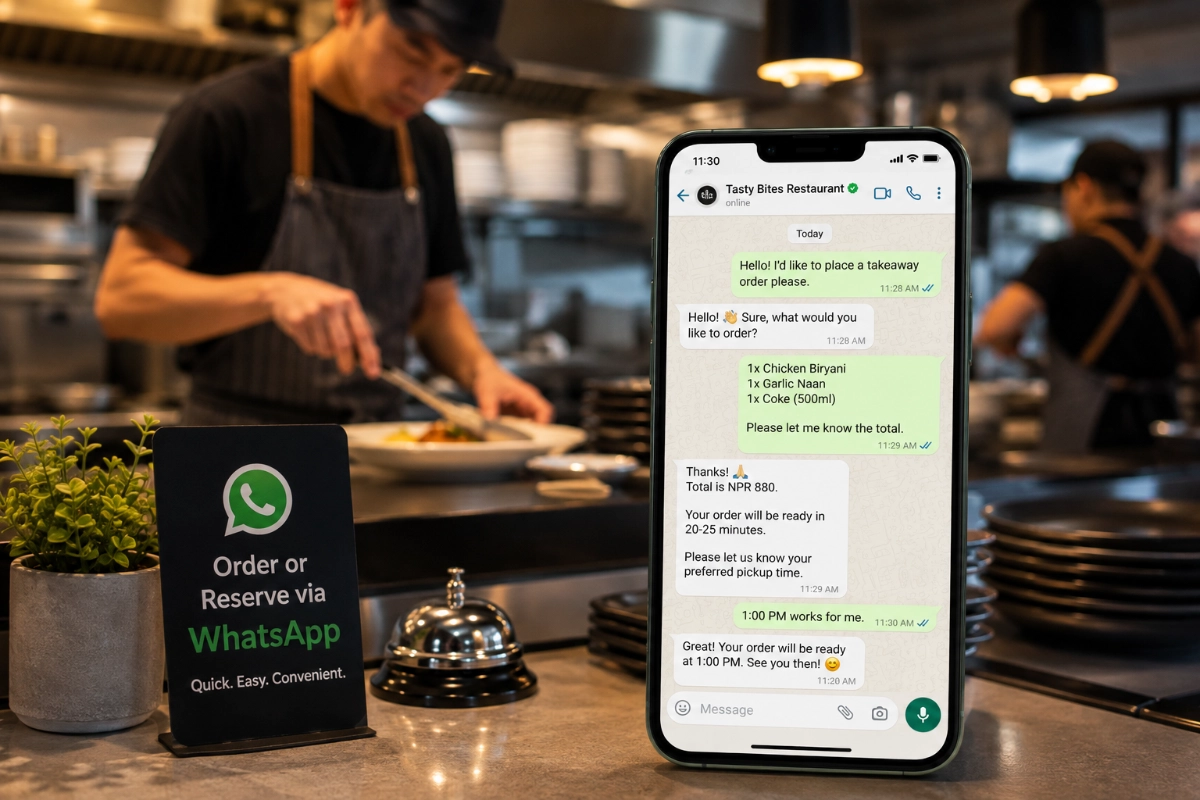

Friday night, 7:30. The phone rings while your staff carry plates, the line is busy for the third caller in a row, and someone who wanted a Sunday table gives up and books elsewhere. Nobody did anything wrong — there just weren’t enough hands.
WhatsApp chat for restaurants offers a calmer way to handle those requests. Instead of catching every inquiry live, customers send their order or reservation request by message, and your team replies the moment someone is free. Some customers actually prefer it: they can read the menu first, type their order carefully, and skip the phone call entirely.
WhatsApp won’t eliminate phone calls, and it shouldn’t. But used well, it captures the requests your phone line drops. Here’s how to set it up properly.
Key Takeaways
- WhatsApp is a conversation channel, not an ordering platform — it should complement your phone line and any online ordering system, not replace them.
- Pre-filled messages (“Hi, I’d like to place a takeaway order…”) reduce customer typing and give staff the context they need to reply fast.
- Every order and reservation request must be manually confirmed by staff — an unanswered WhatsApp message is not a booking or a sale.
- Place the WhatsApp button most prominently on menu, contact, and reservation pages, with a different call-to-action on each.
- Publish accurate monitored hours (for example, “WhatsApp orders monitored 11:00 AM–9:30 PM”) instead of implying someone is always online.
- The free WhatsApp Business app adds labels, quick replies, greeting messages, and away messages that keep a restaurant inbox organized.
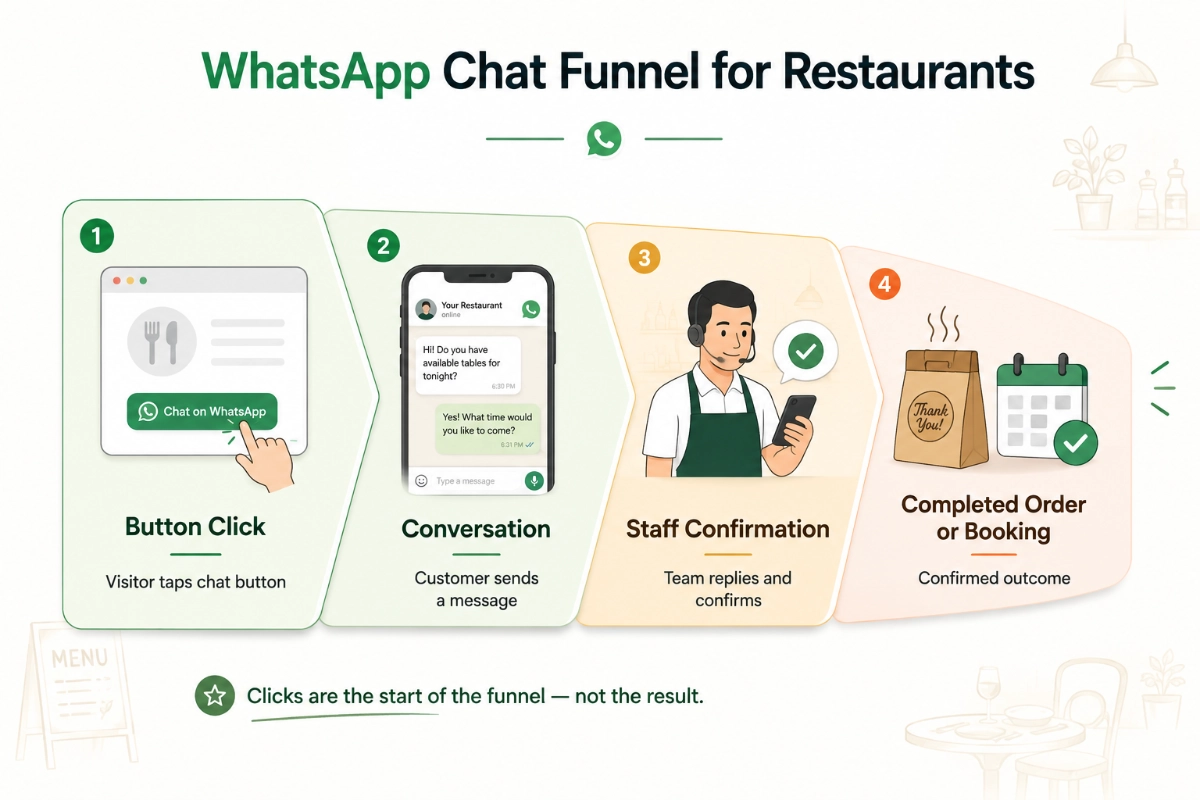
- Measure success by confirmed orders and reservations, not button clicks — a click is only the start of a conversation.
Table of Contents
Phone Calls vs. WhatsApp Chat for Restaurants Enquiries
| Customer task | Phone call | WhatsApp chat |
|---|---|---|
| Check menu availability | Requires an immediate conversation | Customer can send the exact item |
| Place a takeaway request | Details may be misheard | Written order can be reviewed |
| Request a reservation | Must reach staff immediately | Customer sends date, time, and party size |
| Share an address | Spoken and noted manually | Customer can paste or share it |
| Confirm details | Relies on memory or notes | Conversation stays visible to both sides |
The comparison isn’t one-sided. For urgent, complex, or last-minute requests — “we’re outside and the door’s locked” — a phone call is still faster. WhatsApp wins on everything that can wait ten minutes.
Why Restaurants Lose Orders and Reservations to Phone Calls
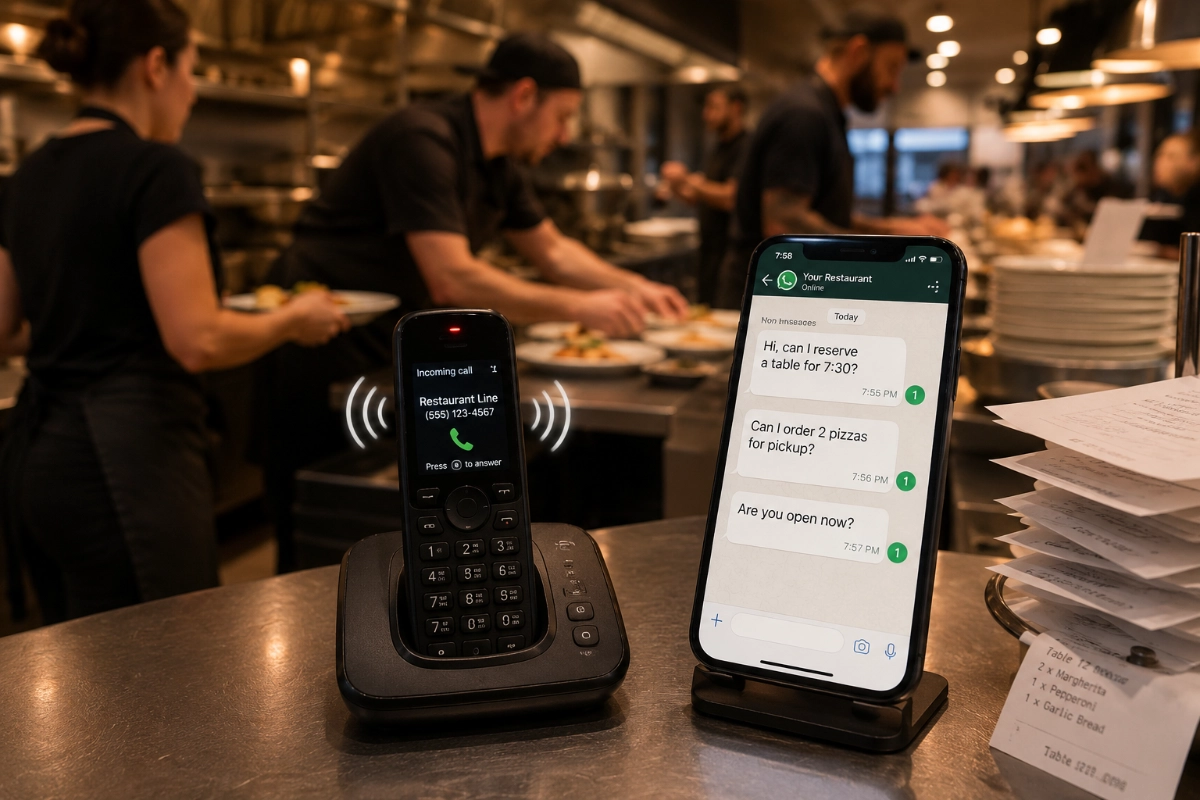
Picture a small pizzeria on a Friday evening. The ovens are full, both staff are plating, and the phone rings four times in ten minutes. Two calls get answered between tasks. One order gets written down with the wrong toppings because the kitchen is loud. Two callers hit a busy line and order from the pizzeria down the road.
The phone-only model fails in predictable ways:
- Staff can’t always answer during peak service — exactly when demand is highest.
- Busy lines and hold times send hungry customers to competitors.
- Background noise causes misheard items, sizes, and addresses.
- Calls outside opening hours reach nobody, and most callers don’t leave voicemail.
- Many customers are simply more comfortable starting a conversation by message, or want to browse the menu before committing.
- Tourists and international customers often find typing easier than speaking, and messaging can be more accessible for customers who find calls difficult.
One honest caveat: WhatsApp only helps if someone actually monitors it. It’s not the right channel for emergencies or requests needed in the next few minutes unless your team watches it as closely as the phone.
How WhatsApp Chat Helps Restaurants Handle Customer Requests
The core advantage is asynchronous conversation. The customer sends their request when it suits them; your team replies when someone’s hands are free. Nobody waits on hold, and the written thread becomes your record of what was agreed.
In practice, restaurants use one channel for all of it: takeaway order inquiries, delivery-area questions, table reservation requests, menu and allergen questions, opening hours, and catering or group-booking inquiries. Customers can share locations and addresses; you can send menu links, photos of specials, and written confirmations.
Worth knowing before setup: a basic wa.me click-to-chat link just opens a chat with your number. A floating WhatsApp button puts that link on every page. A configurable WordPress widget adds the useful controls — per-page buttons, pre-filled messages, and display rules. This guide assumes the widget approach, but the workflows apply to all three. New to the basics? See Learn how WhatsApp click-to-chat links work — WhatsApp click-to-chat tutorial.
How to Add a WhatsApp Button to a Restaurant WordPress Website
If your restaurant site runs on WordPress, the free Chat Help plugin handles this without code. The full setup:
- In your WordPress dashboard, go to Plugins → Add New, search for “Chat Help,” then install and activate it.
- Add the restaurant’s WhatsApp number with the correct country code.
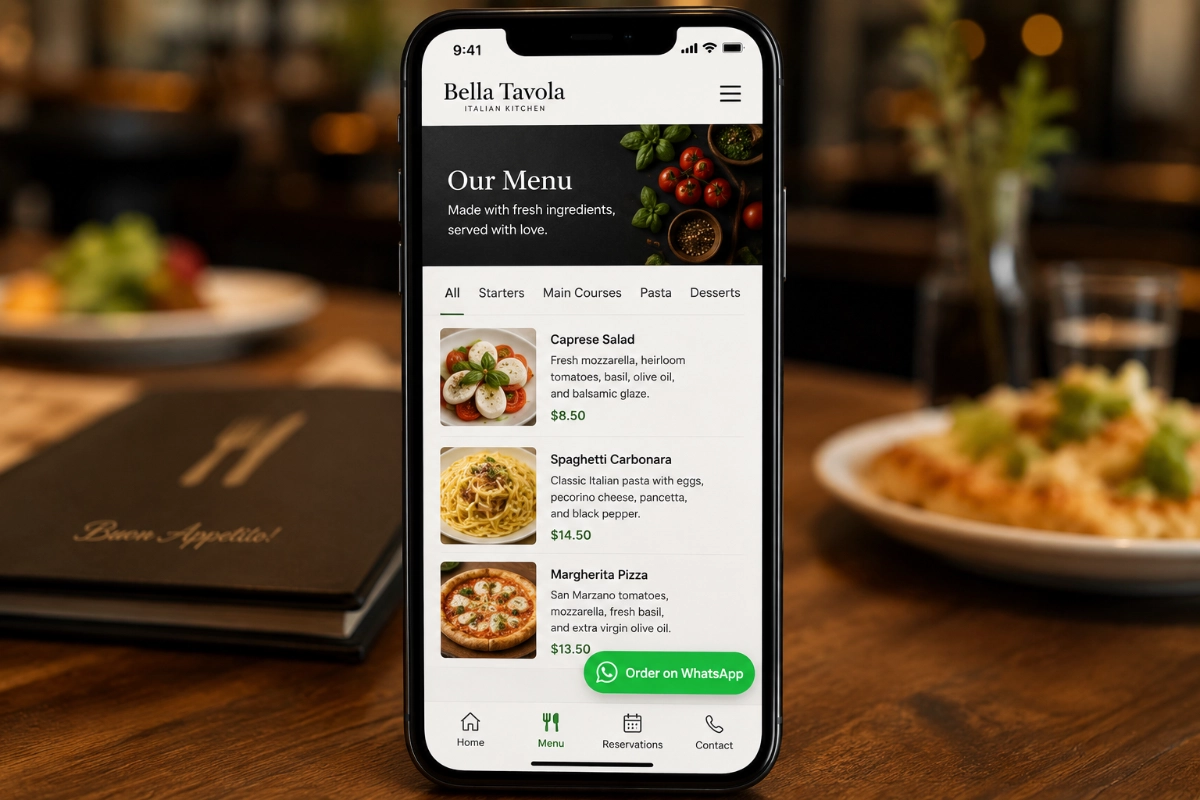
- Choose clear button text — “Order on WhatsApp,” “Reserve a Table,” “Ask About Today’s Menu,” “Check Delivery Availability,” or a general “Message the Restaurant.”
- Write a pre-filled welcome message so customers don’t start from a blank chat box.
- Select the button position — bottom-right is the familiar default.
- Check how the button displays on desktop and mobile.
- Set availability or working hours, where supported by your current version or configuration.
- Choose which pages show the button — menu, contact, and reservation pages at minimum.
- Preview the site on a real phone, not just a desktop browser.
- Send a test message and confirm it arrives on the right WhatsApp account.
That last step matters more than it sounds. I’ve seen chat buttons configured with a digit missing from the number, quietly sending customers to nobody for weeks. Test the whole journey once, on the device your customers actually use. For a more detailed walkthrough, see Add WhatsApp chat to WordPress — beginner setup guide, and the full feature list at wpchathelp.com.
How to Take Food Orders Through WhatsApp
A WhatsApp order isn’t automatic — it’s a short, structured conversation. The workflow that works:
- Customer taps the button and a pre-filled message opens.
- They add items, quantities, and preferences, then send.
- Staff check availability and reply with the total price and timing.
- Customer confirms the final order.
- Restaurant confirms collection or delivery time, and payment happens through your normal approved method — never card details typed into the chat.
Ask only for what you need to fulfil the order: items, quantities, sizes or variations, collection or delivery, preferred time, and the address when delivering. For allergy notes, take them seriously but don’t rely on chat alone — ask customers with serious allergies to confirm directly with staff before the kitchen starts.
Copy-and-paste order message templates
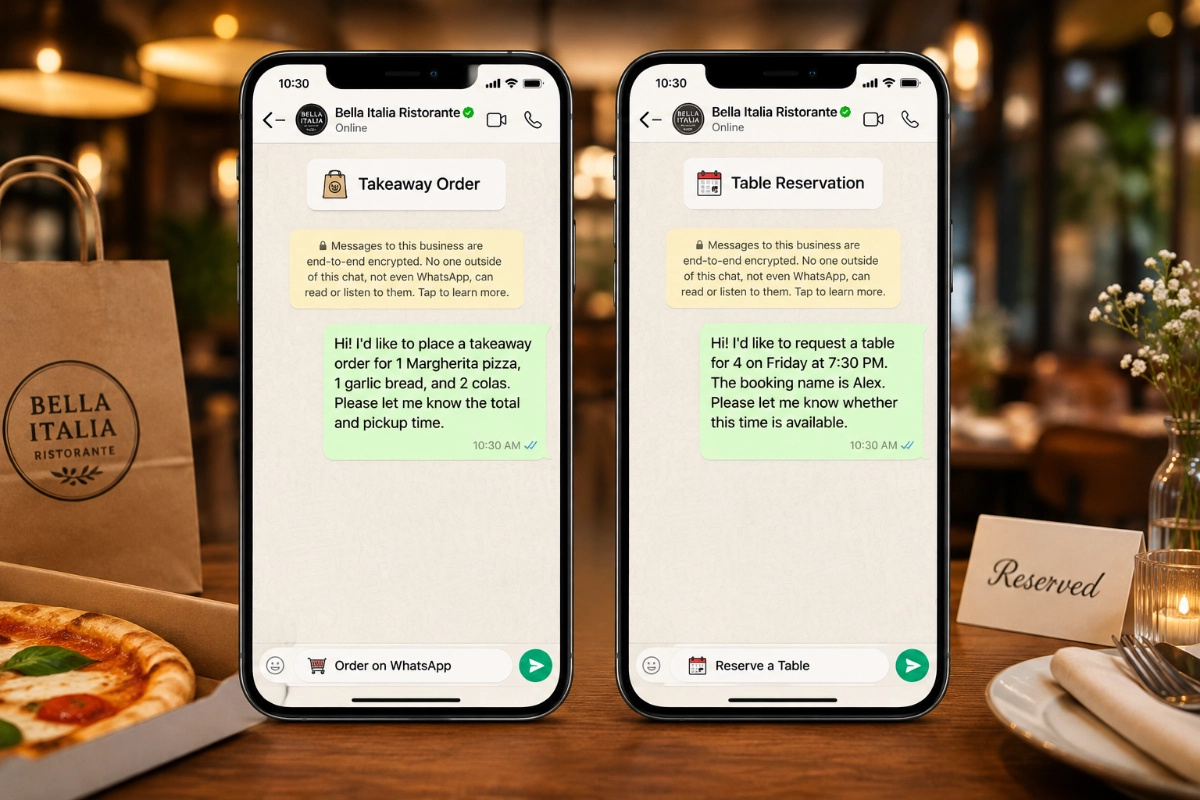
General takeaway order:
Hi! I’d like to place a takeaway order. My order is: [items and quantities]. I’d like to collect it at approximately [time]. Please confirm availability and the total price.
Delivery enquiry:
Hi! I’d like to order for delivery. My postcode or area is [location], and I’m interested in [items]. Could you confirm whether you deliver here, the delivery fee, and the estimated time?
Menu-item page:
Hi! I’m viewing [menu item] on your website. Is it available today, and can I order it for [collection/delivery]?
Keep templates short. The pre-filled text should start the conversation, not force customers to complete a long form inside WhatsApp. Link to a mobile-friendly menu in your first reply, and keep those prices current — a confirmed total that contradicts the website is how disputes start. More examples: WhatsApp pre-filled message examples — click-to-chat message guide.
How to Handle Table Reservations Through WhatsApp
Restaurant WhatsApp reservations follow the same request-and-confirm pattern: the customer sends date, time, and party size; staff check the book; the restaurant explicitly confirms or proposes another time; the customer acknowledges. Share arrival, deposit, or cancellation details in the confirmation when they apply.
Reservation request template:
Hi! I’d like to request a table for [number of guests] on [date] at [time]. The booking name is [name]. Please let me know whether this time is available.
Group or event booking:
Hi! I’m planning a booking for approximately [number] guests on [date]. Could you let me know about availability, set-menu options, and any deposit requirements?
One rule to make explicit to both staff and customers: a message requesting a table is not a confirmed reservation until the restaurant replies with confirmation. Put a version of that line in your greeting or away message, and use different buttons for different intents — “Reserve a Table” on the reservations page, “Order on WhatsApp” on the menu — so requests arrive with the right information.
Practical Tips WhatsApp Chat for Restaurants
Show the right button on the right page
One generic “Chat with us” across the whole site produces vague conversations. Match the CTA to the page: “Order on WhatsApp” on menu pages, “Ask About This Dish” on individual items, “Reserve a Table” on the reservations page, “Check Catering Availability” on event pages, and a general chat on the contact page. The wider principles are covered in WhatsApp chat button best practices — placement, CTA text, and tracking guide.
Publish accurate availability and response times
Tell customers what to expect and mean it: “WhatsApp orders monitored from 11:00 AM to 9:30 PM.” “We usually reply within 10–20 minutes during opening hours.” “For orders needed within 30 minutes, please call us.” Never display “online now” unless someone genuinely is.
Use WhatsApp Business for a more organized inbox
The free WhatsApp Business app adds a business profile, opening hours, greeting and away messages, quick replies, labels, and catalog features, though availability varies by country and account type. For most restaurants, one shared business number beats personal staff numbers: conversations stay in one place, and nothing walks out the door when an employee leaves. Decide early who has access and what happens to the account when staff change.
Create quick replies for the questions you get daily
Set up shortcuts like /hours for opening times, /menu for the menu link, /delivery for areas and fees, /reservation for required booking details, and /allergy for your allergen-confirmation request. Keep them sounding human, and update them the moment hours or fees change.
Keep the menu easy to access
Most WhatsApp conversations start with “what do you have?” Link to a mobile-friendly menu page rather than a heavy PDF, keep item names and prices consistent between the website and your replies, and remove unavailable items promptly.
Protect customer privacy
Collect only what you need to fulfil the order. Never ask for card details in a chat message — take payment on collection, on delivery, or through your normal payment system. Limit who can access the business account, and don’t add customers to promotional broadcasts without their clear permission and whatever consent your local rules require.
How to Measure Whether Restaurant WhatsApp Chat Is Working
A button click is a micro-conversion, nothing more. The numbers that matter live one step further: genuine ordering conversations, confirmed takeaway and delivery orders, confirmed reservations, your average response time, abandoned conversations, and repeat customers who come back through the chat.
A simple monthly routine any restaurant can run:
- Record button clicks (your widget or analytics tool can count these).
- Note which page and CTA generated each conversation where possible.
- Categorize each chat: order, reservation, question, or irrelevant.
- Record whether it became a confirmed outcome.
- Review the patterns monthly and adjust the CTA, pre-filled message, or staffing accordingly.
The patterns tell you where to act. If the menu page generates plenty of clicks but few completed orders, the culprit is usually unclear prices, slow replies, unavailable dishes, or a pre-filled message that asks too little. If the same question appears in chat every day, answer it on the website and save everyone the exchange.
Common WhatsApp Mistakes Restaurants Should Avoid
- Slow replies during advertised hours. If you promise 20 minutes and deliver 3 hours, customers stop trying.
- Treating a request as confirmed before replying. Unanswered messages aren’t bookings, and customers who assume otherwise show up to no table.
- Using a personal number with no access plan. When that person is off shift or leaves, the channel dies with them.
- No menu link ready. Every conversation stalls at “can I see the menu?”
- One vague message for orders and reservations. Staff waste replies sorting out what the customer actually wants.
- Hiding or misplacing the button on mobile. A button that covers navigation or sits below the fold might as well not exist.
- Outdated opening hours. Wrong hours on the profile create confident customers at locked doors.
- Requesting payment details in chat. It’s a security risk and erodes trust instantly.
- Promotional broadcasts without permission. Unsolicited offers get you blocked, reported, and possibly in breach of local marketing rules.
Restaurant WhatsApp Setup Checklist
Run through this before you consider the setup done, and again whenever hours or menus change:
- Business number includes the correct country code.
- Button text explains its purpose on every page it appears.
- Ordering and reservation messages are separate.
- Menu link works on mobile.
- Prices and availability are current.
- Opening hours are accurate everywhere they appear.
- Response expectations are visible to customers.
- A named staff member is responsible for replying each shift.
- Orders are confirmed before the kitchen starts them.
- Reservations are confirmed before being treated as booked.
- Mobile placement has been tested on a real phone.
- Clicks and confirmed outcomes are tracked monthly.
- Customer information is handled responsibly, and an alternative contact method exists for urgent requests.
FAQ – WhatsApp Chat for Restaurants
Can customers order food through WhatsApp?
Yes — customers can send their order as a message, and the restaurant replies to confirm availability, total price, and collection or delivery time. WhatsApp itself doesn’t process payments or send orders to the kitchen automatically; it’s a conversation channel, so staff must review and confirm each order. Payment is handled separately through the restaurant’s usual methods.
How do I add a WhatsApp button to my restaurant website?
On a WordPress site, install a free plugin such as Chat Help, enter your WhatsApp number with country code, write a pre-filled greeting, and choose which pages show the button. No coding is needed, and setup typically takes a few minutes. Always finish by sending a test message from a real phone to confirm it reaches the right account.
Can customers make restaurant reservations through WhatsApp?
Customers can send a reservation request — date, time, and party size — through WhatsApp, but it only becomes a booking when the restaurant replies to confirm. WhatsApp doesn’t check table availability on its own. For restaurants without a dedicated booking system, this request-and-confirm workflow is a simple, written alternative to phone-only reservations.
Is WhatsApp Business free for restaurants?
The WhatsApp Business app is free to download and use, and it covers what most independent restaurants need: a business profile, opening hours, greeting and away messages, quick replies, and labels. The WhatsApp Business Platform (API) is a separate, paid product aimed at high-volume operations, and third-party ordering services carry their own fees. Feature availability can vary by country.
Is WhatsApp better than phone calls for restaurant orders?
Neither is better for everything. WhatsApp suits orders and reservation requests that can wait a few minutes: details arrive in writing, mistakes drop, and staff reply when free. Phone calls remain faster for urgent or complicated requests, and some customers will always prefer calling. The strongest setup offers both and states clearly when each channel is monitored.
Start With One Button and One Use Case
WhatsApp chat for restaurants works when it’s treated as a managed channel, not a magic ordering system. The formula is unglamorous and effective: a clearly labeled button on the right pages, a pre-filled message that gathers the right details, a stated response time your team actually meets, and explicit confirmation before any order hits the kitchen or any table is held.
You don’t need to do everything at once. Pick one focused use case — takeaway orders or table requests — and add a single WhatsApp button to your menu or reservation page with the free Chat Help plugin. Test the complete journey on your own phone, then track how many conversations become confirmed orders or bookings over a month. If the channel earns its place, expand it page by page. Setup guides and the full feature set are at wpchathelp.com.