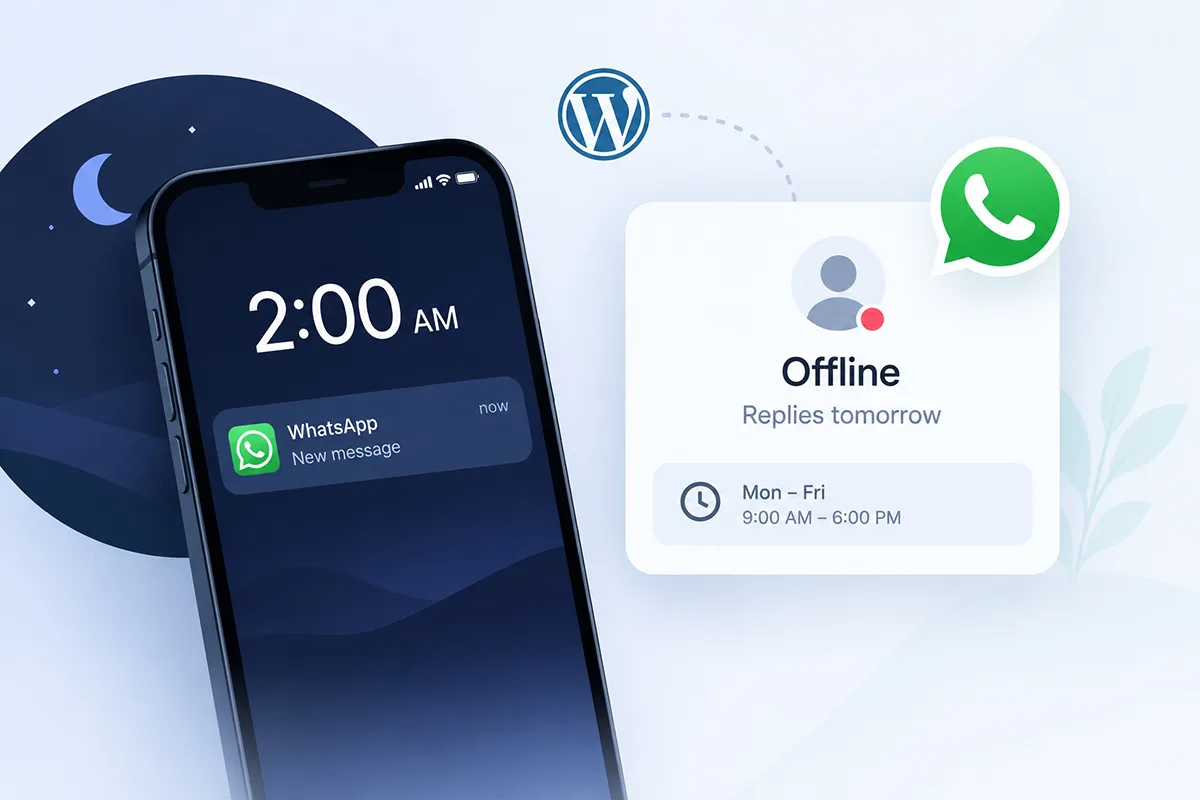
It’s 2 AM. A WhatsApp notification lights up the phone. The business owner ignores it, rolls over, goes back to sleep — reasonable enough. But the customer on the other end is three time zones away, sees no reply, and quietly concludes nobody answers this number. By morning, the conversation has gone cold, or the business has created an expectation it never meant to set.
Setting WhatsApp chat availability hours isn’t just a toggle you flip once. It’s how you tell visitors, accurately, whether someone’s available right now, when they can expect a reply, and what to do in the meantime.
Short Answer
To set WhatsApp chat availability hours in ChatHelp, open the relevant chat layout’s General tab and set a timezone plus working hours for each day of the week — the widget then shows accurate online/offline text based on that schedule. Write both an online and offline message so visitors know what to expect either way. Important: this website setting doesn’t stop someone who already has your WhatsApp number from messaging you outside those hours.
Key Takeaways
- WhatsApp chat availability hours on your website do not block WhatsApp itself — anyone with your number can still message you at any hour.
- ChatHelp’s WhatsApp chat availability hours are built around a timezone you select per layout or agent, not your WordPress site’s general timezone setting.
- Each day supports one working-hours range, not multiple split-shift periods — there’s no documented “add another time range” control.
- A precise offline reply expectation (“we’ll reply after 9 AM tomorrow”) is more useful to visitors than “we’ll reply soon.”
- WhatsApp Business’s own Away Message is a separate system from the website widget’s offline text — ChatHelp doesn’t configure it for you.
- Holiday or date-specific overrides aren’t a documented ChatHelp feature — don’t assume one exists.
Hidden on Your Website Doesn’t Mean Unreachable on WhatsApp
If someone already saved your number, has an old conversation with you, got the number from somewhere else, or clicks a link you shared previously, they can still send a WhatsApp message — regardless of what your website’s availability schedule says. A WordPress availability setting controls the website experience. It is not a WhatsApp firewall, a Do Not Disturb setting, or a schedule on your WhatsApp account itself.
What WhatsApp Chat Availability Hours Actually Control
Across ChatHelp’s layouts — Single Agent, Single Form, Pre-Chat Message, Floating Button, and Multi-Agent — the documented effect is consistent: it changes the displayed online/offline status text. Set working hours, and the widget shows your online message during them and your offline message outside them.
What isn’t documented is whether the button disappears or stops working outside those hours. Single Form’s docs state the form “can display offline text instead,” implying it stays visible and functional, just relabeled. Treat availability as a status indicator, not a lock.
Your Options Outside Your WhatsApp Chat Availability Hours
| Strategy | Visitor experience | Best fit |
|---|---|---|
| Hide the CTA entirely | No WhatsApp option appears outside hours | Strictly staffed live-chat channels, or when another contact route should take over after hours |
| Show an honest offline state | Button stays visible with clear offline text and a reply expectation | Most small businesses wanting to preserve the contact opportunity without pretending to be online |
| Leave normal access available | No visible status change; visitors message and wait | Genuinely asynchronous use cases where visitors already expect delayed replies |
A note on the first row: ChatHelp’s Timezone & Availability control is built around showing accurate status text, not hiding the widget on a schedule — there’s no documented native toggle that removes the button outside certain hours. This article won’t invent one.
Where it fits, the middle option — visible, honestly offline, with a realistic reply time — tends to work well for small businesses: it preserves the contact opportunity, avoids a false “we’re live” impression, and gives the visitor something to do next. That’s a practical recommendation, not a proven conversion rule; hiding chat entirely is reasonable if your channel is meant strictly for live support or another async channel already covers after-hours contact.
Setting WhatsApp Chat Availability Hours in ChatHelp
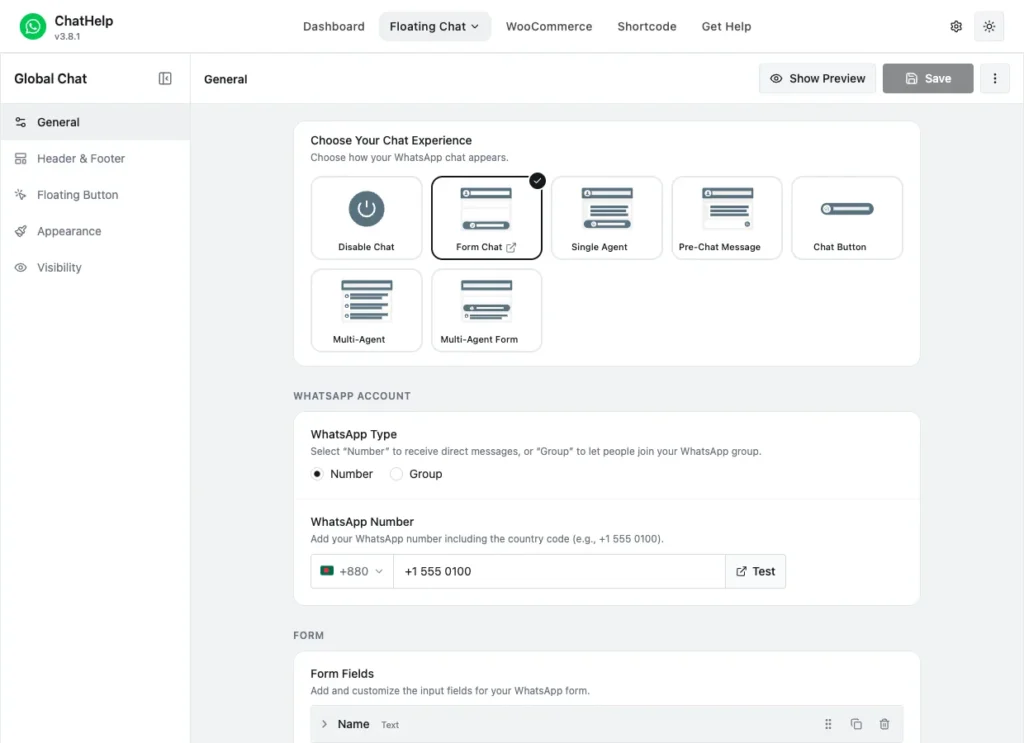
- Open the chat layout you want to configure under WhatsApp Chat → Floating Chat → Chat Layouts (or the relevant agent, on a Multi-Agent layout).
- Find the Timezone and Availability fields on the layout’s General tab.
- Select the timezone that matches where you actually work — not necessarily your WordPress site’s general timezone.
- Set a From/To working-hours range for each day you’re open.
- For a fully closed day, set both From and To to 00:00.
- Write your online status text.
- Write your offline status text, including a reply expectation.
- Save.
- Check the widget during an actual online window and an actual offline window.
- Confirm the WhatsApp click itself still opens correctly in both states.
What the Weekly Schedule Can’t Do
Each day currently supports one From–To range — there’s no documented control for a second period, so a lunch-break split shift like 09:00–13:00 and 14:00–18:00 isn’t something the schedule can express. If that’s how your team works, set the broader window as staffed and mention lunch delays in your online text, or use the offline message to explain a short gap honestly. Don’t go looking for an “add time range” button — it isn’t there.
A sample week of WhatsApp chat availability hours, using example hours only:
- Monday–Friday: 09:00–18:00
- Saturday: 10:00–14:00
- Sunday: 00:00–00:00 (fully offline)
There’s also no holiday calendar, vacation mode, or date-specific override documented anywhere in current ChatHelp materials. For a one-off closure — a public holiday, a week away — the practical workaround is manual: temporarily update the offline text to mention the closure and expected return date, then change it back afterward. Not elegant, but it’s what the current feature set actually supports.
Timezones Across Borders and Clock Changes
If your business is in London and you set Europe/London, 09:00–17:00, that represents your local hours — a visitor in Singapore shouldn’t assume those numbers refer to their own time unless your copy says so. Prefer “We reply during UK business hours, Monday to Friday” over bare numbers with no timezone context. This doesn’t mean a small business needs round-the-clock coverage just because its site gets international visitors — it means being clear about whose clock your WhatsApp chat availability hours are on.
On daylight saving: city-based timezone identifiers (like America/New_York) handle DST transitions better than a fixed offset (UTC-5), which is why WordPress itself recommends city-based selections for sites affected by seasonal clock changes. If your status looks off by an hour after a clock change, check the timezone inside the layout itself first — not necessarily your WordPress site setting, and not server time.
Writing an Offline Message People Actually Trust
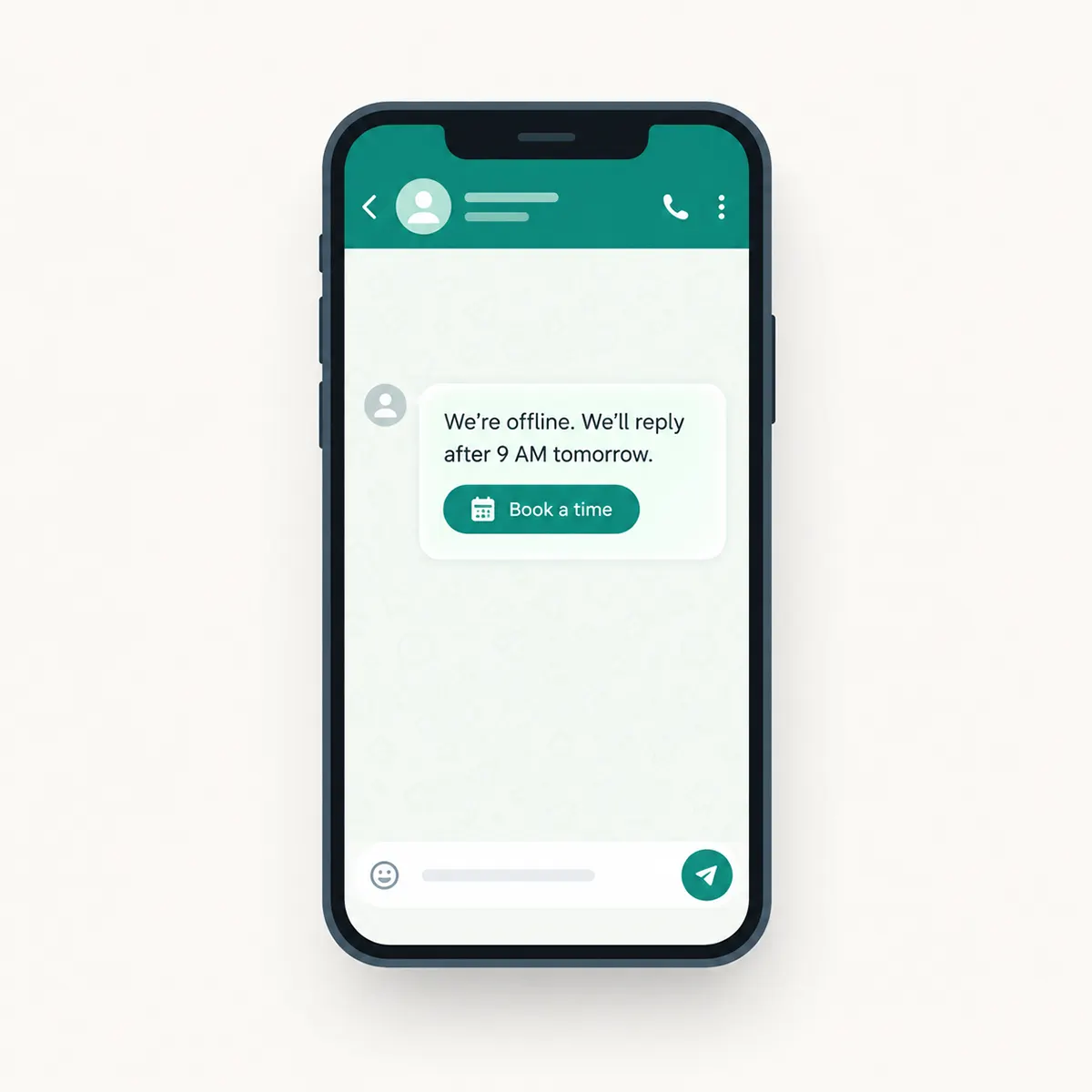
A good offline message does three things once your WhatsApp chat availability hours end: states the status, gives a real reply expectation, and offers a next step. “We’re offline now. We’ll reply after 9 AM tomorrow. You can still leave a message, or book a call here” hits all three in one line most visitors will actually read.
| Situation | Suggested message |
|---|---|
| After hours | “We’re offline for the day. We’ll reply after 9 AM tomorrow. Feel free to leave your message now.” |
| Weekend | “Thanks for reaching out. We’re offline for the weekend and will reply on Monday.” |
| Public holiday | “We’re closed for the public holiday and will reply when we reopen on [day].” |
| Annual leave | “We’re away until [date]. You can leave a message and we’ll reply when we’re back.” |
| High-volume delay | “We’re online, but replies are taking longer than usual. Please allow up to one working day.” |
| No same-day guarantee | “We review WhatsApp messages during business hours and usually reply within one working day.” |
| Booking alternative | “We’re offline right now. You can still book an available time here: [booking link].” |
| Knowledge-base alternative | “We’re currently offline. For common questions, you may find the answer in our help centre: [link].” |
A few rules worth following: be specific (“after 9 AM Monday” beats “soon”), only promise what you can actually keep (don’t write “replies within 1 hour” if nobody staffs that window reliably), keep it short since mobile chat UI has limited space, and offer exactly one useful alternative — a booking link, a help centre, an email — rather than listing five backup channels nobody will read through.
Website Status vs. WhatsApp’s Own Away and Greeting Messages
These are two separate systems, and mixing them up is one of the more common points of confusion. The ChatHelp availability setting controls what a visitor sees on your website, before or while they interact with the widget — status text, agent availability, form state. The WhatsApp Business Away Message is an auto-reply sent inside WhatsApp itself, after a customer sends a message, if you’ve configured it there. ChatHelp doesn’t set this for you, and no officially documented integration connects the two — they’re configured in entirely different places.
Away Message
Per WhatsApp’s own Help Center, the WhatsApp Business App’s Away Message supports three schedule options: Always send, a custom schedule, and outside of business hours — the last option only works once you’ve separately set your business hours in your WhatsApp business profile. Your device needs an active internet connection for the message to send. Configuring this alongside your website’s offline text closes the gap for visitors who message you directly, without ever seeing your site.
Greeting Message
The Greeting Message is a different feature entirely, and it isn’t an after-hours reply. WhatsApp sends it automatically when a customer messages you for the first time, or after 14 days of inactivity in that conversation — not on a schedule you set. It’s useful as a general “thanks for reaching out” opener, not a substitute for telling someone you’re currently unavailable.
Quick Replies
Worth a brief mention since it’s easy to conflate with the above: Quick Replies are saved messages you insert manually by typing “/” in a chat, not something that fires automatically. They’re a convenience for responding faster once you’re actually online, not an availability feature.
Multi-Agent Schedules
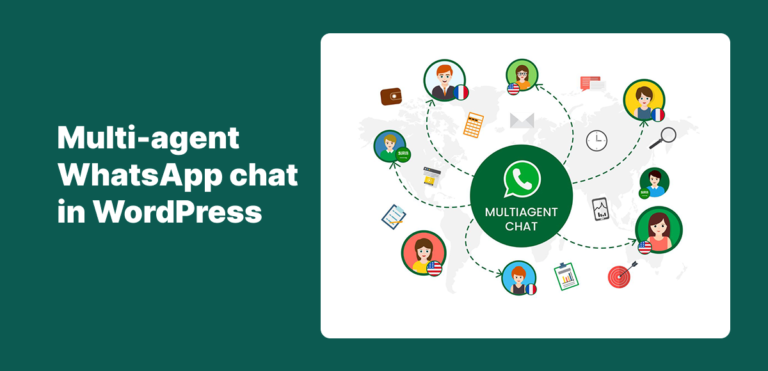
ChatHelp’s Multi-Agent List layout — a Pro feature — lets each configured agent set their own timezone, working hours, and custom online/offline text independently. A sales agent could run 09:00–18:00 in one timezone while a support agent covers 08:00–20:00 in another, and each shows their own accurate status. This is website-side visitor choice, not a shared inbox: if two agents happen to point at the same WhatsApp number, they’re still directing visitors to the same destination, not splitting one conversation between them internally.
Set Hours You Can Actually Keep
Your advertised availability should describe when someone can realistically respond, not when someone might occasionally glance at their phone. That’s true whether you’re a solo owner protecting personal time, a small team splitting shifts, or covering weekends and international customers — the schedule you publish is a promise, so set it to match what you can consistently deliver rather than what looks best.
One human wrinkle worth naming: if you tell customers you’re closed but keep replying at midnight anyway, some of them will learn that your stated hours are flexible and message accordingly. That’s not a claim that one late reply retrains every customer forever — just a reason to treat your stated hours as something to hold to, not a suggestion.
Two Scenarios
These are illustrative examples, not customer case studies.
A one-person ecommerce store
Customers order from across Europe and North America, but the owner works a fixed local schedule. The setup: one timezone matching where she actually works, clear weekly hours, an honest one-working-day reply promise in the offline text, and a matching WhatsApp Business Away Message for anyone who messages the number directly rather than through the site.
A small sales and support team
Sales and support run different hours, and one covers a second timezone for international leads. With Multi-Agent List, each gets independent availability: Sales shows accurate status during its window, Support shows its own, and each has offline text tailored to what that team actually handles — not one generic message covering two different jobs.
Troubleshooting: Status Looks Wrong
- Confirm the timezone actually selected in that layout.
- Confirm today’s configured hours for that layout.
- Confirm the day isn’t accidentally set to 00:00–00:00.
- Check the actual current local time in the selected timezone, not your own.
- Save and reload the settings.
- Clear any WordPress page cache.
- Clear CDN cache if one’s in use.
- Test in a private/incognito window.
- Check whether a different layout is actually showing on that page.
If the saved schedule looks correct but an old status still shows, a cached page can serve a stale version of the widget until that cache clears — that’s worth ruling out before assuming the configuration itself failed. Don’t jump to editing server or PHP timezone settings as a first move; the layout’s own timezone selector is the more directly relevant value here.
Free, Not Pro, for the Basics
Timezone and availability scheduling on a single layout is part of the free ChatHelp plugin (opens in a new tab) — you don’t need to upgrade just to show accurate hours. Independent per-agent schedules on Multi-Agent layouts are a Pro capability, worth it once you’re coordinating more than one person’s availability rather than one number’s. For the broader multi-agent setup itself, see the multi-agent WhatsApp guide; for what to actually say in each message once hours are sorted, the pre-filled message guide and chat button best practices cover that ground.
Frequently Asked Questions
In ChatHelp, open the relevant chat layout’s General tab, select the timezone you actually work in, and set working hours for each day of the week. The widget then displays your configured online or offline status text based on that schedule automatically.
Yes. Anyone who already has your WhatsApp number, an old conversation, or a link from elsewhere can message you regardless of your website’s availability setting. The schedule controls what your site shows — it isn’t a restriction on your WhatsApp account itself.
Yes. Each day of the week gets its own working-hours range, so you can run shorter Saturday hours or mark Sunday fully closed by setting that day’s From and To times both to 00:00.
Not currently — each day supports one From–To range, with no documented control for a second period like a lunch-break split shift. If that’s how your team actually works, the practical option is a wider staffed window plus honest wording about a mid-day delay.
The timezone you select inside that specific chat layout or agent, not your WordPress site’s general Settings → General timezone. Select the timezone matching where the person answering actually works.
Yes, on ChatHelp’s Multi-Agent List layout, a Pro feature. Each agent can have an independent timezone, weekly schedule, and custom online/offline text, so a sales agent and a support agent can show accurate, separate availability at the same time.
If you want anyone who messages you directly — not just visitors coming through your website — to get an accurate after-hours reply, yes. ChatHelp’s offline text only shows on your site; WhatsApp’s own Away Message, configured separately in the app, covers the rest.
Not as a documented ChatHelp feature — there’s no holiday calendar or date-specific override currently available. For a one-off closure, manually update your offline text with the closure and return date, then change it back afterward.
Check the timezone selected in that layout, today’s configured hours, and whether the day is accidentally set to 00:00–00:00, then rule out a stale cache before assuming the configuration is wrong. It’s rarely a server-time issue.
Good availability settings don’t stop customers from contacting you — they stop your website from promising availability you can’t deliver. Set the hours you can actually staff first, then write the offline message around a reply promise you’ll consistently keep. The free ChatHelp plugin (opens in a new tab) covers timezone and availability scheduling out of the box.