


A floating WhatsApp bubble looks harmless on the homepage. Then someone opens the same page on a small phone and it’s sitting right beside — sometimes over — the checkout button. Or a general support widget shows up under a two-year-old blog post and starts collecting questions that have nothing to do with support.
You don’t have to show the same WhatsApp button everywhere. ChatHelp can show a WhatsApp button on specific pages, posts, products, or categories, and each layout has its own visibility controls on top of that. This guide covers exactly how, plus the edge cases — WooCommerce, devices, checkout, caching — that come up once you start targeting.
Short Answer
To show a WhatsApp button only on selected content, create a chat layout, then go to WhatsApp Chat → Floating Chat → Assign Layouts and add a rule targeting the pages, posts, products, or categories you want. Pages with no matching rule show no floating widget at all. WooCommerce’s Shop/Product/Cart/Checkout buttons have their own separate show/hide settings under WhatsApp Chat → WooCommerce.
Key Takeaways
- A floating WhatsApp widget doesn’t need to appear sitewide — Layout Assignment maps different chat layouts to specific pages, posts, products, or categories.
- WooCommerce’s Shop, Product, Cart, and Checkout buttons each have their own independent show/hide setting, separate from the floating widget entirely.
- When rules could overlap, ChatHelp evaluates them top to bottom and applies the first match — not the most specific one.
- If a saved rule looks correct but the old widget still shows, clear page/CDN caches before assuming the rule failed.
- Different site sections can use different chat layouts — a sales-focused one on pricing pages, a support-focused one elsewhere — instead of one generic widget everywhere.
- For just two or three pages, manually placing a button via shortcode, the Gutenberg block, or Elementor can be simpler than setting up assignment rules.
Table of Contents
Why Showing the Button Everywhere Isn’t Always Better
More visibility doesn’t automatically mean more conversations. A chat button earns its place on product pages, service pages, pricing pages, and contact pages — anywhere a visitor is likely to have a real question. It’s often worth hiding, or at least testing, on privacy/terms pages, some checkout flows, and campaign landing pages built to keep attention on one specific action.
None of this is universal. A support-heavy site might want chat visible on documentation pages; a checkout-sensitive store might not want anything competing with the buy button. Test what applies to your own funnel rather than copying a rule from somewhere else.
Two Different Settings, Not One
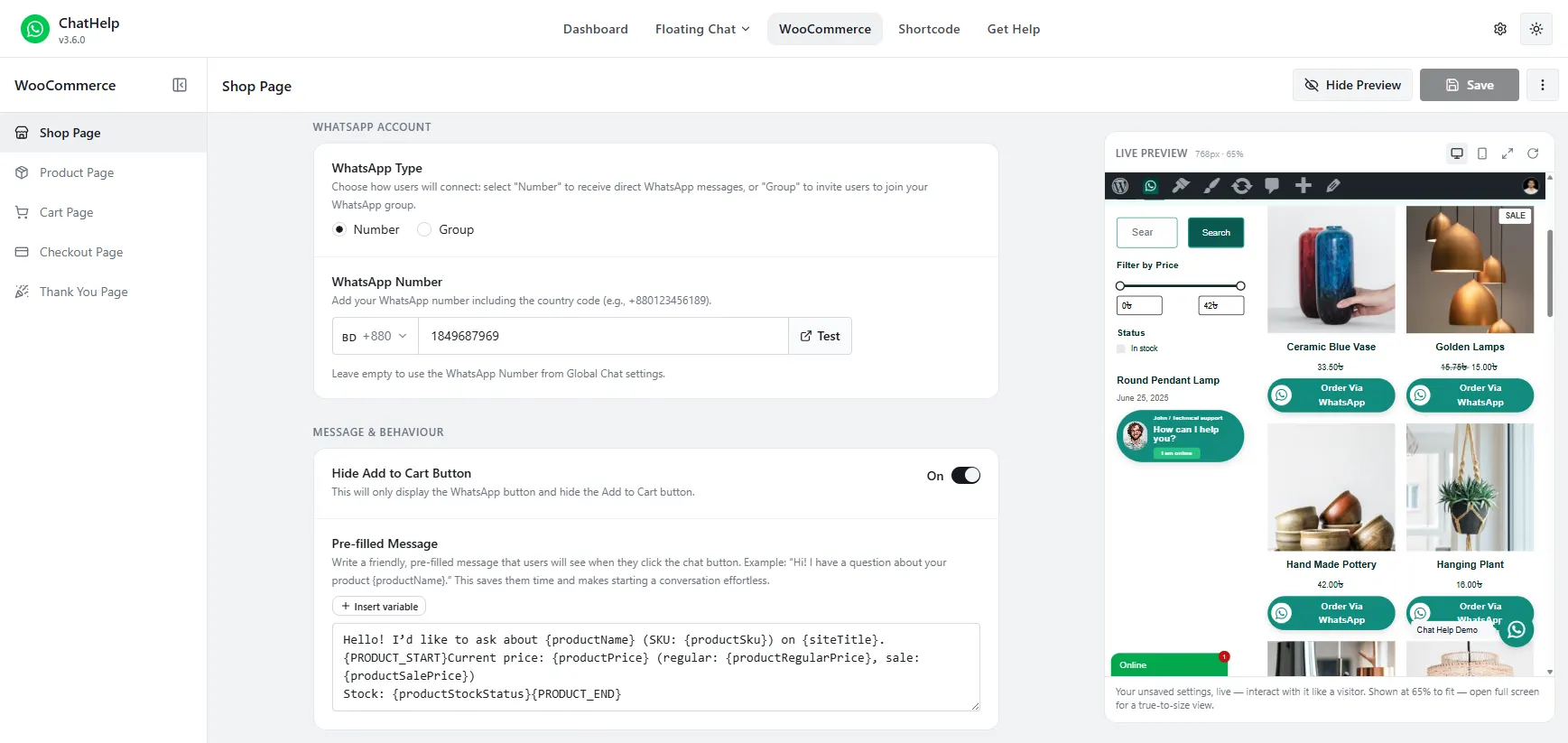
This distinction matters more than anything else in this guide. The floating chat bubble (governed by Layout Assignment and each layout’s own visibility settings) and the WooCommerce Shop/Product/Cart/Checkout buttons are configured separately, under separate menus, with separate show/hide controls. Turning one off does not touch the other. If you want to remove the inline WhatsApp button next to “Add to Cart,” that’s a WooCommerce button setting. If you want to remove the floating bubble from the checkout page, that’s a Layout Assignment or layout-visibility setting instead.
Two mechanisms handle floating-widget targeting specifically. Layout Assignment (WhatsApp Chat → Floating Chat → Assign Layouts) decides which saved chat layout shows on which content — pages, posts, products, custom post types, categories, tags, or WooCommerce product categories. Each individual chat layout also has its own visibility settings in its Others tab, including device visibility (Everywhere, Desktop Only, Tablet Only, Mobile Only) and a page-based include/exclude filter. Layout Assignment decides the “where” across your whole site; a layout’s own visibility settings narrow that specific layout further.
How to Show a WhatsApp Button on Specific Pages
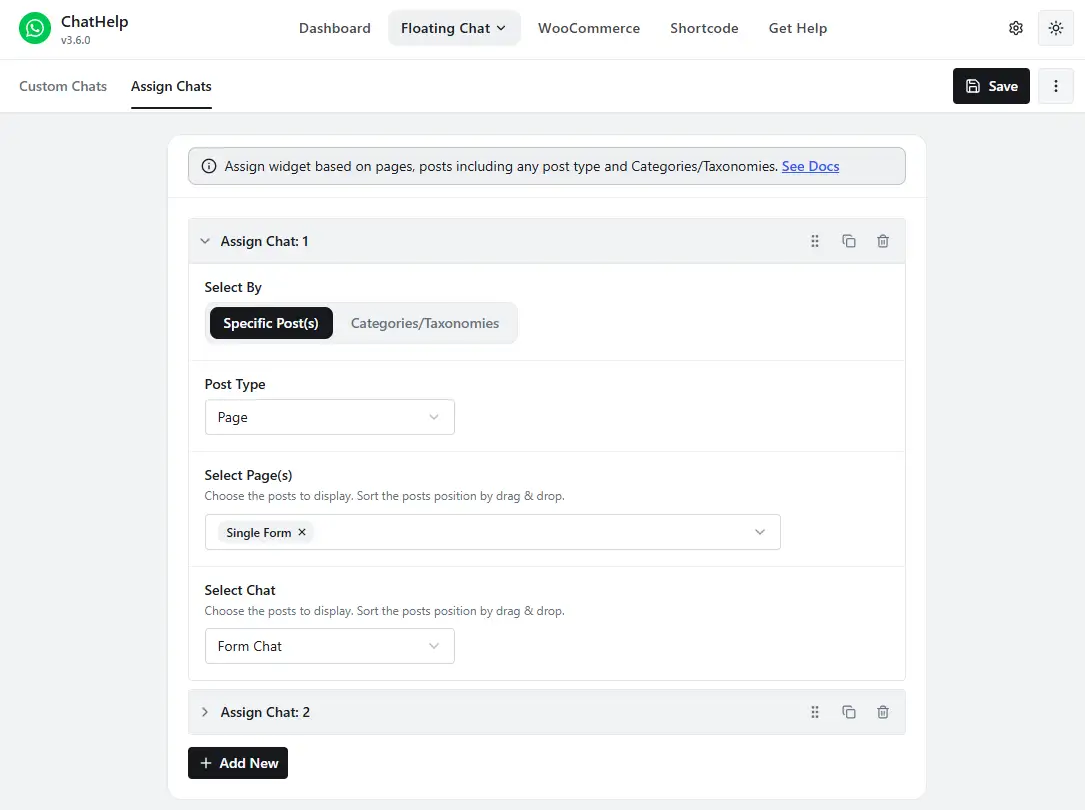
Here’s the full workflow to show a WhatsApp button on specific pages using Layout Assignment.
- Go to WhatsApp Chat → Floating Chat → Chat Layouts and create or select the layout you want to use.
- Go to WhatsApp Chat → Floating Chat → Assign Layouts.
- Click Add New to create an assignment rule.
- Set the Post Type to Page.
- Select the specific pages this rule should match.
- Choose which chat layout applies to this rule.
- Save the rule.
- Open one of the included pages and confirm the widget appears.
- Open a page you didn’t include and confirm nothing shows, assuming no broader rule matches it too.
Pages that match no rule at all show no floating widget by default — you don’t need a separate “hide everywhere else” rule unless you also want a fallback layout on unmatched content.
Targeting Specific Posts or Custom Post Types
The same workflow applies to Posts and to any custom post type registered on your site — portfolio items, listings, case studies, whatever your theme or another plugin adds. In step 4 above, just change the Post Type dropdown from Page to Post or the relevant custom post type, then select the specific items.
Targeting by Category or Taxonomy
Selecting individual pages works for a handful of items, but it doesn’t scale — every new page needs a manual update. Category and taxonomy targeting solves that: instead of a Post Type + specific items, choose Categories/Taxonomies mode and pick a category, tag, WooCommerce product category, or custom taxonomy. Every current and future piece of content in that category picks up the rule automatically.
Good candidates: every post in a Support category, every product in a Wholesale category, every listing in a specific property-type taxonomy. Set it once and stop maintaining a page list by hand.
WooCommerce: Targeting Specific Products
Two separate things live under this same goal, and it’s worth keeping them apart. The floating chat widget on product pages is controlled through Layout Assignment — set Post Type to Product for individual items, or use a WooCommerce Product Category for a whole group, like assigning a Wholesale layout to every product in a Wholesale category.
Separately, ChatHelp’s inline WooCommerce product-page button (the one that can sit near the Add to Cart button) has its own show/hide toggle and its own device visibility, under WhatsApp Chat → WooCommerce → Product Page — independent of whatever the floating widget is doing on that same page. A product-specific layout is a reasonable place to route to a sales-focused agent or a pre-filled message about that exact product, without turning this into a full pre-filled-message tutorial — see the pre-filled message guide for that part.
Hiding Chat on Cart or Checkout
There’s no single “hide on checkout” checkbox — use one of the two general mechanisms already covered. Either don’t create a Layout Assignment rule that matches Cart or Checkout, or use the layout’s own visibility settings to exclude those specific pages while still matching everything else broadly.
Remember the distinction from earlier: this only handles the floating bubble. If a separate inline WooCommerce Cart or Checkout button is also enabled, turn that off independently under WhatsApp Chat → WooCommerce → Cart Page or Checkout Page, using that page’s own show/hide setting.
Mobile-Only or Desktop-Only Visibility
Each chat layout, and each WooCommerce button independently, has a device visibility setting: Everywhere, Desktop Only, Tablet Only, or Mobile Only. Mobile-only is worth considering when phone visitors are the ones most likely to already have WhatsApp installed and ready. Desktop-only fits narrower support workflows where mobile traffic isn’t the target. For most general contact use cases, Everywhere remains the reasonable default — there’s no evidence one option converts better across the board, so treat this as a fit decision, not a performance one.
Different Layouts for Different Sections
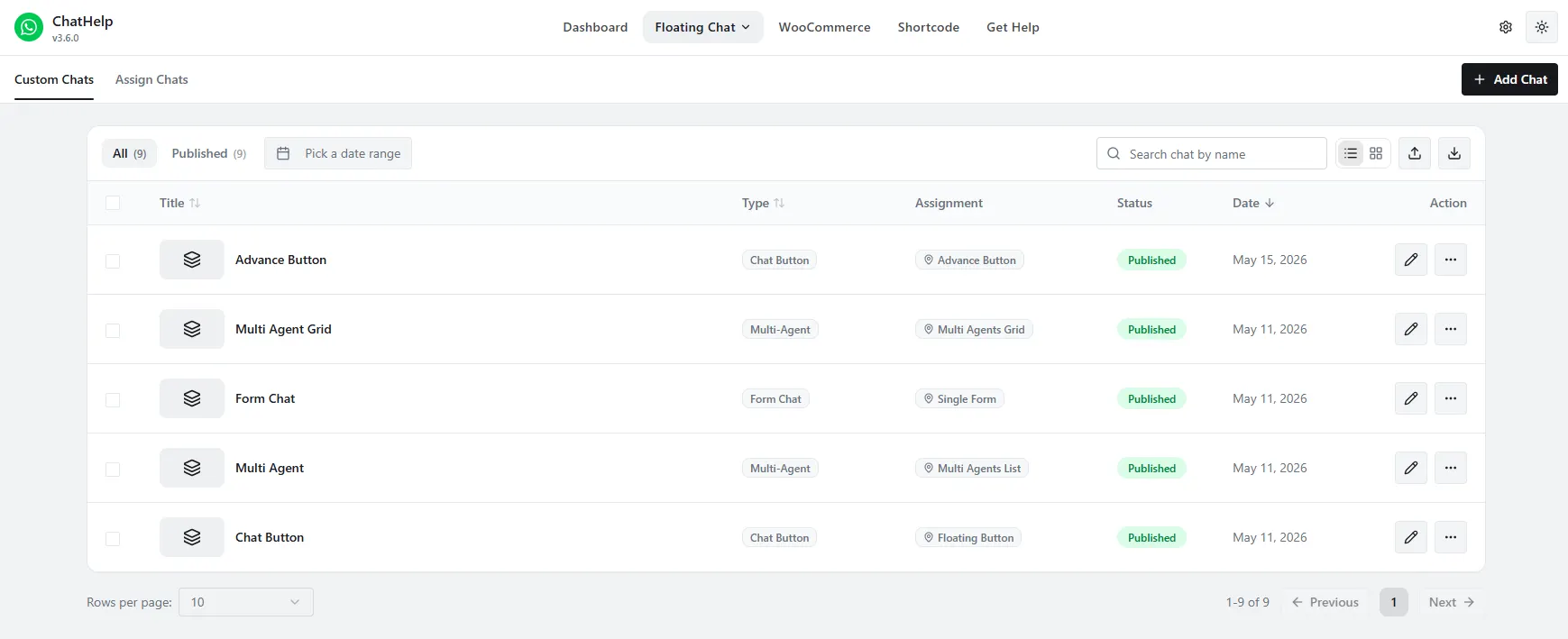
Layout Assignment’s real value shows up once you stop thinking in show/hide terms and start thinking in terms of which conversation should happen where.
- Sales pages: a layout routing to your sales number, pre-filled with a pricing/product question.
- Documentation pages: a layout routing to support, pre-filled with support context.
- Wholesale products: a layout pre-filled with a quantity/pricing inquiry.
- Coaching pages: a layout pre-filled with a consultation inquiry.
That’s often more useful than a single generic widget everywhere. If different agents should handle these conversations rather than one number wearing different hats, that’s a multi-agent setup layered on top of this.
Rule Priority: Order Matters
ChatHelp evaluates Layout Assignment rules top to bottom and applies the first one that matches — not the most specific one. This trips people up: a broad rule sitting above a narrow one will win even when the narrow rule looks like it should take priority.
| Priority | Rule | Layout |
|---|---|---|
| 1 | Product: Enterprise Plan | Enterprise Sales |
| 2 | Product Category: SaaS | General Sales |
Here, the specific product rule needs to sit above the broader category rule, or the category rule would catch that product first and the more specific layout would never apply. Rules can be reordered by dragging them — put your most specific rules above your broadest ones.
Manual Placement Instead of Assignment Rules
If you only need a button on two or three pages, setting up assignment rules can be more setup than the job needs. Placing a button manually with the ChatHelp shortcode, the Gutenberg WhatsApp Button block, or the Elementor widget gives precise, page-by-page control without touching the floating widget’s rules at all. The trade-off: it’s simpler for a handful of pages, but less convenient than centralized assignment once you’re managing WhatsApp placement across dozens of pages.
On Custom Code: What’s Actually Possible
WordPress conditional tags like is_page(), is_product(), or is_checkout() tell WordPress what context it’s in, but they don’t automatically control ChatHelp — there’s no documented developer hook that lets you programmatically show or hide the widget from a theme’s functions file. ChatHelp’s documented developer API covers overriding the WhatsApp number or the generated URL, not visibility. For edge cases the UI genuinely can’t handle, contact ChatHelp support rather than relying on undocumented internal plugin functions, and don’t edit core WordPress, plugin, or parent-theme files to force a workaround.
Troubleshooting: The Button Still Shows After Saving
Work through these roughly in order:
- Clear your browser cache and reload.
- Clear any WordPress page-cache plugin.
- Clear server-level and CDN caches if you use either.
- Check whether an old layout is still assigned to that content.
- Check whether a broader rule sitting above your new one is matching first — remember, first match wins.
- Confirm what you’re actually seeing is the floating widget, not a separate WooCommerce button.
- Check the layout’s own device visibility setting isn’t excluding the device you’re testing on.
If the saved rule looks correct but the old widget still appears, clear the relevant cache layers before assuming the rule itself failed — a cached page can keep serving the old configuration for a while.
When It’s a Layout Problem, Not a Conflict
Elementor popups, sticky mobile bars, cookie banners, and theme floating buttons can all occupy the same screen corner as a WhatsApp bubble. That’s usually a positioning overlap, not a plugin conflict. Check the bubble’s position setting, its mobile offset, and whether something else on the page is also fixed or sticky before assuming two plugins are actually breaking each other.
If Rules Don’t Work on a Custom Post Type
- Confirm the post type is actually public.
- Confirm it appears in the Post Type selector when creating a rule.
- Double-check the correct post type is selected, not a similarly named one.
- Confirm the content actually belongs to the category/taxonomy you targeted.
- Check whether a higher-priority rule is matching that content first.
A Five-Minute Page-Mapping Exercise
Before configuring anything, sketch out what you actually want:
| Page Type | Show WhatsApp? | Which Layout? | Reason |
|---|---|---|---|
| Homepage | Maybe | General Sales | Broad, unqualified inquiries |
| Product | Yes | Product Sales | Pre-purchase questions |
| Blog | Selective | General or none | Depends on the post’s intent |
| Cart | Usually test | Sales | Avoid competing with the checkout CTA |
| Checkout | Usually hide, test carefully | — | Preserve checkout focus |
| Contact | Yes | Support/Sales | Already high intent |
| Privacy Policy | Usually no | — | Low relevance to the page |
On smaller screens, this table may scroll horizontally. Treat these as starting points, not universal rules — map them to your own customer journey.
Setting This Up with ChatHelp
Everything above is a WordPress content-targeting strategy first, and a ChatHelp implementation second — the same thinking applies whichever WhatsApp plugin you use. Layout Assignment, its per-layout visibility settings, and the WooCommerce button toggles are all part of the free ChatHelp plugin, so you can apply this whole guide without needing a paid upgrade for the core targeting itself. If you also want placement and copy advice beyond visibility, that’s covered separately.
Frequently Asked Questions
How do I show a WhatsApp button only on specific WordPress pages?
To show a WhatsApp button on specific pages, create a chat layout, then go to WhatsApp Chat → Floating Chat → Assign Layouts and add a rule targeting those pages. Pages that match no rule show no floating widget by default.
Can I hide the WhatsApp button only on checkout?
Yes, two ways: don’t create a Layout Assignment rule that matches Checkout, or exclude Checkout in that layout’s own page-visibility filter. If a separate inline WooCommerce Checkout button is also active, disable it independently under WhatsApp Chat → WooCommerce → Checkout Page.
Can ChatHelp target WooCommerce product categories?
Yes. Layout Assignment supports WooCommerce product categories as a targeting option, so you can assign one chat layout to an entire category — a wholesale category routed to a different sales contact, for example — without listing every product individually.
Can I show different WhatsApp buttons on different pages?
Yes. Create multiple chat layouts, each with its own number, message, and appearance, then assign each to different pages, posts, products, or categories through Layout Assignment. This is the intended way to route different site sections to different conversations.
Can I show the WhatsApp button only on mobile?
Yes. Each chat layout has a device visibility setting — Everywhere, Desktop Only, Tablet Only, or Mobile Only — and WooCommerce’s individual page buttons have the same option independently. Check your current plugin version to confirm which plan tier includes this for your specific setup.
Why does my WhatsApp button still appear after I changed the visibility rule?
Most often it’s a caching layer serving an older version of the page, a broader rule sitting above your new one and matching first, or an old layout still assigned to that content. Clear your caches and check rule order before assuming the setting didn’t save.
Does page caching break WhatsApp visibility rules?
Not in the sense of corrupting the rule itself. A cached page can keep showing an older configuration until the cache is cleared, which looks like a broken rule but usually isn’t one. Clear browser, page, and CDN caches before troubleshooting further.
Can I use WordPress conditional tags to control ChatHelp?
Not directly. Conditional tags like is_checkout() tell WordPress what page it’s on, but they don’t connect to ChatHelp on their own since no visibility hook is currently documented for it. Use Layout Assignment and each layout’s visibility settings in the UI instead of attempting a custom code workaround.
The best WhatsApp placement is deliberate placement, not necessarily sitewide placement. Map your pages, pick your layouts, and let Layout Assignment do the rest.