
WhatsApp Button Block for the Block Editor
Add a WhatsApp button in the block editor and style it in the sidebar, with a live preview. The block has two styles: Advance, with a photo and online status, and Basic. It is in the free version.
The buttons on this page are real WhatsApp Button blocks.
Live WhatsApp Button blocks

Both are real blocks. Try them.
Live blocks
Advance and Basic styles
The second Advance button is outside its opening hours, so it shows its offline text.
Advance, online
Advance, outside opening hours

Basic with icon
Basic, outline colours
From the blog
Related guides
 How to Add WhatsApp Chat in Gutenberg (Block Editor Guide)WhatsApp chat Gutenberg WordPress is one of the easiest ways to let your visitors connect with you directly…Read the guide
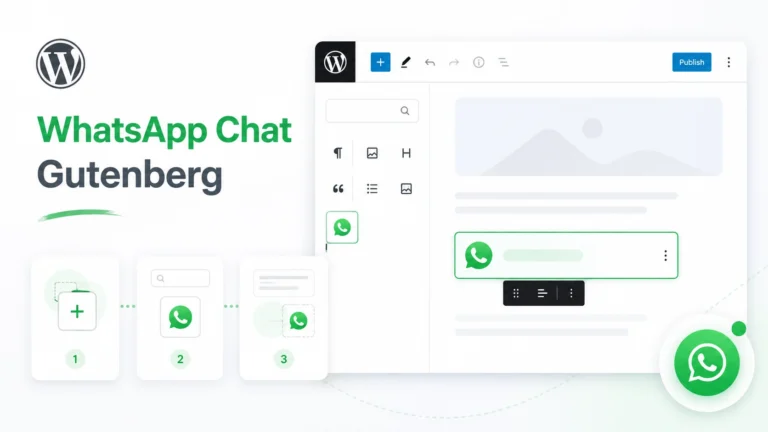 How to Add WhatsApp Chat to a Gutenberg Site Using BlocksIf you only need one WhatsApp button on one page, a plain WordPress Button block linked to a…Read the guide
 How to Add WhatsApp Chat to WordPress Sidebar (2026 Guide)Add WhatsApp Chat to WordPress sidebar — and instantly make your website more interactive, personal, and conversion-friendly. It’s…Read the guide
From WordPress.org
What users say
The plugin works perfectly and the team is very professional. I purchased the Pro version and the experience has been excellent. The plugin works perfectly and the team is very professional. I requested a couple of new features and they developed them without any issues and in a short time.
uomiguel (opens in a new tab) on WordPress.org Awesome Plugin for WhatsApp Floating Chat & WooCommerce Order. This plugin worked great for my website, Order Via WhatsApp. It also provides a floating chat icon, which is helpful as well.
mohsinworld (opens in a new tab) on WordPress.org Effective for WhatsApp Chat Support! I am using this plugin to provide support to my customers through WhatsApp. It’s really effective and they can connect with me very easily using their WhatsApp. They don’t need to save our number manually.
firststepstogether (opens in a new tab) on WordPress.org
