


A contact form asks visitors to type a message, wait, and hope someone replies. WhatsApp skips all of that. Adding a WhatsApp button in Elementor lets people message you in an app they already check dozens of times a day. Questions that used to die in an inbox become real conversations.
In this WhatsApp button Elementor guide, you’ll set up a chat button three ways: with the free ChatHelp plugin (the fastest route to a floating button), with Elementor’s built-in Button widget and a wa.me link, and with custom HTML for full control. Two of the three need zero code, and none require Elementor Pro.
I’ve set these up on more client sites than I can count, so I’ll also flag the mistakes that trip people up (wrong number formats, buttons covering cookie banners, caching weirdness) before you hit them.
Key Takeaways
- The easiest way to add a WhatsApp button in Elementor is the free ChatHelp plugin — a floating button with greetings, agent profiles, and schedules, no code needed.
- Elementor’s built-in Button widget works with a wa.me link when you want an inline button on a specific page.
- wa.me links must use the international number format: digits only, with no plus sign, spaces, or dashes.
- Custom HTML gives you full design control, but you maintain the code yourself.
- Whichever method you pick, test on a real phone before publishing and never stack multiple floating widgets.
Table of Contents
Why Add a WhatsApp Button Elementor?
As of May 2025, WhatsApp passed 3 billion monthly users, a milestone Meta shared in its Q1 2025 earnings call (TechCrunch, 2025). A WhatsApp button in Elementor puts your business inside the app your visitors already use, which usually means faster replies and more enquiries than a contact form.
Think about the friction. A form wants a name, an email, a message, sometimes a captcha. A WhatsApp button is one tap, and the conversation lives on the visitor’s phone instead of a reply that lands in spam. Since most WhatsApp use happens on phones, the experience is naturally mobile-friendly, and a chat with a real name and photo builds trust in a way no form can.
This isn’t niche behavior, either. Back in 2020, Meta reported that more than 175 million people were already messaging a WhatsApp Business account every day, and that was before the app crossed the 3 billion mark.
The practical wins show up fast. A restaurant takes bookings without a reservation system. A WooCommerce store answers sizing questions while the shopper is still on the product page. A freelancer turns “just browsing” into quote requests. When someone compares two suppliers, the one who answers first usually wins.
How to Add WhatsApp Chat in Elementor (With and Without Plugin)
Method 1: Add a WhatsApp Chat Button Using ChatHelp (Recommended)
ChatHelp is a free WordPress plugin that adds a floating WhatsApp chat button to every page of your site, including anything built with Elementor. Install it, enter your WhatsApp number, customize the button, and you’re done. No code, no Elementor Pro, and setup takes about five minutes.
Step 1: Install the Free ChatHelp Plugin
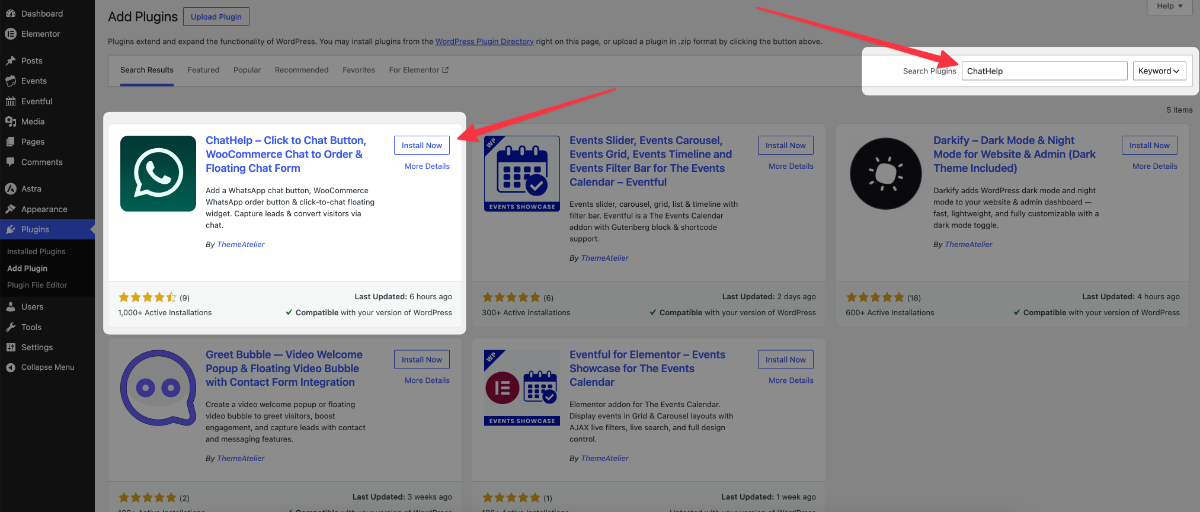
In your WordPress dashboard, go to Plugins → Add New Plugin and search for “ChatHelp”. Click Install Now on ChatHelp – Click to Chat Button, or download it from the WordPress.org plugin directory and upload it manually.
Step 2: Activate the Plugin
Click Activate. A new ChatHelp item appears in your admin menu. That’s where all the settings live. No setup wizard to click through.
Step 3: Configure Your WhatsApp Button
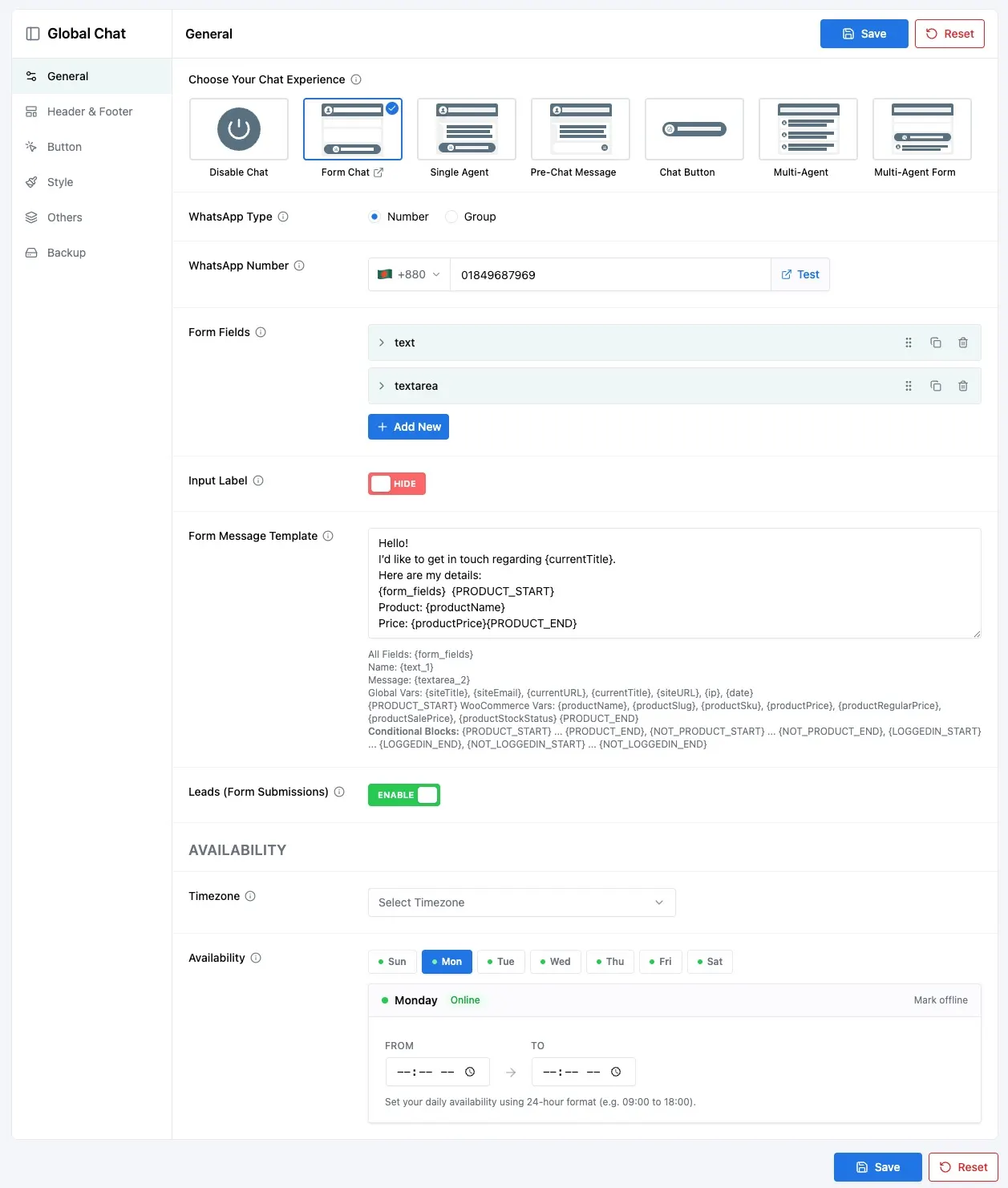
Open the ChatHelp settings and work through these options:
- WhatsApp number: with country code, digits only — for example,
15551234567for a US number. - Greeting message: the first thing visitors see, so keep it human. “Hi! Questions about an order? Ask away.” beats “Welcome to our website.”
- Floating button layout: a simple button or a chat form with a pre-chat message.
- Position: bottom-right is the convention; switch to bottom-left if your theme already owns that corner.
- Colors: WhatsApp green is instantly recognizable, but brand colors work too; just keep the contrast strong.
- Agent profile: A real name and photo get more clicks than a logo.
- Availability schedule: show the button only during business hours, with timezone support.
- Mobile and desktop visibility: control each separately if you only want the button on phones.
Tip: If your button opens WhatsApp but shows an unknown number, the country code is almost always the culprit. Enter the number in international format, without the plus sign.
Step 4: Display It on Your Elementor Pages
There’s nothing extra to do. The floating button loads site-wide, outside Elementor’s content area, so it won’t collide with your sections, sticky headers, or popups. Open any Elementor-built page, refresh, and it’s there. If you only want it on certain pages, use the plugin’s visibility settings rather than editing each page.
Why do I usually reach for a plugin over the manual methods below? Everything that happens after launch: the greeting, an availability schedule so you’re not pinged at midnight, a GDPR consent checkbox, and click analytics. If you just need one button on one landing page, though, Method 2 is perfectly fine.
Method 2: Use Elementor’s Button Widget with a wa.me Link
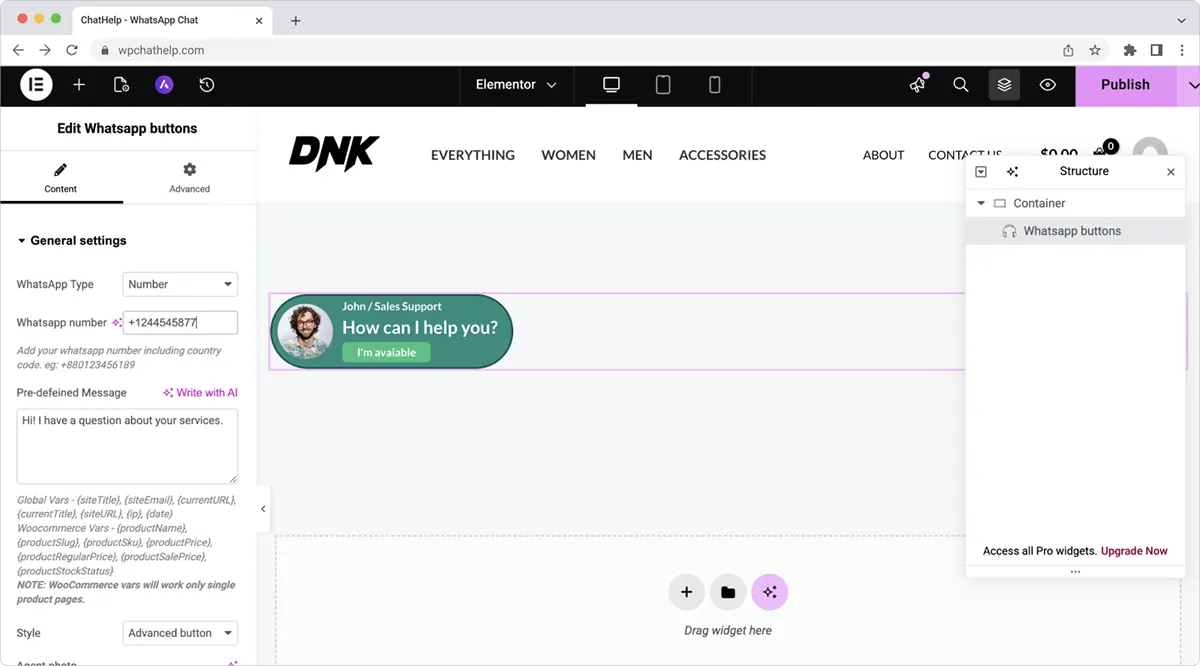
Elementor’s free Button widget becomes a WhatsApp button the moment you point it at a wa.me link. It’s ideal for inline buttons inside a hero section, pricing table, or contact area. The trade-off: it won’t float, and you add it page by page.
- Edit your page with Elementor and drag the Button widget where you want it.
- Paste your wa.me link into the Link field (format below).
- Change the button text — “Chat on WhatsApp” tells people exactly what happens next.
- Click the link options icon and enable Open in new window.
- Style it under the Style tab.
The link format comes straight from WhatsApp’s official click to chat documentation: your full phone number in international format, digits only.
https://wa.me/15551234567- No plus sign
- No spaces
- No dashes or brackets
- Country code first, and drop any leading zeros from the local number
You can also pre-fill the visitor’s first message, so they don’t start from a blank chat:
https://wa.me/15551234567?text=Hi%20I%20would%20like%20to%20know%20more%20about%20your%20servicesEverything after ?text= must be URL-encoded; %20 stands for a space. Any free online URL encoder handles this in one click.
For styling, set the background to WhatsApp green (#25D366), then add the WhatsApp icon from Elementor’s icon library under Content → Icon. The official Button widget documentation covers the rest: size, padding, hover effects.
On phones, wa.me opens the WhatsApp app directly. On desktop, it goes to WhatsApp Web, where visitors may need to scan a QR code, which is why opening in a new tab matters.
The limitations compared to a dedicated plugin? No floating button, no greeting, no availability schedule. And if your number ever changes, you’ll update every button by hand.
Method 3: Create a Floating WhatsApp Button Using Custom HTML
If you’re comfortable with HTML and CSS, a floating WhatsApp button takes about fifteen lines of code. You get total design control and no extra plugin — but you also own every tweak, fix, and mobile quirk from here on.
Drop this into an Elementor HTML widget:
<a href="https://wa.me/15551234567" class="wa-float" target="_blank" rel="noopener" aria-label="Chat with us on WhatsApp">Chat on WhatsApp</a>

<style>
  .wa-float {
    position: fixed;
    right: 20px;
    bottom: 20px;
    z-index: 9999;
    background: #25D366;
    color: #ffffff;
    padding: 12px 20px;
    border-radius: 30px;
    font-weight: 600;
    text-decoration: none;
    box-shadow: 0 4px 12px rgba(0, 0, 0, 0.25);
  }
  .wa-float:hover {
    background: #1da851;
  }
</style>
Because the button uses position: fixed, It floats in the corner no matter where the widget sits in your layout. Three placement options:
- Elementor HTML widget: shows on that page only — good for testing or single landing pages.
- Elementor Pro footer template: add the widget there, and the button goes site-wide.
- Theme footer widget area: no Pro? Paste the code into a Custom HTML widget under Appearance → Widgets.
The aria-label keeps the button accessible for screen readers, and the z-index of 9999 clears most theme elements but can still sit under some cookie banners, so scroll the whole page and check. Want the official logo instead of text? WhatsApp provides brand assets you can add as an inline SVG.
This method suits people who like owning their code. If the phrase “z-index” made your eye twitch, stick with Method 1 — there’s no prize for doing it the hard way.
ChatHelp vs. Elementor Button vs. Custom HTML: Quick Comparison
ChatHelp is the strongest all-around option because it combines a floating button with greetings, scheduling, and analytics at no cost. The Elementor Button widget wins for quick inline buttons on individual pages, and custom HTML wins when you need complete design control and don’t mind maintaining code.
| Feature | ChatHelp | Elementor Button | Custom HTML |
|---|---|---|---|
| Beginner friendly | Yes | Yes | No |
| Floating button | Yes | No | Yes, with CSS |
| Multiple agents | Yes | No | No |
| Custom greeting | Yes | Pre-filled text only | Pre-filled text only |
| Availability schedule | Yes | No | No |
| Mobile responsive | Yes | Yes | Manual |
| Elementor compatible | Yes | Native | Yes |
| Requires coding | No | No | Yes |
| Easy maintenance | Yes | Per-page updates | You maintain it |
| Custom styling | Colors and layouts | Full widget styling | Unlimited |
| WooCommerce compatibility | Built-in | Manual | Manual |
| Performance | Lightweight | No extra load | Lightest |
| Best use case | Site-wide chat | Single-page CTAs | Full design control |
Best Practices for a WhatsApp Button That Actually Gets Used
A WhatsApp button earns its place when it’s visible, honest about availability, and answered quickly. Use WhatsApp Business rather than a personal account, keep one floating widget per site, and test the whole flow on a real phone before you publish.
- Use WhatsApp Business. It’s free and adds a business profile, quick replies, away messages, and a product catalogue.
- Write a greeting that sounds like you. “Hey, need help picking a size?” outperforms corporate boilerplate.
- One floating widget, ever. WhatsApp plus Messenger plus a scroll-to-top arrow means nobody sees anything.
- Test on a real phone. Browser responsive mode can’t launch the WhatsApp app, which is the exact behavior you need to verify.
- Don’t block cookie banners or key buttons. A chat button covering “Accept cookies” or “Add to cart” costs more than it earns.
- Keep the contrast strong. A green button on a green background disappears.
- Respond quickly. A chat button sets an expectation of speed; slow replies undo the goodwill it created.
- Keep your availability honest. Hide the button off-hours with a schedule, or say in the greeting when you’ll reply.
- Monitor conversions. Track how many chats become orders or bookings. If nobody clicks, try a new position or greeting before giving up.
A chat button is a promise. If you can’t answer within a reasonable time, hide the button until you can — one fast reply builds more trust than a 24/7 button that goes quiet.
One more note for European audiences: clicking through to WhatsApp means Meta processes personal data, so mention it in your privacy policy. ChatHelp includes a GDPR consent checkbox that handles the disclosure at the point of contact.
Common Mistakes to Avoid
The most common mistake by far is a malformed wa.me link — a plus sign, spaces, or a missing country code will break the chat silently. The rest are placement problems: buttons covering checkout elements, clashing with cookie banners, or drowning among other floating widgets.
- Wrong or missing country code. The chat opens, but to a stranger’s number or an error screen.
- Using “+” in wa.me links. Digits only:
wa.me/15551234567, neverwa.me/+1 555 123 4567. - Using the local number format. Drop the leading zero and start with the country code: 07700 900123 in the UK becomes
447700900123. - Covering important elements. On mobile, a bottom-right button often overlaps add-to-cart bars or cookie banners. Scroll every key page.
- Poor color contrast. If visitors have to hunt for the button, it may as well not exist.
- Multiple floating widgets. Pick one chat channel and commit.
- Skipping mobile testing. Most WhatsApp clicks come from phones — that’s where the button has to work flawlessly.
Troubleshooting a WhatsApp Button in Elementor
Nine times out of ten, a missing WhatsApp button in Elementor is a caching issue, and a button that opens the wrong chat is a number-format issue. Clear every cache layer, regenerate Elementor’s CSS, and re-check your wa.me link before digging any deeper.
- Button not appearing: purge your caching plugin, then run Elementor → Tools → Regenerate CSS & Data. With ChatHelp, also check visibility and availability settings — the button hides outside business hours by design.
- wa.me link not opening: paste the link directly into a browser tab. If WhatsApp shows an error, the number format is wrong. Fix that first.
- WhatsApp app not launching: without the app installed, the link falls back to WhatsApp Web. In-app browsers (Instagram, Facebook) also sometimes block external apps — test in Safari or Chrome.
- Caching plugin conflicts: purge after every settings change, and exclude the chat script from JavaScript minification if the button behaves oddly.
- Theme conflicts: usually a z-index battle with a sticky footer. Raise the z-index or switch corners, and test with a default theme like Twenty Twenty-Five to confirm.
- Mobile browser quirks: some Android browsers ask which app should open the link. That’s normal system behavior, not a fault in your button.
WhatsApp Button Elementor FAQs
How do I add a WhatsApp button in Elementor for free?
Two free routes work well. The ChatHelp plugin adds a floating WhatsApp button with a greeting, agent profile, and availability schedule — install it, enter your number, and you’re live. Or use Elementor’s free Button widget with a wa.me link for an inline button on a specific page. Neither costs anything or requires Elementor Pro.
Can I add WhatsApp chat without Elementor Pro?
Yes. All three methods in this guide work with free Elementor. The Button widget and HTML widget are both included, and plugins like ChatHelp work independently of your page builder. The only place Pro helps is Method 3, where a footer template makes the custom button site-wide; the free workaround is a footer widget area.
How do I create a floating WhatsApp button in Elementor?
Elementor has no built-in floating chat button, so you have two options. The no-code route is a plugin like ChatHelp, which floats a customizable button over every page automatically. The DIY route is an HTML widget with a link styled using position: fixed, which pins the button to the corner of the screen.
Why is my WhatsApp button not opening correctly?
Check the number format first, since it causes most failures. A wa.me link needs your full number in international format, digits only: no plus sign, spaces, dashes, or leading zeros. Test by pasting the link into a browser. If the format is right but the app won’t launch, you’re probably in an in-app browser; try Safari or Chrome.
What’s the difference between a WhatsApp button and a WhatsApp chat widget?
A WhatsApp button is a simple link — click it and WhatsApp opens. A chat widget is a floating interface that can show a greeting, agent names and photos, business hours, and a pre-chat form before handing over to WhatsApp. Buttons suit single calls-to-action; widgets suit ongoing customer support.
Final Thoughts
Adding a WhatsApp button in Elementor comes down to matching the method to your needs. ChatHelp is the easiest and most complete option for most sites — floating button, greeting, schedule, and analytics, all free. The Elementor Button widget suits landing-page calls-to-action, and custom HTML makes sense when you want full control.
Whichever route you take, the fundamentals stay the same: international number format, one floating widget, strong contrast, and a real test on a real phone.
Ready to try it? Install the free ChatHelp plugin and you can have a floating WhatsApp chat button live on your Elementor site in the next five minutes.