


You’ve decided to add WhatsApp to your website. Then the questions start. Can you use your personal number? Do you need to buy a new SIM? And what’s the difference between the free WhatsApp Business App and that “API” thing everyone mentions?
Here’s the short answer: WhatsApp doesn’t sell phone numbers. You bring your own, and almost any working number qualifies, including a landline. According to Meta’s State of Business Messaging report (Kantar survey of 11,056 adults, 2025), 73% of consumers prefer messaging a business over other channels, so getting this set up is worth the small effort.
This WhatsApp Business number website guide walks through which number to use, how to register and verify it, when to consider the WhatsApp Business Platform, and how to connect everything to your WordPress site without writing code.
Key Takeaways
- WhatsApp does not issue or sell phone numbers. You register a number you already own.
- Any number that can receive an SMS or a voice call works, including mobile numbers and landlines.
- One phone number can only be registered to one WhatsApp product at a time: personal WhatsApp, the Business App, or the Business Platform (API).
- The WhatsApp Business App is free and ideal for small businesses; the Business Platform (Cloud API) suits teams that need automation and scale.
- Landlines are verified with the “Call me” option, which reads a six-digit code aloud.
- A dedicated business number is safer than a personal one for long-term flexibility.
- You can connect your number to WordPress in minutes with a free click-to-chat plugin like ChatHelp.
Table of Contents
What Is a WhatsApp Business Number?
Before you get a WhatsApp Business number, it helps to know what you’re actually registering. A WhatsApp Business number is simply a regular phone number that you’ve registered with a WhatsApp business product. There’s no special number type, no WhatsApp SIM card, and no number marketplace. Meta’s own phone number documentation is explicit about this: businesses supply their own numbers, and that same number becomes your WhatsApp Business account number once verification is complete.
For a number to be eligible, it needs to meet a few conditions:
- You own or control it. You’ll need ongoing access for verification, not just on day one.
- It can receive an SMS or a voice call. That’s how WhatsApp delivers the verification code.
- It includes a valid country and area code. Short codes and premium-rate numbers aren’t supported.
- It isn’t already registered to another WhatsApp product. This is the rule that trips most people up.
That last point deserves emphasis. One phone number can hold exactly one WhatsApp registration at a time. If your number is on personal WhatsApp and you register it with the Business App, your personal account moves over. Register it with the Business Platform, and it can’t be used in either app. You can migrate a number between products, but it never lives in two places at once.
WhatsApp Business App vs WhatsApp Business Platform
WhatsApp offers two distinct business products, and choosing between them is the first real decision you’ll make. The Business App is a free smartphone app built for small businesses. The Business Platform is a paid API for mid-size and larger companies that need automation, integrations, and multi-agent support, accessed through Meta’s Cloud API or a Business Solution Provider (BSP).
| WhatsApp Business App | WhatsApp Business Platform (API) | |
|---|---|---|
| Best for | Small businesses, freelancers, local shops | Growing and mid-size businesses, support teams |
| Cost | Free | Usage-based message pricing; possible BSP fees |
| Devices | One phone plus up to four linked devices | No app; runs through software you connect |
| Automation | Greeting messages, away messages, quick replies | Full chatbots, workflows, notifications |
| Team inbox | Limited (linked devices share one account) | Yes, unlimited agents via your chosen software |
| Website integration | Click-to-chat links and chat buttons | Click-to-chat plus embedded flows and CRM triggers |
| Scale | Suited to modest daily chat volumes | Built for high-volume messaging |
| Verification | SMS or “Call me” voice code in the app | Code sent during Cloud API or BSP onboarding |
Most readers of this guide should start with the free Business App. You can move to the Platform later if your volume outgrows it. For a deeper comparison, see our guide to WhatsApp Business App vs API.
Which Type of Number Should You Use?
Since you’re bringing your own number, you have five realistic options. Each has trade-offs.
A new SIM or eSIM
The cleanest option. A cheap prepaid SIM or eSIM gives you a dedicated business number with no history attached. Your personal chats stay personal, and if you ever hire someone to handle customer messages, you can hand over the line without handing over your life. Just keep the SIM active; carriers recycle numbers that go unused.
Your existing personal mobile
It works, but think twice. Registering your personal number with the Business App converts your existing WhatsApp account into a business account. Your chat history stays, but friends and customers now message the same line. Fine for a solo freelancer starting out; awkward once the business grows.
Your existing business mobile
If you already have a work phone that customers recognize, this is usually the best choice. The number is already on your business cards, your Google Business Profile, and your website, so WhatsApp becomes one more way to reach a number people trust.
A landline
Yes, landlines work. WhatsApp can’t text a landline, so you verify with the “Call me” option instead: an automated call reads a six-digit code aloud, per the WhatsApp Help Center. One caveat: if your landline sits behind an automated phone menu, the verification call may fail, so route it to a line a person actually answers.
A virtual number
A virtual number for WhatsApp Business can work if it’s able to receive SMS or voice calls, and it’s handy when you want a local presence in another country. The risks are real, though. Some cheap providers can’t receive verification calls reliably, and if the provider recycles or drops your number, you lose the WhatsApp account built on it. If you go virtual, pick a reputable provider and confirm the number is yours long-term. Don’t use temporary or shared numbers; they violate the spirit of verification and often fail it anyway.
How to Set Up the Free WhatsApp Business App, Step by Step
Once you’ve chosen a number, WhatsApp Business number setup takes about fifteen minutes, start to finish. Here’s the full process.
1. Download the app
Get the WhatsApp Business app (green icon with a “B”) from the App Store or Google Play. It’s separate from regular WhatsApp, and both apps can live on the same phone as long as each uses a different number.
2. Register your number
Open the app, accept the terms, and enter your business number in full international format. Double-check the country code. If the number currently runs a personal WhatsApp account, the app will offer to migrate it, chat history included.
3. Verify via SMS or Call me
WhatsApp sends a six-digit code by SMS. Using a landline or a number that can’t receive texts? Wait for the SMS timer to run out, then choose Call me. Answer the automated call, note the code, and enter it in the app.
4. Create your business profile
Add your business name (choose carefully, since changing it later is restricted), category, logo or photo, address, website URL, and a one-line description. A complete profile signals legitimacy the moment someone opens a chat with you.
5. Add business hours
Set your availability under your profile settings. Customers see these hours before they message, which manages expectations when you can’t reply instantly.
6. Add a catalog (optional)
The built-in catalog lets you list products or services with photos, prices, and descriptions. It’s optional, but it turns your chat into a lightweight storefront that customers can browse without leaving the conversation.
7. Configure greeting and away messages
Under Business tools, set a greeting message for first-time contacts and an away message for after-hours. Add quick replies for the questions you answer daily, such as pricing, delivery, or opening times.
8. Enable two-step verification
In Settings, turn on two-step verification and set a PIN. This stops anyone from re-registering your number, even if they intercept a verification code. It takes one minute and protects the account your business will come to depend on.
9. Test your account
Message your business number from another phone. Check that the greeting fires, your profile looks right, and notifications arrive. Better to find gaps now than after the number is live on your website.
When Should You Consider the WhatsApp Business Platform (API)?
The free app carries most small businesses a long way. Worldwide, more than 200 million businesses use WhatsApp’s business tools, and the majority are on the app, not the API. So when does the Platform make sense?
Consider the Business Platform when you need any of the following:
- A real team inbox. Multiple agents answering from one number, with assignment and reporting.
- CRM integration. Conversations synced with tools like HubSpot or Salesforce.
- Automation beyond auto-replies. Chatbots, order updates, appointment reminders, and abandoned-cart notifications.
- Scale. Hundreds or thousands of conversations a day, which no phone app handles comfortably.
There are two routes in. The Cloud API is hosted by Meta directly, and you (or your developer) build against it. A Business Solution Provider is a Meta-approved company that wraps the API in ready-made software, usually for a monthly fee on top of Meta’s per-message charges. Either way, the number you register with the Platform leaves the app world entirely. Remember the one-product rule: it can’t be in the Business App at the same time.
Common Mistakes to Avoid
These are the errors that cause the most support headaches. All of them are avoidable.
- Trying to use one number for multiple WhatsApp products. Registering your number with the API will disconnect it from the Business App. Decide where the number lives before you commit it.
- Losing access to the verification channel. Cancel the SIM, lose the landline, and you lose the ability to re-verify. Keep the underlying number active for the life of the account.
- Choosing an unreliable virtual number. Recycled or shared VoIP numbers fail verification or get reclaimed, taking your chat history and customer trust with them.
- Leaving the business profile half-empty. A chat with no logo, no hours, and no website looks like spam. Complete every field.
- Forgetting backups. Enable chat backups so a lost or replaced phone doesn’t erase your customer conversations.
- Skipping two-step verification. It’s the single cheapest protection against account hijacking. Turn it on the day you register.
How to Add a WhatsApp Number to Your WordPress Website
A WhatsApp number nobody can find doesn’t help anyone. If you want to add a WhatsApp number to your website, the goal is to let visitors start a chat in one tap, and on WordPress you don’t need a developer to make that happen.
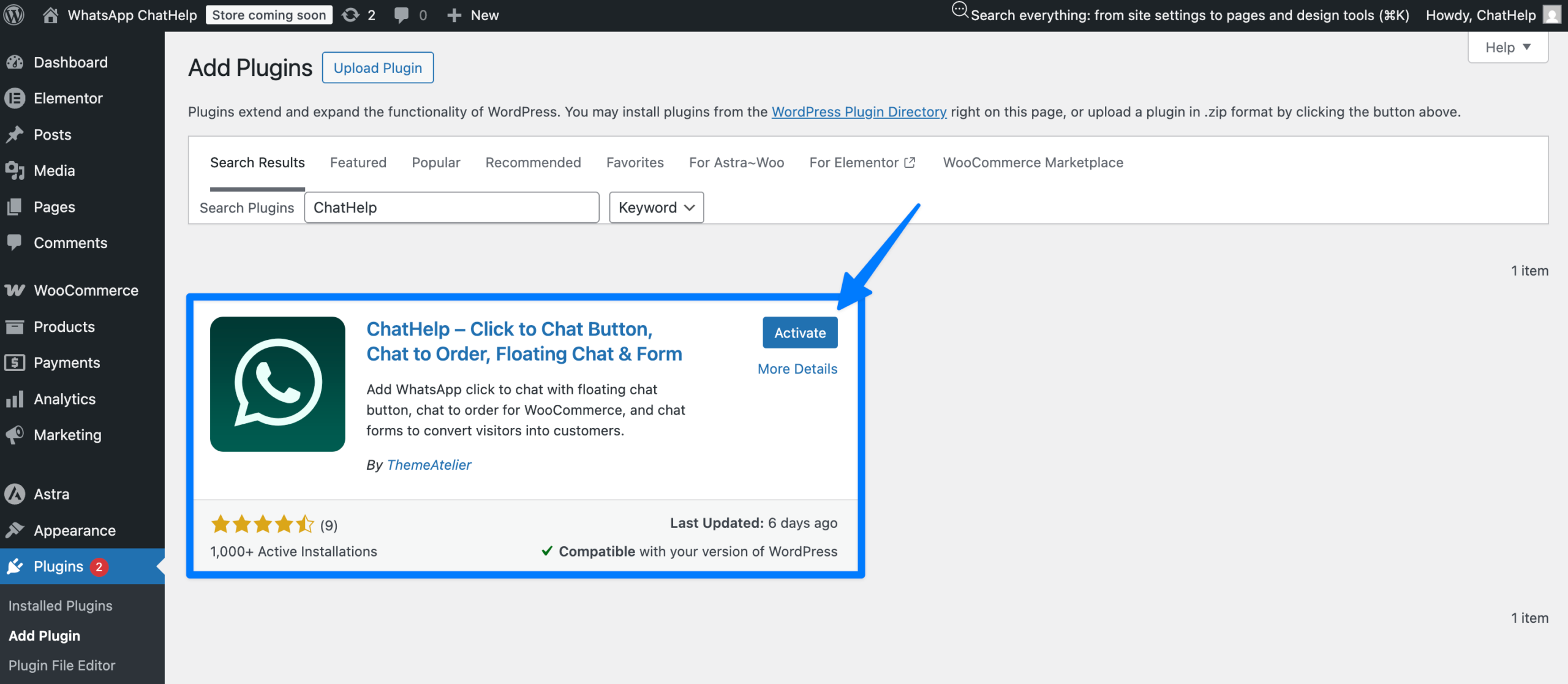
The simplest route is a click-to-chat plugin. ChatHelp is a free WordPress plugin that adds a floating WhatsApp chat button for your website. A visitor taps it, WhatsApp opens with your business number pre-filled, and the conversation lands in the Business App you just set up. No coding, no API access, and no changes to your theme.
Why does this matter for a small business? A WhatsApp number for website visitors that requires copying and pasting into a separate app loses people along the way. Most won’t bother. Meta’s 2025 Kantar research found that 72% of consumers are more likely to buy from a business they can message, so removing that friction directly affects revenue.
Setup mirrors the app: install the plugin, paste in your WhatsApp Business number, choose where the button appears, and publish. Our walkthrough on adding WhatsApp chat to WordPress covers it screen by screen, and our WhatsApp chat plugin guide compares placement and design options.
Frequently Asked Questions
Can I use my personal number for WhatsApp Business?
Yes. You can register your personal number with the WhatsApp Business App, and your existing account and chat history migrate over. The trade-off is that the number can’t run personal WhatsApp at the same time, so friends and customers share one inbox. Most businesses eventually prefer a dedicated number.
Do I need a separate SIM for WhatsApp Business?
No. WhatsApp only needs a number that can receive a one-time verification code by SMS or call. After verification, the app works over the internet, so the SIM doesn’t even need to stay in the phone. A separate SIM is a convenience for keeping business and personal chats apart, not a requirement.
Can I verify a landline for WhatsApp Business?
Yes. Enter the landline number during registration, let the SMS option time out, then choose “Call me.” WhatsApp places an automated call that reads a six-digit code aloud, which you type into the app. Make sure the call reaches a real person rather than an automated phone menu.
Can I change my WhatsApp Business number later?
Yes. The app includes a “Change number” tool that moves your account, profile, and groups to a new number, provided you can verify both the old and new numbers. Your customers, however, will need the new number to reach you, so update your website and listings at the same time.
Is WhatsApp Business free?
The WhatsApp Business App is completely free to download and use, including profiles, catalogs, and auto-replies. The WhatsApp Business Platform (API) is the paid tier: Meta charges per message for business-initiated conversations, and Business Solution Providers typically add their own software fees on top.
Can I connect WhatsApp Business to WordPress?
Yes, and you don’t need the API to do it. A free click-to-chat plugin like ChatHelp adds a floating WhatsApp button to your WordPress site. Visitors tap it and a chat opens with your Business App number, with no coding required. Install, enter your number, and publish.
Conclusion
Getting a WhatsApp Business number comes down to three decisions. Pick a number you’ll control for years, ideally a dedicated business mobile or landline rather than your personal line. Register it with the right product, which for most small businesses is the free Business App. And protect it with two-step verification and backups from day one.
Make those choices before you build your website chat experience, and everything downstream gets easier. When you’re ready to put that number to work, install the free ChatHelp plugin and your website visitors can start a WhatsApp conversation with you in a single tap.