


Your customers are already on WhatsApp. The question is whether they can reach you there when they’re ready to buy.
In 2026, WhatsApp has 3 billion monthly active users worldwide (Backlinko, WhatsApp User Statistics, April 2025), and 175 million people send a message to a business account every single day (Infobip, WhatsApp Statistics, April 2026). Yet most WooCommerce stores still rely on email follow-ups and generic contact forms — channels with open rates that top out around 20%.
Adding a WhatsApp order button to your WooCommerce store takes less than 10 minutes. When a shopper taps it, WhatsApp opens with a prefilled message about their chosen product. No forms to fill out. No email to check later. That’s the kind of friction-free experience that turns browsers into buyers.
This guide walks through the exact steps to set up a professional WhatsApp order button using the WP Chat Help plugin, including how to configure prefilled messages, customize button position, and test the full order flow before you go live.
Key Takeaways
- In 2026, WhatsApp messages reach a 98% open rate vs. ~20% for email (Gallabox, 2025).
- WhatsApp recovers 15–30% of abandoned carts vs. 2–5% for email (eGrow, 2026).
- WooCommerce powers 4.53 million stores globally — a WhatsApp order button puts you ahead of most competitors who haven’t added one yet.
- Setup with WP Chat Help takes under 10 minutes.
Table of Contents
Why Add a WhatsApp Order Button to Your WooCommerce Store?
In 2025, mobile commerce accounted for 59% of all global retail ecommerce sales, representing a $2.51 trillion market (DemandSage, Mobile Commerce Statistics, October 2025). Your shoppers aren’t sitting at desks — they’re browsing on their phones. And on a phone, tapping a WhatsApp button is faster than filling out any checkout form.
The numbers behind this are hard to ignore. According to Gallabox’s 2025 WhatsApp Business Statistics report:
- 98% of WhatsApp messages get opened, compared to roughly 20% for email.
- 81% of consumers want to message businesses about their products before purchasing.
- 74% say they’d prefer to complete purchases directly through a messaging app.
Cart abandonment is the other side of this equation. In 2025, Baymard Institute’s meta-analysis of 50 independent studies found the global average cart abandonment rate sits at 70.22% (Baymard Institute, Cart Abandonment Rate, September 2025). Brands that added WhatsApp Business follow-ups cut that rate by 25%, and WhatsApp-based recovery flows bring back 15–30% of abandoned carts — compared to just 2–5% for email (eGrow, WhatsApp Commerce Statistics 2026).
💡 Worth noting: WooCommerce now powers 4.53 million active stores and holds a 33.4% market share among tracked ecommerce platforms (Red Stag Fulfillment / StoreLeads, August 2025). A WhatsApp order button is still uncommon enough among WooCommerce stores that adding one puts you ahead of most local and regional competitors.
What You’ll Need Before You Start
Setting up a WhatsApp order button on WooCommerce doesn’t require technical skills or developer access. Here’s what to have ready:
- A WordPress site with WooCommerce installed (version 5.0 or later)
- A WhatsApp Business account — free via the WhatsApp Business app on iOS or Android. A regular WhatsApp number also works, but the Business app adds a professional profile, catalog, and auto-reply features.
- Your WhatsApp phone number with the full country code, no
+sign and no spaces (e.g.,14155552671for a US number) - Admin access to your WordPress dashboard
- Estimated time: 8–12 minutes
Step 1: Install the WhatsApp Chat Help Plugin
By the end of this step, WhatsApp Chat Help will be activated and ready to configure inside your WordPress dashboard.
- Log in to your WordPress admin panel.
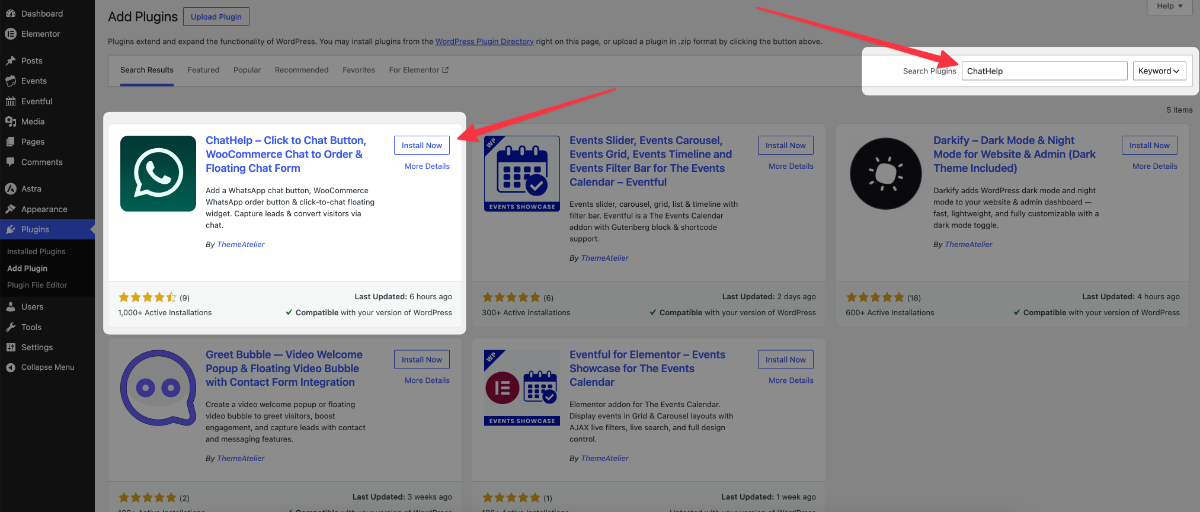
- Go to Plugins → Add New Plugin.
- In the search box, type “ChatHelp”.
- Find the WhatsApp Chat Help plugin in the results and click Install Now.
- Once installation finishes, click Activate.
The plugin adds a WhatsApp Chat menu item to your WordPress sidebar. Click it to open the settings panel.
✅ Verify this step worked: The plugin menu item appears in your sidebar and the settings page loads without errors.
💡 Tip: You can also download the plugin zip from WhatsApp Chat Help plugin page and upload it via Plugins → Upload Plugin.
Step 2: Enter Your WhatsApp Business Number
By the end of this step, the plugin knows which WhatsApp number to route conversations to.
- Inside the WhatsApp Chat Help settings, find the WhatsApp Number field.
- Enter your number in full international format — country code + number, no spaces, no
+sign. Example:447911123456for a UK number. - Add your business name or agent name in the display name field. This appears in the chat widget so customers know who they’re contacting.
- Optionally, set your availability hours. The plugin can show an offline status outside those hours, preventing customer frustration when you’re not available to respond.
- Click Save Settings.
⚠️ Common mistake here: Entering the number with the
+symbol or local formatting like(555) 123-4567breaks the WhatsApp link entirely. Use plain digits only, starting with the country code.
✅ Verify this step worked: Visit your site’s frontend — a WhatsApp button or floating widget should appear on the page.
Step 3: Set Up Your Prefilled Order Message
By the end of this step, customers who tap your WhatsApp button will open a chat with a ready-to-send message that already includes the product they were viewing — they won’t need to type anything.
- In WhatsApp Chat Help settings, find the Prefilled Message or Default Message field.
- Enter a message template for general inquiries. A solid starting point:
Hi! I have a question about your store. Can you help me? - For product-specific messages, enable WooCommerce product page integration — look for a toggle labeled “Show on product pages” or “WooCommerce integration.”
- Once enabled, set a product-level message template using dynamic variables:
Hi! I'd like to order: {product_name} — {product_url}
WhatsApp Chat Help replaces{product_name}and{product_url}with the actual product details when a customer taps the button. - Save your settings.
✅ Verify this step worked: Visit a product page, tap the WhatsApp button, and confirm WhatsApp opens with the correct product name in the prefilled message.
Why this matters: A prefilled message removes all friction from first contact. Customers don’t need to describe what they want — the message already does it. This single feature is what turns the WhatsApp button from a contact widget into an actual order channel.
Step 4: Configure the WooCommerce Product Page Button
By the end of this step, every WooCommerce product page will show a dedicated “Order via WhatsApp” button positioned to catch buyers at the moment they’re ready to act.
- In the WooCommerce integration settings, choose where the button appears on product pages:
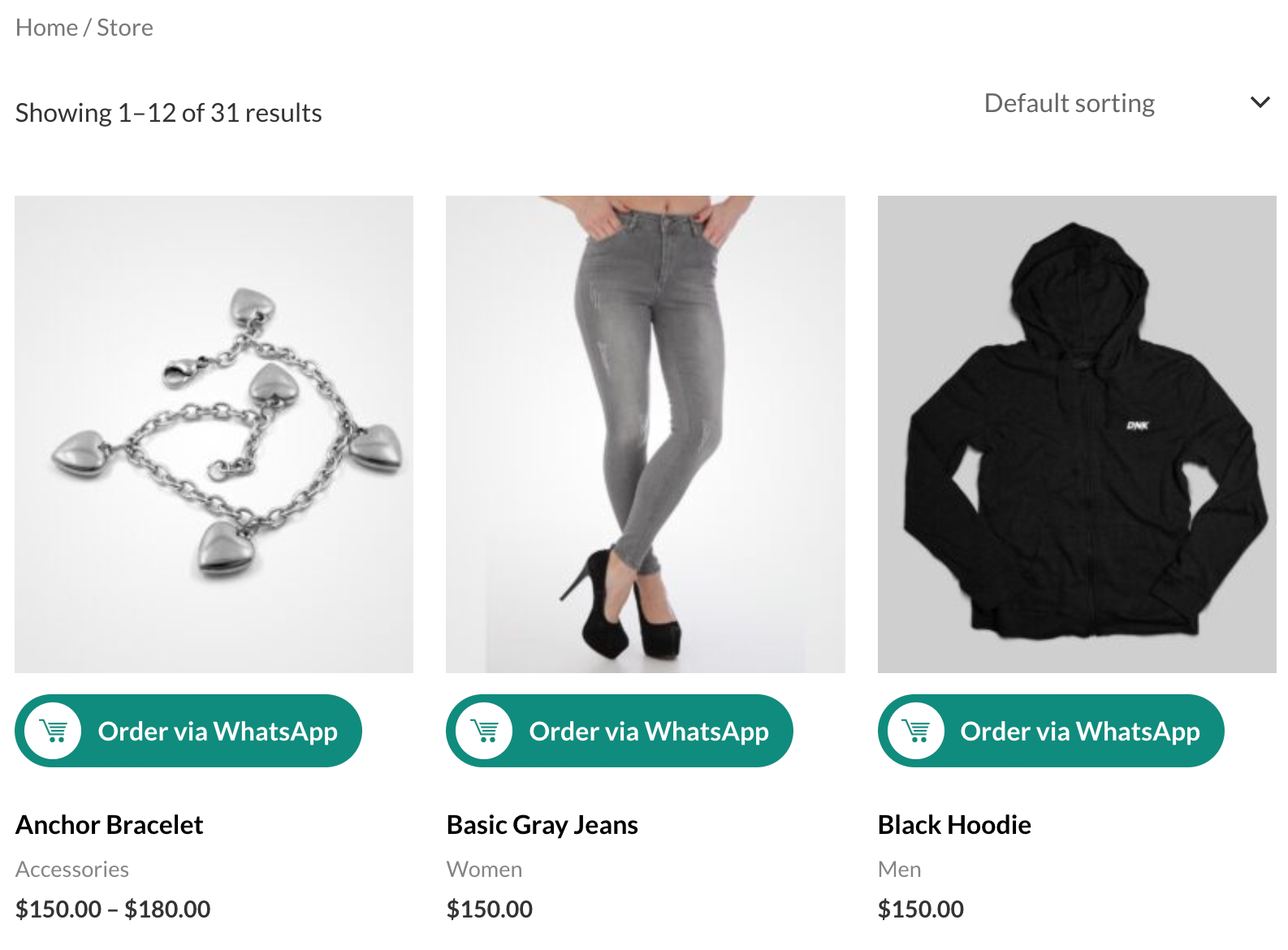
- Below the “Add to Cart” button — highest visibility, best for impulse orders
- In the product description area — less intrusive, better for complex or custom products
- Floating widget only — button stays in the corner without appearing inline
- Set the button label text. Options like “Order on WhatsApp,” “Ask About This Product,” or “Buy via WhatsApp” all work well. Keep it under 30 characters.
- Product category targeting: Use the category filter to restrict which pages show the button — useful if you only want WhatsApp for custom orders or local delivery items.
- Enable or disable visibility on mobile vs. desktop independently. Many store owners show the floating widget on both but place the inline product button only on mobile, where WhatsApp usage is highest.
- Save settings.
✅ Verify this step worked: Visit three different product pages — including one in a targeted category and one outside it — to confirm the button appears and disappears as expected.
Step 5: Customize Button Appearance
By the end of this step, your WhatsApp button matches your store’s visual style and doesn’t clash with your WooCommerce theme.
- Open the Appearance or Style settings tab in WhatsApp Chat Help.
- Set the button color. WhatsApp green (
#25D366) is universally recognized, but you can adjust the shade to match your brand palette. - Choose the icon style — a WhatsApp logo, a chat bubble, or a custom SVG if the plugin supports it.
- Adjust button size (small / medium / large) and border radius for pill-shaped or square styles.
- For the floating widget position, choose bottom-right (default — most users expect this) or bottom-left if existing theme elements occupy the right corner.
- Preview the result, then save.
💡 Worth testing: On stores with green-heavy themes or a green “Add to Cart” button, a white button with a green WhatsApp icon actually stands out more than a solid green button. Test both if click rates feel low after launch.
Step 6: Test Your WhatsApp Order Flow End to End
Before customers use the feature, run through the complete flow yourself.
- Open your store in an incognito or private browser window to avoid cached admin views.
- Navigate to a product page and tap the WhatsApp button.
- Confirm WhatsApp opens with the correct prefilled message and product name.
- Send the test message and verify it arrives on your WhatsApp Business account.
- Test on both desktop and mobile — the experience can differ, and mobile is where most of your traffic lands.
- Check your offline hours behavior: if you set availability hours, confirm the button shows the correct offline message outside those hours.
✅ What success looks like: The button appears consistently across pages, the prefilled message is accurate, WhatsApp opens cleanly on both device types, and you receive the test message within seconds.
Use Cases: How WooCommerce Stores Use WhatsApp Order Buttons
Your WhatsApp order button isn’t only for standard product purchases. Here’s how different store types put it to work:
Product questions before buying. Customers browsing clothing, electronics, or home goods often want to confirm size, compatibility, or stock before committing. A tap on the WhatsApp button starts that conversation instantly — much faster than a contact form with a 24-hour response window.
Custom and made-to-order products. If you sell personalized items — engraved jewelry, custom prints, bespoke furniture — the WhatsApp button is the natural entry point for discussing specifications before the customer even adds to cart.
Local delivery and service bookings. Local businesses (food delivery, cleaning services, repair shops) use the order button as a direct booking line. The prefilled message includes the service the customer was viewing, cutting out back-and-forth.
Abandoned cart recovery. In 2026, eGrow found that WhatsApp-based cart recovery achieves a 15–30% recovery rate, compared to just 2–5% for email. Your manual outreach through the WhatsApp button starts building the conversation history that makes follow-ups feel personal, not automated.
B2B wholesale and bulk inquiries. Store owners with a wholesale section can direct trade customers to WhatsApp for quote-based pricing — a flow the standard WooCommerce checkout can’t handle well.
Ready to Set Up Your WhatsApp Order Button?
If you’ve been following this guide, you’re a few minutes away from a live WhatsApp order button on your WooCommerce store. WhatsApp Chat Help is built specifically for WooCommerce — it handles prefilled product messages, customizable button placement, availability hours, and multi-agent support without requiring any coding.
Common Mistakes to Avoid
Most setup problems come from a handful of avoidable errors.
Formatting the phone number incorrectly. The most frequent issue: entering the number with a + sign, spaces, or local formatting like (555) 123-4567. WhatsApp links require the international format with no special characters — just digits starting with the country code.
Using a personal WhatsApp instead of WhatsApp Business. It works, but you lose the business profile, quick replies, and catalog features that make WhatsApp feel professional to customers. Set up the free WhatsApp Business app before connecting it to your store.
Using the same message for every product. A generic “Hi, I want to order something” message defeats the purpose. Spend 10 minutes configuring product-specific prefilled messages with dynamic variables. The difference in response rate is noticeable.
Not testing on mobile. WhatsApp is primarily a mobile app. A button that works on desktop may open in a browser instead of the app on mobile, creating friction at exactly the wrong moment. Test on an actual smartphone before telling customers the feature is live.
Skipping availability hours. No hours configured means customers expect instant responses around the clock. Setting realistic hours — and an offline message — prevents frustration and negative reviews.
Frequently Asked Questions
Does adding a WhatsApp order button require the WhatsApp Business API?
No. A standard WhatsApp order button uses wa.me links, which work with any WhatsApp account — including personal numbers. The WhatsApp Business API is only needed for automated messaging, bulk broadcasts, and chatbot integrations. For most WooCommerce stores, the standard button is all they need to start taking orders and answering questions via WhatsApp.
Will the WhatsApp button work on both mobile and desktop?
Yes. On mobile devices, tapping the button opens the WhatsApp app directly. On desktop, it opens WhatsApp Web or prompts a QR code scan if the user hasn’t connected their phone. Since mobile commerce represented 59% of all ecommerce sales in 2025 (DemandSage, October 2025), the mobile experience is where most of your orders will come from.
Can I show the WhatsApp button only on specific WooCommerce products or categories?
Yes. WhatsApp Chat Help includes category and product-level targeting. You can restrict the button to custom-order products, specific price ranges, or enable it store-wide. This works well for stores that want WhatsApp for high-touch products but prefer standard checkout for commodity items.
How is a WhatsApp order button different from a regular contact form?
A contact form adds steps: the customer types a message, submits it, waits for an email reply, then replies to that email. A WhatsApp button opens a conversation instantly, in an app the customer checks throughout the day. WhatsApp messages see a 98% open rate vs. roughly 20% for email (Gallabox, 2025) — meaning your replies actually get read.
Is WhatsApp Chat Help compatible with my WooCommerce theme?
WhatsApp Chat Help works with any WordPress theme, including Storefront, Astra, OceanWP, and Flatsome. The floating button renders independently of your theme markup, so there are no style conflicts. The inline product page button uses standard WooCommerce hooks that every WooCommerce-compatible theme supports. For theme-specific display adjustments, check the WhatsApp Chat Help documentation.
What happens if a customer contacts me outside business hours?
WhatsApp Chat Help lets you configure availability hours and an offline message. Outside those hours, the button either shows custom “currently unavailable” text or hides the widget entirely — your choice. This prevents customers from sending messages into a void and waiting hours without acknowledgment.
Can I route conversations to multiple WhatsApp agents or team members?
Yes. WhatsApp Chat Help supports multi-agent configuration, letting you assign different WhatsApp numbers to different departments — sales, support, custom orders. Customers can choose who to contact, or you can route them automatically based on the product category they’re viewing. See the Feature overview for details on team routing.
Conclusion
Adding a WhatsApp order button to WooCommerce is one of the fastest improvements available to any online store right now. With WhatsApp open rates at 98%, mobile commerce making up the majority of ecommerce sales, and cart recovery rates that outperform email by up to 10x, the case isn’t theoretical — the data backs it up.
The setup takes under 12 minutes with WhatsApp Chat Help. The result is a direct line between your products and your customers, on the platform they already trust for daily communication.